Blog
Best System-Level Website Blockers in 2026
Browser extensions are easy to bypass. Compare the 10 best system-level website blockers in 2026 — from AI-native desktop tools to network-wide DNS filters.
 Mil Hoornaert · 14 min read
Some links are affiliate links. We may earn a commission if you buy through them, at no extra cost to you.

Browser extensions are easy to bypass. Open a different browser and the block disappears. System-level blockers work at a deeper layer, so there's no workaround. Here are the 10 best options right now, from AI-native desktop tools to network-wide DNS filters, and who each one is actually for.
1. LockIn MCP (Our Top Pick) , AI-Native System-Level Blocking for Makers
LockIn MCP is the only blocker we found that pairs true system-level blocking with AI agents that actively identify and block distracting sites. It runs on macOS, Windows, and Linux, so it covers the full desktop picture without asking you to install a browser extension.
The AI side is what sets it apart. Instead of you hunting down every distracting URL by hand, LockIn's AI agents spot patterns and block them for you. That matters for indie developers and freelancers whose distraction list keeps growing. Blocks are enforced at the OS level, meaning they survive browser switches and can't be lifted by toggling an extension.
The caveat: LockIn MCP is desktop-only. If you need mobile blocking on iOS or Android, you'll need a separate tool. But for deep-focus work on a desktop machine, nothing else in this list combines cross-platform reach with AI-driven detection. If you want to see exactly how the blocking mechanism works at the system layer, the LockIn MCP how-it-works page walks through it clearly.
Key Takeaway
LockIn MCP is the only tool in this shortlist that combines AI-driven site detection with OS-level blocking across all three major desktop platforms.
2. Cold Turkey , Iron-Clad Desktop Blocking With No Escape Hatch
Cold Turkey is a desktop app for Windows and Mac that blocks at the system level rather than inside the browser. Once a block is active, you cannot disable it, not even by uninstalling the app mid-session.

The free version covers website blocking only. The Pro version, a one-time payment of $39, adds application blocking, scheduled blocks, and the signature frozen-timer feature that holds a block in place for a set period with no override. That one-time pricing is appealing if you're tired of paying monthly for a tool you'll use daily for years.
Cold Turkey has no mobile support and doesn't sync across devices. It's also not a subtle tool. When you set a block, it holds. Some users actually want that severity, but it can feel aggressive if you occasionally need a legitimate five-minute detour. Best suited for Windows or Mac users who've already tried softer solutions and found them too easy to skip.
3. Freedom , Cross-Device Blocking With Locked Mode
Freedom works across Mac, Windows, iOS, and Android, and it lets you sync a single block session across every device at once. That's genuinely useful if you find yourself picking up your phone the moment your laptop gets blocked.
Locked Mode is the standout feature. Once you start a session in Locked Mode, you can't stop it early. Freedom reports that its users gain an average of 2.5 hours of productive time per day, which lines up with broader research on how much time digital distractions cost knowledge workers. Scheduling is flexible: you can set recurring blocks for your most vulnerable hours and build them into a daily habit.
The main friction is cost. Pricing is available on the Freedom website, and it's worth checking if you're comparing extension-free blockers. Freedom also doesn't support Firefox, which will annoy anyone who uses it as their primary browser. For people who genuinely switch devices to dodge a block, it's worth the price. For everyone else, the tools below cover desktop blocking at a lower cost.
4. FocusMe , Gradual Usage Control Across All Major Platforms
FocusMe runs on Windows, macOS, Linux, and Android, and it's built for people who want to moderate usage rather than cut it off entirely. You can set a 30-minute daily allowance for Reddit, for example, and the site auto-blocks once that time is used up.
Enforced Mode is what makes FocusMe serious. When it's on, the app can't be uninstalled or disabled during a session. It also adds random character challenges to slow down impulsive disabling, and plan hardening ensures you can only increase your protections mid-session, never weaken them. The built-in AI Coach analyzes your usage patterns, flags burnout risk, and suggests specific changes to your block schedules. That AI layer can be applied to your plans in one click.
Pricing varies by plan, with a money-back guarantee and a free trial that requires no credit card. The interface has a lot of options, which some users find overwhelming at first. But if you want the most configurable desktop blocker available, FocusMe is it.

5. DigitalZen , Cross-Browser Enforcement on Windows, macOS, and Linux
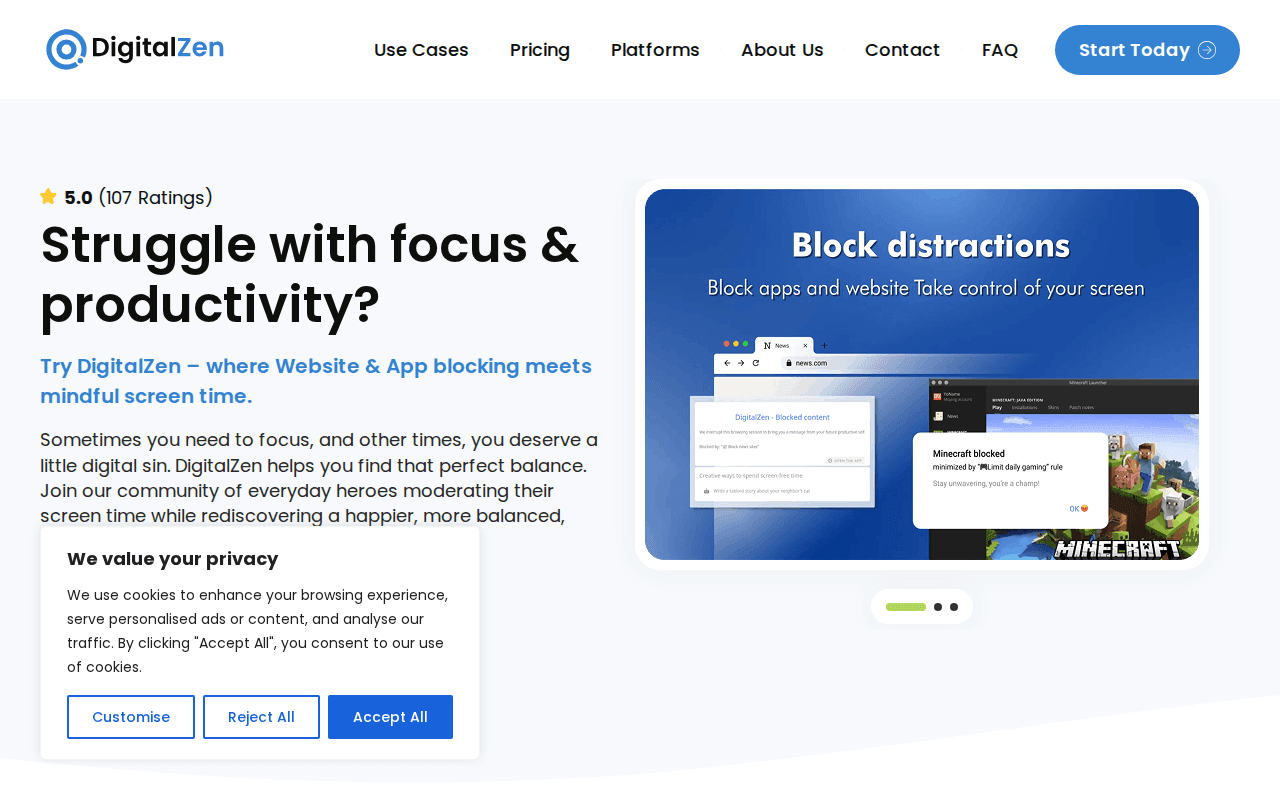
DigitalZen covers Windows, macOS, and Linux with cross-browser blocking and app blocking, no extension required. It's aimed at users who want some flexibility in how strict their blocks are, with adaptable lock strength depending on the session.
The positioning is a bit different from Cold Turkey or FocusMe. DigitalZen leans into the idea of balance rather than total restriction, which suits people who want to cut habitual scrolling without going cold turkey on entire categories of apps. The community focus and screen-time mindfulness angle make it feel less punitive than some competitors.
Specific pricing details weren't available in our research, so check the DigitalZen site directly for current plans. It's a newer tool compared to Cold Turkey or Freedom, and it holds a 5.0 rating from 107 user reviews, which is notable even at a smaller sample size. Good pick for Linux users who want something more polished than a raw hosts-file edit.
6. SelfControl , Free, Strict, and Uncompromising for macOS
SelfControl is a free, open-source macOS app that modifies your system's hosts file to block a list of sites for a set amount of time. Once the timer starts, deleting the app or restarting your Mac won't lift the block. It holds until the timer runs out.
That simplicity is the whole appeal. There's no account, no subscription, no settings menu with forty options. You add your block list, set a duration, and hit start. It's ideal for short, high-stakes focus sessions where you need to eliminate a handful of specific sites.
The downside is that hosts-file modification is less strong than true system-level blocking. A technically savvy user could edit the hosts file directly to undo a block. For most people that's not a real concern, but it means SelfControl isn't the right choice if you're trying to block yourself from something you're genuinely determined to reach. macOS-only, no scheduling, no AI features. Free, strict, and simple.
7. Pi-hole , Network-Wide DNS Blocking for Every Device at Home
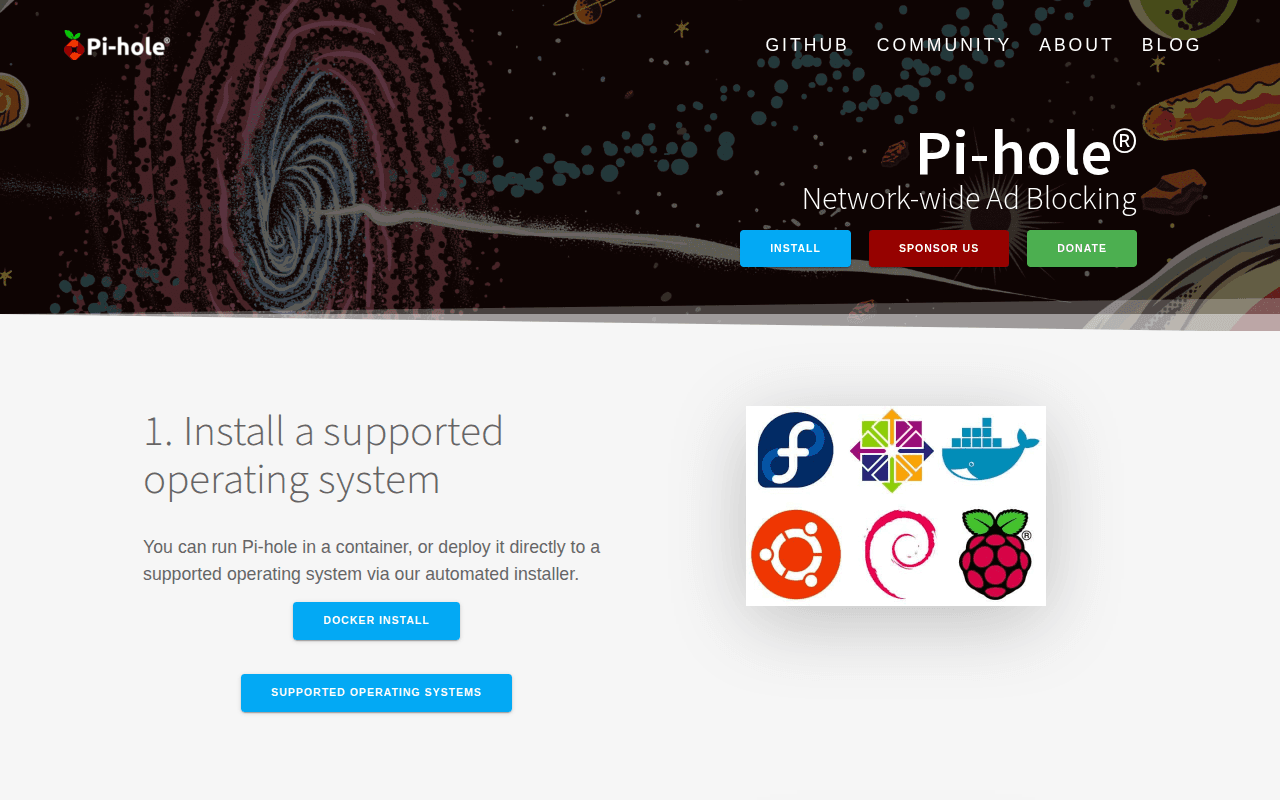
Pi-hole runs on a Raspberry Pi and acts as a DNS filter for your entire home network. Every device that connects to your Wi-Fi, including smart TVs, game consoles, and tablets, gets the benefit without any software installed on those devices.
The way it works: your router sends DNS queries through the Pi-hole, which checks each domain against a block list before the request reaches the internet. If a domain is on the list, the connection is blocked before the page loads. This makes it excellent for ad blocking at scale. Pi-hole works by monitoring and proactively blocking any requests made to known advertisement and marketing technology web domains, which means it can strip ads from native applications and smart TVs that don't support browser extensions at all.
One important clarification: Pi-hole is a DNS and network-layer filter, not a system-level desktop blocker. It doesn't block apps directly on a single machine the way Cold Turkey or LockIn MCP do. It's best for home network hygiene and family filtering rather than personal deep-focus sessions. Setup requires comfort with a Raspberry Pi, static IP assignment, and DHCP configuration on your router. Not plug-and-play, but the payoff is whole-home coverage from a single device. If you want to protect every connected device in a small office environment, pairing Pi-hole with a solid small business firewall gives you layered network protection.
8. Chronoid , AI-Powered Tracking and Blocking for Mac Knowledge Workers
Chronoid is a macOS tool that combines automatic time tracking with a system-level website blocker. The blocking uses a privileged helper to enforce hosts and DNS blocking at the OS layer, so it applies across all browser traffic rather than inside a single extension.
The AI chat interface lets you query your own productivity data and get suggestions based on actual usage patterns. You can set schedules, create domain rules with regex matching, and temporarily disable blocking for 1 minute, 15 minutes, or an hour when you genuinely need access. The integration between the time tracker and the blocker is the real value: you can see whether your block schedules actually line up with your focused work periods and tune them over time.
Website blocking is a paid feature, with a 7-day free trial and no credit card required. Chronoid is macOS-only, which limits the audience, but for Mac-based freelancers and knowledge workers who want tracking and blocking in one place, it's a strong combination.
9. Norton Family , Parental-Control Website Blocking Across Devices
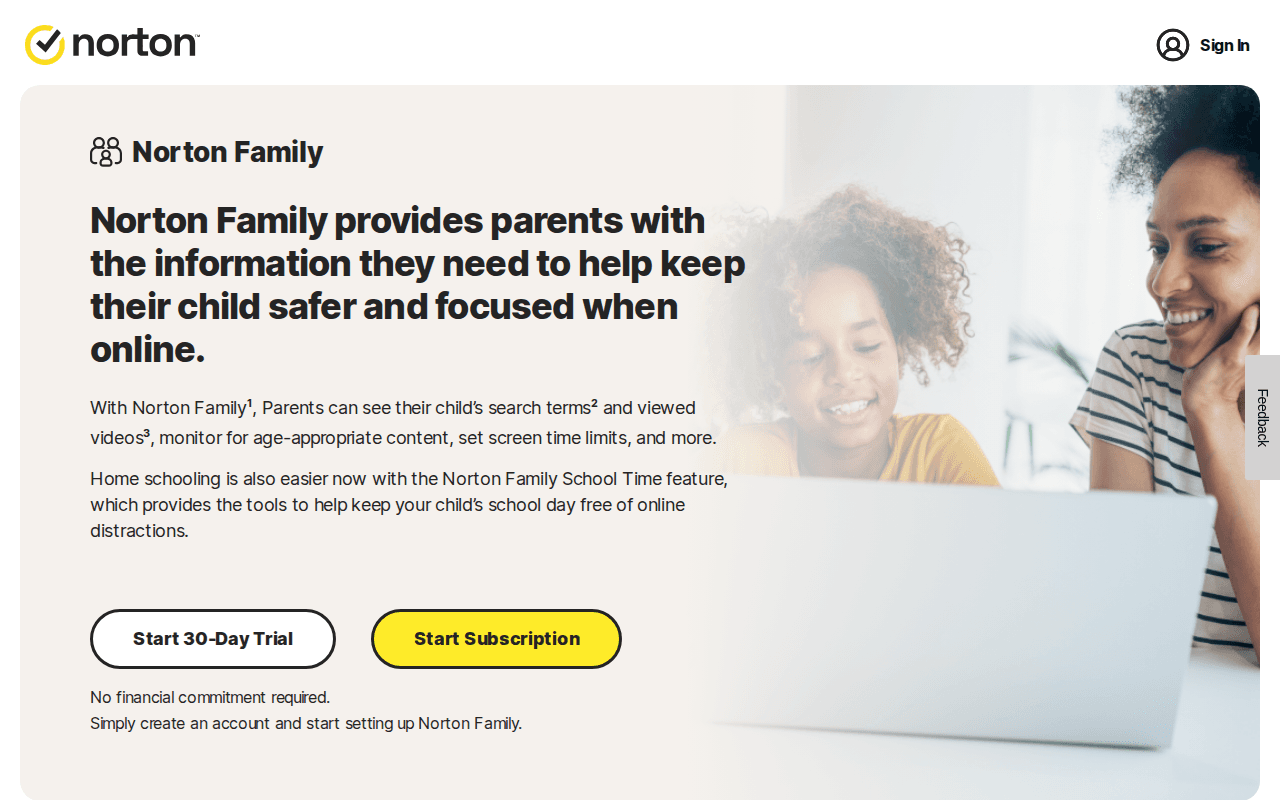
Norton Family is built for parents, not for personal productivity. It runs on Windows, Android, and iOS, and it lets you set per-child blocking schedules, content category filters, and screen time limits from a central dashboard.
The supervision angle means you get reporting alongside blocking. You can see what sites a child tried to visit, set time limits per day, and adjust rules remotely. That's a different use case than the tools above, which are mainly about self-imposed focus. Norton Family fits families where one person manages rules for several others rather than a single adult trying to stay off social media.
It doesn't cover macOS or Linux, and it's not designed for self-blocking. Pricing varies, so check Norton's site for current plans. If you're looking for a personal focus tool rather than a parental control system, the other options on this list are a better fit.
10. AdAway , Hosts-File Blocking for Rooted Android Users
AdAway is a free, open-source Android app that modifies the device's hosts file to block ads and domains network-wide on a single phone or tablet. It requires a rooted Android device, which puts it out of reach for most casual users but makes it very powerful for those who have it.
Because it works at the hosts-file level rather than through a VPN or a browser extension, it blocks across every app on the device including ones that don't support traditional ad blockers. The block lists are community-maintained and regularly updated. There's no subscription, no account, and no data collection.
The root requirement is the real barrier. Rooting an Android device voids most warranties and can introduce security risks if done incorrectly. For technical users who already run rooted devices, AdAway is one of the cleanest system-level blocking options available on Android. For everyone else, Freedom or Norton Family are more accessible alternatives for mobile.
Pro Tip
If you're evaluating blockers for a shared office or home network, consider pairing a per-device tool like LockIn MCP for deep-focus work with a network-layer filter like Pi-hole for whole-home coverage. They serve different jobs and work well together.
How to Choose the Right System-Level Website Blocker
The main split is between tools that block on a single machine and tools that block at the network level. If you want to stop yourself from visiting specific sites during work hours, a desktop tool like LockIn MCP gives you the most control. If you want to filter every device in a home or small office without touching each one, Pi-hole or a DNS service is the right layer.
Beyond that, here are the decision points that actually matter:
- Bypassability: Browser extensions can be disabled in seconds. True system-level tools like LockIn MCP, Cold Turkey, and FocusMe block across all browsers and can't be switched off mid-session. If you're prone to disabling your own blocks, this is the most important factor.
- Platform: About 25% of tools in this category support only macOS. If you work across Windows, macOS, and Linux, your options narrow to LockIn MCP, FocusMe, and DigitalZen.
- AI features: AI-driven blocking is still rare. Only four tools in this shortlist include any AI layer: LockIn MCP, FocusMe (AI coach), Chronoid (AI chat interface), and Norton Family (content filtering). If you want automated detection rather than manual list-building, LockIn MCP is the most advanced option.
- Mobile coverage: LockIn MCP, Cold Turkey, and SelfControl are desktop-only. Freedom and Norton Family extend to iOS and Android.
- Budget: SelfControl and AdAway are free. Cold Turkey is a one-time purchase. The rest use subscriptions, though FocusMe and Freedom both have annual plans that reduce the monthly cost significantly.
Comparison Table: Best System-Level Website Blockers at a Glance
Use this table to compare the tools side by side. The "Blocking Method" column shows whether the tool operates at the OS level, hosts-file level, or DNS/network layer, since that determines how hard it is to bypass.
FAQ
What makes a website blocker "system-level"?
A system-level website blocker operates at the operating system layer rather than inside a single browser. It intercepts traffic before a browser processes it, which means switching browsers or disabling a browser extension won't bypass the block. Tools like LockIn MCP and Cold Turkey use this approach. Hosts-file blockers like SelfControl are similar but slightly easier to work around by manually editing the hosts file. The hosts file is one of the oldest mechanisms for domain-level traffic control on a local machine.
Can I use a DNS blocker instead of a desktop app?
Yes, but they serve different purposes. A DNS blocker like Pi-hole filters traffic at the network level, which covers every device on your Wi-Fi without software on each one. It's great for whole-home filtering. A desktop app like LockIn MCP blocks on a single machine at the OS level, which is harder to bypass and better for personal focus sessions. Many people use both: Pi-hole for the network and a desktop tool for deep work.
Which system-level blocker works on Linux?
LockIn MCP, FocusMe, and DigitalZen all support Linux in addition to Windows and macOS. That's a short list. Most blockers in this category focus on Windows and Mac and skip Linux entirely. SelfControl is macOS-only, and AdAway is Android-only. If Linux support is a requirement, LockIn MCP is the strongest option because it also adds AI-driven detection that the others lack on that platform.
Is there a free system-level website blocker?
SelfControl is completely free for macOS and uses hosts-file blocking that survives reboots and app deletion. AdAway is free for rooted Android devices. Pi-hole is free software but requires a Raspberry Pi or spare machine to run. Cold Turkey has a free tier that covers website blocking without the Pro features. LockIn MCP, FocusMe, and Freedom all offer free trials before requiring a paid plan.
Can these blockers be bypassed?
It depends on the tool. Cold Turkey and FocusMe with Enforced Mode are among the hardest to bypass: they prevent uninstallation during a session and use system-level hooks that survive browser switches. Hosts-file tools like SelfControl can technically be bypassed by editing the file directly. DNS tools like Pi-hole can be bypassed by changing a device's DNS settings. LockIn MCP's OS-level approach makes casual bypassing difficult, which is why it fits developers who need blocks to actually hold.
Do website blockers slow down my internet?
Desktop app blockers have no measurable impact on internet speed because they intercept traffic locally before it hits the network. DNS blockers like Pi-hole can actually speed up browsing by blocking ad requests before they load. Blocking ad domains network-wide means pages load faster because dozens of tracking requests never fire. Network-level filtering at the router adds minimal latency, typically under a millisecond.
Conclusion
If you're a developer, freelancer, or maker who needs blocks that actually hold on macOS, Windows, or Linux, LockIn MCP is the pick. It's the only tool here that combines true OS-level enforcement with AI agents that identify distracting sites for you, so your block list grows smarter over time. Try it free at lockinmcp.com and see whether the AI-driven approach makes a difference in your actual workday.
