Blog
Best System-Level Website Blockers for Mac and Windows
Browser extensions are easy to bypass. Compare the 7 best system-level website blockers for Mac and Windows — from AI-native hosts blocking to hardcore desktop enforcement.
 Mil Hoornaert · 12 min read
Some links are affiliate links. We may earn a commission if you buy through them, at no extra cost to you.
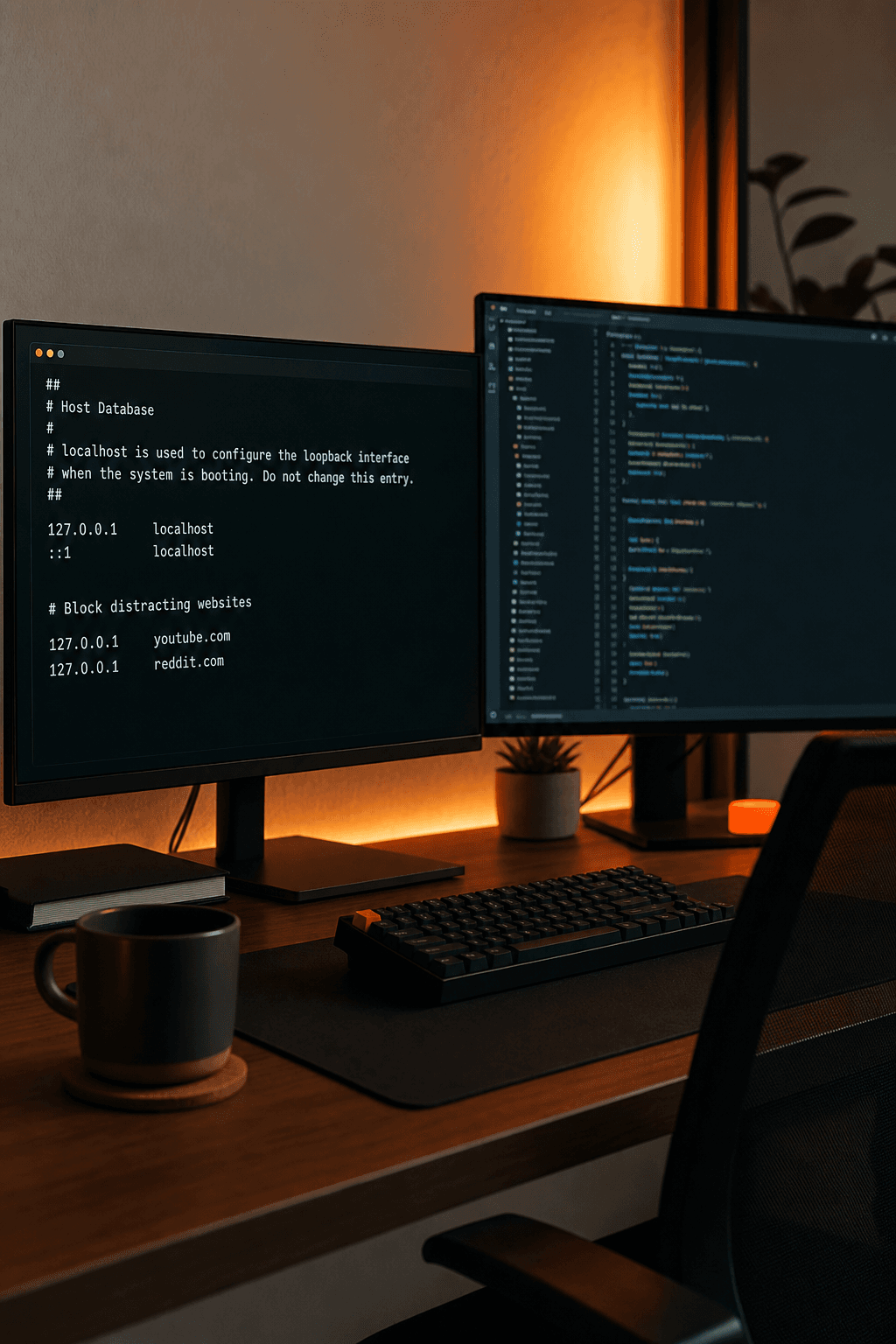
Browser extensions are easy to bypass. Open a different browser, disable the extension, or go incognito and you're back on Reddit in 30 seconds. System-level website blockers work differently: they edit your operating system's hosts file or run a background daemon that no browser can see around. Here are the seven best options right now, starting with our top pick.
1. LockIn MCP (Our Top Pick) , AI-native blocking at the OS level
LockIn MCP is built for indie developers, freelancers, and makers who already use AI assistants and want blocking that works the same way those tools do: through direct commands, no fuss. It edits your system's hosts file directly, which means YouTube, Reddit, or any site you block stays blocked whether you open Chrome, Firefox, Arc, or any other browser.
The "MCP" part stands for Model Context Protocol. LockIn exposes a set of tools your AI assistant can call:block_siteto add a domain to your hosts file, andunblock_tempto grant a timed window with an automatic expiry. You connect it to Claude, ChatGPT, or Poke and then just ask it to start a focus session. The AI handles the rest.
A cross-platform daemon runs in the background on macOS, Linux, and Windows. It keeps your blocks synced, manages temp-unblock timers, and keeps the MCP server alive so your assistant can call it anytime. There's no browser extension to disable. No app to quit. The block lives at the network layer.
Install is a single terminal command: npx -y lockin-mcp install. That verifies your license, lets you pick sites to block, and connects MCP in minutes. For teams or individuals who already live in AI tools, that frictionless setup is a real advantage over older blockers that require clicking through GUI wizards.
Key Takeaway
LockIn MCP is the only blocker on this list that your AI assistant can control directly, making it the best fit if you work inside Claude, ChatGPT, or similar tools every day.
One honest caveat: it's a developer-leaning tool. If you're not comfortable with a terminal command and don't use AI assistants in your workflow, one of the GUI-first options below may feel more natural. But if you do use AI tools, LockIn is in a different class from everything else here.
2. Cold Turkey , Hardcore blocking for Windows and Mac
Cold Turkey has a reputation as the toughest blocker on the market. Once you start a block, you can't undo it until the timer runs out , not even by uninstalling the app. It blocks at the system level by intercepting DNS requests and modifying hosts entries through a background Windows service or macOS daemon, so switching browsers does nothing.
The free version lets you block unlimited websites and apps. The paid Blocker Pro tier adds scheduled blocks, break time controls, and the ability to lock your own settings with a randomized password you won't know until the session ends. That last feature is deliberately painful, which is the point.
Cold Turkey also blocks desktop applications, not just websites. If you find yourself opening Slack or Steam instead of Reddit when you're procrastinating, you can put those in the block list too. That app-level blocking is something most site-only blockers miss.
Where Cold Turkey falls short is flexibility. If you genuinely need to access a blocked site mid-session for a legitimate reason, you have almost no recourse. There's no AI-controlled temp-unblock, no accountability partner system baked in. It's a blunt instrument, intentionally. For people who need maximum willpower enforcement and don't trust themselves with escape hatches, that's a feature. For everyone else, it can feel punishing. Cold Turkey's official site has full feature breakdowns and pricing for both tiers.
3. Freedom , Cross-platform blocking with session scheduling
Freedom works across Mac, Windows, iOS, and Android , and it syncs your block sessions across all of them simultaneously. If you start a session on your Mac, your phone loses access to those same sites at the same time. That cross-device reach is where Freedom stands out from most desktop-only blockers.
On the desktop, Freedom installs a background service that blocks at the network level. It doesn't rely on browser extensions, so switching browsers doesn't help. You can build custom blocklists, use pre-made category lists (social media, news, adult content), or lock in recurring sessions that fire at the same time every day.
The "Locked Mode" option lets you make sessions unbreakable for their duration. But Freedom's default is softer than Cold Turkey's: you can stop a session with a little friction rather than zero recourse. That middle-ground approach suits people who need flexibility occasionally but still want real enforcement most of the time.
Freedom runs on a subscription model. There's a free trial that gives you a handful of sessions to test it, then you pay monthly or yearly. The price is reasonable for what you get, but it is an ongoing cost where Cold Turkey's Blocker Pro is a one-time purchase. If you primarily work on one machine and don't need phone blocking, that cost comparison is worth thinking through.
Pro Tip
Use Freedom's recurring session scheduler to automatically block social media sites every morning before you start work , that way you don't have to remember to start a session manually when you're already distracted.
4. Focus Plant , Gamified blocking for Mac and Windows
Focus Plant adds a game layer on top of system-level blocking. You grow a virtual plant during focus sessions, and the plant dies if you break focus early. It sounds gimmicky, but for some people that small visual commitment is exactly the nudge they need to stay off distraction sites.
Underneath the gamification, Focus Plant does block at the OS level. It modifies your hosts file rather than relying on a browser extension, so the blocks hold regardless of which browser you use. You can set custom blocklists, schedule sessions, and track your focus streaks over time.
The app targets people who respond better to positive reinforcement than to hard locks. Where Cold Turkey's selling point is pain, Focus Plant's is progress. Your garden grows over weeks of consistent sessions, giving you a visual history of your focus habits. It's a different psychological approach to the same underlying problem.
Focus Plant is available on Mac and Windows, with mobile companions on iOS and Android. The desktop apps are the core of the product. One limitation: it's not as configurable as FocusMe or Cold Turkey. If you need fine-grained scheduling, app blocking, or team features, Focus Plant's relative simplicity may frustrate you. It's best suited to solo users who find gamification genuinely motivating rather than annoying.
5. SelfControl , Free no-bypass blocker for macOS
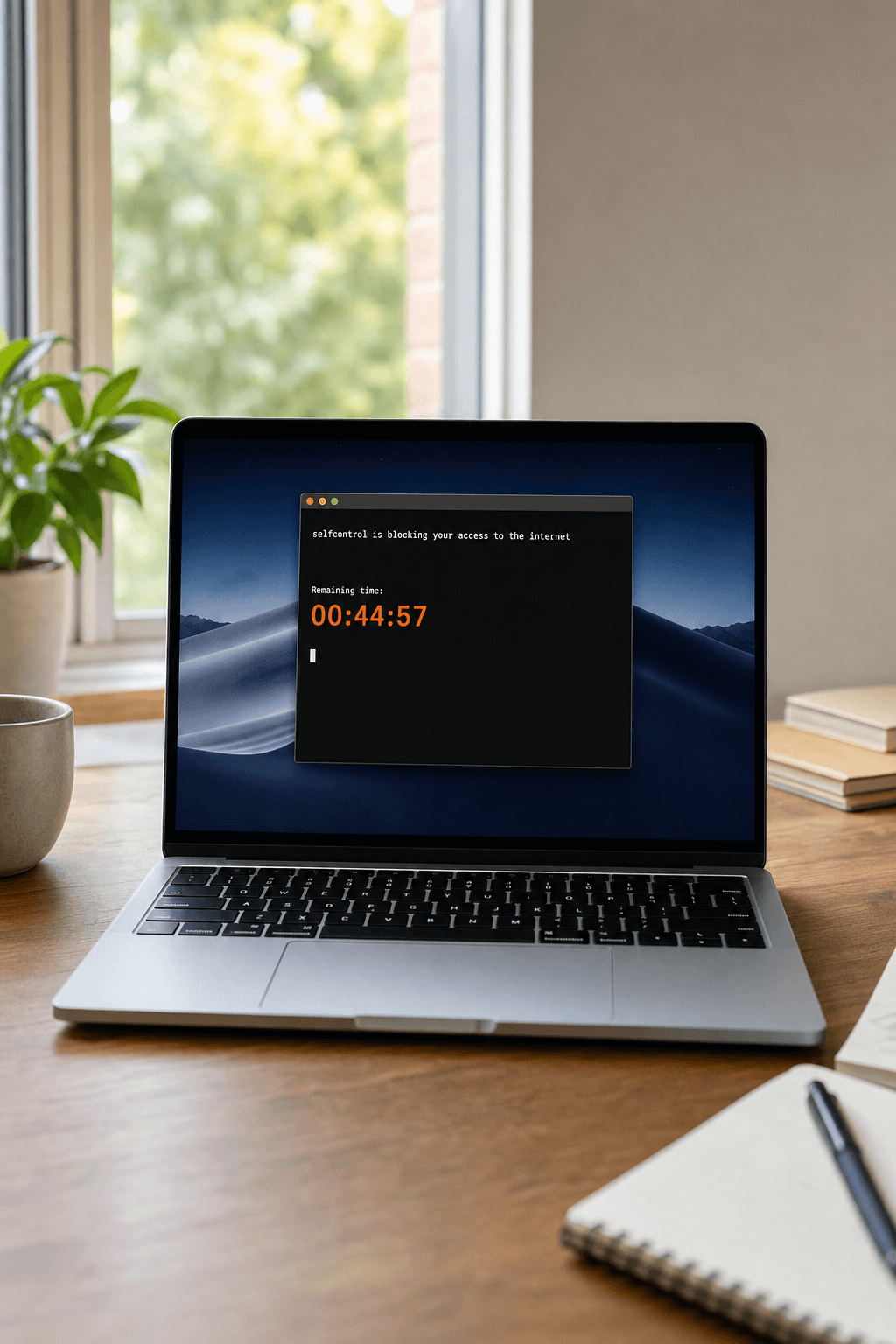
SelfControl is free, open source, and macOS-only. It works by adding domains to your system's hosts file and then starting a countdown timer. Once that timer starts, nothing stops the block: not restarting your Mac, not deleting the app, not creating a new user account. The block runs until the timer expires, full stop.
That permanence is baked into how it works at a low level. It uses macOS's hosts file) combined with additional firewall rules, so there's no single app process to kill. Even developers who know exactly what it's doing struggle to reverse an active SelfControl block without waiting it out.
The trade-off is that SelfControl is bare-bones. There's no scheduling, no sync across devices, no app blocking, no gamification, and no AI integration. You open it, add sites to your blacklist, set a timer, and click start. That's the entire product. For someone who wants simplicity and a zero-cost option on Mac, that's fine. For anyone who needs Windows support, SelfControl isn't an option at all.
SelfControl also hasn't seen major updates in a while. It works on recent macOS versions, but the project is community-maintained rather than commercially driven. If you rely on it daily and something breaks after a macOS update, you're dependent on the open source community for a fix. That's an acceptable risk for a free tool, but worth knowing before you build your focus workflow around it.
6. FocusMe , Scheduled and forceful blocking for Windows and Mac
FocusMe is one of the most configurable blockers on this list. It runs as a background service on both Windows and Mac, blocking at the system level so browser choice is irrelevant. Where it earns its spot is in the depth of its scheduling and override controls.
You can build recurring schedules that fire automatically at set times. You can create different profiles for different types of work. You can set the override difficulty , from easy (click to dismiss) all the way to fully locked where no override is possible. That flexibility means FocusMe scales from gentle nudges to hard enforcement depending on what you need that day.
FocusMe also blocks desktop applications, not just websites. If Steam or a game launcher is your distraction of choice, you can add it to a block plan just like a website. That puts it in the same territory as Cold Turkey for users whose procrastination isn't web-only.
Pricing is subscription-based. There's a free trial period, and then you pay yearly. The FocusMe site details the current plans. One genuine limitation: the interface feels busy. There are a lot of options, and it takes time to set up the configuration you actually want. Users who prefer simple one-click blocking will find FocusMe overkill. But for people who want precise control over when and how blocks engage, that depth is worth the setup time.
FocusMe also has parental control features, which makes it one of the few tools here that works equally well for individuals managing their own habits and for parents managing household devices. That dual-use positioning is unusual in this space. If malware or other security threats are a concern alongside distraction blocking, some users also look at tools like those reviewed in guides on the best firewall options for small business networks as a complementary layer of protection.
7. 1Blocker , System-wide content blocking for Mac
1Blocker is primarily an ad and content blocker for macOS and iOS, but its system-wide blocking capabilities put it on this list. On Mac, it uses Apple's native content-blocking APIs to filter traffic at a level that applies across Safari and other browsers that respect those system settings.
It's not a hosts-file editor in the same way as SelfControl or LockIn MCP. Instead, it works through macOS's built-in network extension framework, which means it's tightly integrated with the operating system and doesn't require root-level permissions to run. That's a meaningful difference for users who don't want to grant an app deep system access.
1Blocker's focus is content and privacy filtering: ads, trackers, social widgets, and custom rules you define. The custom rules let you block specific domains entirely, which is where it overlaps with the other tools on this list. You can add any site to a block list and it won't load in any supported browser.
The downside compared to dedicated distraction blockers: 1Blocker has no timer, no scheduling, no locked mode, and no session concept. Unblocking a site is a few taps away, which means it offers minimal resistance to someone who wants to check Twitter mid-afternoon. It's better suited to people who want persistent site filtering (always block news sites, always block social media) rather than enforced focus sessions with time limits. Also, it's Mac and iOS only , Windows users should look elsewhere.
How to Choose a System-Level Website Blocker
The right tool depends on a few factors that matter more than feature count. Work through these before you decide.
If you use AI tools in your day-to-day work, LockIn MCP's FAQ covers exactly how the MCP server, background daemon, and temp-unblock system work together , worth reading before you install anything else. For everyone else, match enforcement hardness to your actual self-control level. Picking the gentlest tool and then wondering why it's not working is the most common mistake in this space.
"A blocker that's easy to override isn't a blocker , it's a suggestion. Pick the enforcement level that matches how much you actually trust yourself, not the one that sounds most reasonable."
FAQ
What makes a website blocker "system-level" versus a browser extension?
A system-level website blocker works at the operating system layer, typically by editing the hosts file or running a network-level service. This means every browser, app, and process on your computer is affected. A browser extension only blocks inside that one browser , open a different browser and the block disappears. System-level blocks are significantly harder to bypass accidentally or intentionally.
Can I bypass a system-level blocker by using a VPN?
Some system-level blockers can be bypassed with a VPN, and some can't. Tools like LockIn MCP that edit the hosts file are generally resistant to VPN bypass because the block resolves before traffic leaves the machine. Blockers that rely purely on DNS filtering are more vulnerable to VPN bypass. If VPN resistance matters to you, check whether the tool uses hosts-file editing or DNS interception.
Is there a free system-level website blocker for Mac?
Yes. SelfControl is free and open source, and it works on macOS by editing the hosts file and adding firewall rules. Once you start a session, the block holds until the timer expires , even if you restart your Mac or delete the app. It's basic, with no scheduling or app blocking, but it's genuinely effective for macOS users who don't need cross-platform support.
Do system-level blockers work on all browsers including Chrome and Firefox?
Yes. Because they operate at the OS level rather than inside a browser, system-level blockers affect every browser installed on your computer. Chrome, Firefox, Safari, Arc, Edge, Brave , none of them can load a blocked domain. This is the main reason to choose a system-level tool over a browser extension, especially if you tend to switch browsers when you want to get around a block.
Will a system-level blocker slow down my internet connection?
No, not in any meaningful way. Tools that edit the hosts file add only a negligible lookup step for blocked domains , the block happens locally in microseconds. Network-level blockers that use a background daemon may add a tiny overhead, but it's well below what any user would notice during normal browsing or work. These tools don't route your traffic through external servers, so latency stays unchanged.
Can I use a system-level blocker to protect other users on shared computers?
Some can, some can't. Cold Turkey and FocusMe both offer settings that apply blocks system-wide and can be locked so other users on the same machine can't remove them. SelfControl's blocks persist across user accounts on the same Mac. LockIn MCP applies blocks at the hosts-file level, which affects all accounts on the machine. If parental controls or multi-user enforcement is your goal, FocusMe has the most explicit support for that use case.
Conclusion
If you use AI assistants in your workflow, LockIn MCP is the clear first choice , it's the only option here that lets your AI control your focus sessions directly, and the hosts-file blocking means no browser tricks undo it. For pure willpower enforcement without any AI layer, Cold Turkey is the bluntest instrument available. Pick the tool that matches how you actually work, then commit to it. Try LockIn MCP free at lockinmcp.com and run the one-line install to see how fast a real system-level block feels compared to anything browser-based.
