Blog
How to Customize Website Blocking Settings for Better Focus
 Mil Hoornaert · 14 min read
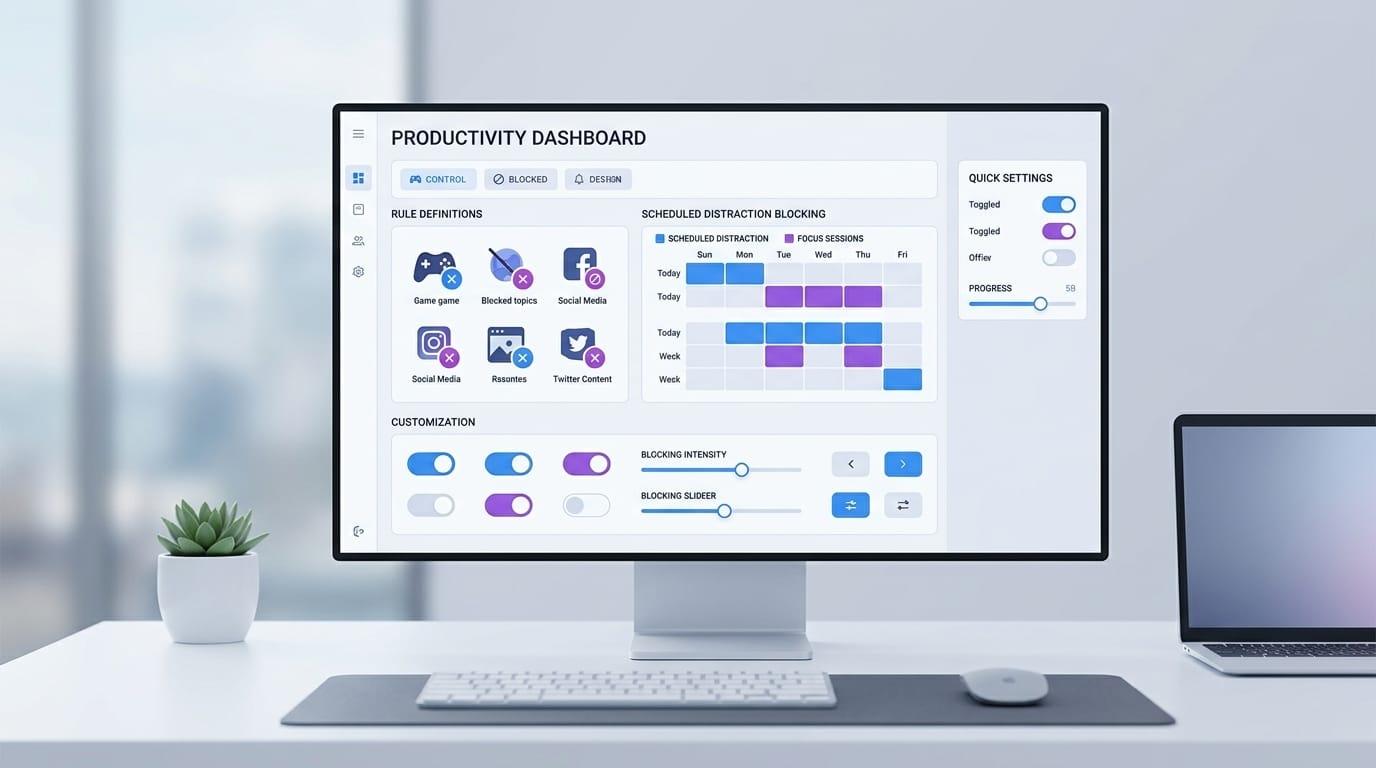
Customizing blocking settings lets you control which sites are blocked, when blocks activate, and how strict enforcement should be. Modern tools offer two approaches: AI-based natural language configuration (like LockIn MCP) or traditional manual rule builders (like Cold Turkey and Freedom).
Key takeaways:
- AI-based blockers let you customize rules conversationally instead of clicking through menus
- Schedule-based blocking automates focus sessions for specific times and days
- Allowlists and blocklists give you granular control over individual sites or entire categories
- Break systems (Pomodoro, allowances, rewards) let you use distracting sites in measured doses
- System-level blocking offers deeper customization than browser extensions
- Research shows blocking software increased productivity by 59% and extended focus duration
Why Customization Matters for Blocking Effectiveness
The average person spends 2 hours 40 minutes on social media daily, with much of that occurring during work hours. Research from the University of California, Irvine found that information workers using blocking software assessed their productivity significantly higher and could focus significantly longer, with 59% reporting meaningful benefits.
But not all blocking policies work equally. The same study found that people with lower self-control benefited most from strict blocks, while those with high self-control experienced higher stress when all distractions were removed. Customization matters because your blocking needs depend on your work style, personality, and daily routine.
AI-Based Blocking Customization
The newest approach to customizing blocks uses natural language instead of configuration menus. With LockIn MCP, you tell your AI assistant what you want blocked and when, using conversational commands.
Tell ChatGPT, Claude, or Poke: "Block Reddit and Twitter until 5pm" or "Start a 90-minute focus session and block everything except documentation sites." The AI translates your request into system-level blocks via the MCP server protocol.
This method shines when your blocking needs change throughout the day. Instead of pre-configuring policies in a settings menu, you adapt in real time. Working on a design project? Ask your AI to block dev tools but allow design resources. Switching to coding? Reverse it instantly.
The tradeoff: you need an MCP-compatible AI assistant. LockIn MCP works with Poke, Claude, ChatGPT, Cursor, and other MCP clients. Traditional blockers don't require an AI subscription. For most users, this conversational approach reduces configuration time from minutes to seconds, no manual policy editing required.
Schedule-Based Blocking
Scheduled blocks run automatically at set times without manual intervention. Most productivity blockers support this feature, though implementation varies.
Cold Turkey uses a visual weekly grid where you click and drag to create recurring blocks. The schedule repeats every week until you change it. This works well for consistent routines like blocking social media during work hours (9am-5pm, Monday-Friday).
Freedom takes a session-based approach. You create named block sessions (like "Deep Work" or "Evening Focus") and schedule them to start at specific times. Sessions can repeat daily, on certain weekdays, or run once.
For AI-controlled blocking with LockIn MCP, you set schedules conversationally: "Block YouTube every weekday from 9am to noon." The AI assistant manages the schedule via the MCP server, and you modify it by talking to your AI instead of opening a settings panel.
Schedule strictness matters. Weak schedules let you disable blocks easily. Strong schedules lock until the timer expires, preventing impulsive unblocking. Research shows that 71% of workers use email notifications, creating hundreds of micro-distractions daily, scheduled blocking eliminates the constant decision fatigue
Allowlist & Blocklist Configuration
Blocklists define what gets blocked. Allowlists define what stays accessible. Most tools let you configure both at different levels of specificity, creating custom block policies for your workflow.
Domain-level blocking targets entire sites. Add reddit.com to block all Reddit pages and subdomains. Simple and effective for known distractions.
Path-level blocking targets specific sections. Block reddit.com/r/funny to restrict one subreddit while allowing reddit.com/r/programming. Useful when a site has both productive and distracting contents.
Wildcard patterns block categories. Adding *.xxx blocks all adult sites that use that domain. Using *youtube.com/shorts* blocks YouTube Shorts while leaving regular videos accessible.
Channel and content blocking goes granular. Cold Turkey lets you block specific YouTube channels by URL. Some browser extensions block in-page elements like comment sections or recommendation sidebars, creating a custom block message when users try to access those areas.
Allowlist exceptions create escape hatches. When blocking *.* (the entire internet), you add allowed domains under exceptions. This "block everything except…" approach works for extreme focus but requires careful allowlist maintenance. You're essentially creating an allow policy that defaults to blocking.
With AI-native tools like LockIn MCP, you configure these rules conversationally. Instead of typing URLs into a blocklist form, you tell your assistant: "Block all social media except LinkedIn" or "Allow documentation sites but block everything else."
Break Systems & Allowances
Complete blocking isn't always practical. Break systems let you use distracting sites in controlled amounts, turning absolute restriction into measured access. Research shows that knowledge workers who take structured breaks report higher end-of-day productivity.
Pomodoro breaks alternate between blocked and unblocked periods. Block for 25 minutes, unblock for 5 minutes, repeat. Cold Turkey and most desktop blockers support this pattern. It works when you need periodic access to communication tools or want scheduled mental breaks.
Time allowances give you a daily budget for blocked sites. Set a 30-minute allowance for social media, and the blocker tracks your usage. Once you hit the limit, full blocking resumes. Freedom implements this as "scheduled breaks" that refill daily, weekly, or monthly.
Reward-based breaks tie unblocking to productive work. Spend 90 minutes on deep work, earn a 10-minute break for distracting sites. The break expires if unused, preventing stockpiling. This approach reinforces focus with immediate, controllable rewards.
Session limits count visits instead of time. Allow yourself three Reddit sessions per day. Each session ends after a few minutes of inactivity. When you hit the limit, Reddit gets blocked until the next day. This policy type works well for habit-forming sites.
Unlock friction makes breaks harder to take. Cold Turkey's "delay unlock" requires you to wait 5, 10, or 30 minutes before a break starts. Typing randomized text (50-5000 characters) before unlocking creates intentional friction that stops impulsive usage. One University of California study found that 16 out of 31 participants reported feeling more tired at day's end when all breaks were blocked, structured break allowances prevent this burnout.
AI-based blocking treats breaks differently. Instead of pre-configuring an allowance, you request temporary access: "Unblock Twitter for 10 minutes" or "Give me a 5-minute break." Your AI assistant grants the exception and re-blocks when time expires. This conversational approach feels more natural but requires active decision-making instead of automated enforcement.
Lock Mechanisms & Accountability
Blocks mean nothing if you can easily disable them Lock mechanisms prevent you from bypassing your own rules during moments of weak willpower.
Timer locks prevent changes until a specific time. Start a 3-hour focus block with a timer lock, and you can't disable it until the timer expires. You can extend the lock but not shorten it. Cold Turkey and most desktop blockers support this as a core feature.
Password locks require authentication to change settings. Set a password you don't memorize (write it down and give it to an accountability partner, or use a password generator and store it in a sealed envelope). This creates external accountability and stops instant unblocking. When you need to configure a new policy or adjust your custom block rules, you must retrieve the password first.
Text-based unlocking requires typing a long, randomized string to disable a block. A 500-character random string takes 2-3 minutes to type accurately. The delay creates a cooling-off period that often prevents impulsive unblocking. Cold Turkey offers text lengths from 1 to 5000 characters. The block page displays the required text, forcing you to type the entire message before access is granted.
Restart requirements force a computer reboot before unlocking. The friction of closing all apps and waiting through a restart stops casual bypass attempts. Works best on desktops where reboots are infrequent.
Schedule locks prevent changes during scheduled blocks or within a buffer period (a "prerequisites" window). If you have a recurring 9am-5pm block, schedule lock prevents you from disabling it after 8am. Stops last-minute rule changes when you're already in avoidance mode.
Device-level locks shut down, log out, or lock your computer at scheduled times. This enforces total separation from your device rather than just blocking specific sites. Useful for end-of-workday boundaries or mandatory breaks.
For system-level tools, lock strength correlates with bypass resistance. Browser extensions are easier to disable (turn off the extension, use another browser, go incognito). Desktop applications like Cold Turkey block at the OS level and require administrator access to modify. LockIn MCP uses hosts file blocking, which persists across all browsers and requires root/admin privileges to change.
Advanced Wildcards & URL Patterns
Precise blocking needs pattern matching. Wildcards let you target categories instead of listing hundreds of individual URLs in your block policy.
The asterisk * matches any characters. Adding *facebook* blocks facebook.com, m.facebook.com, and any domain containing "facebook." This catches mobile versions and subdomains with one rule.
Block all subdomains: *.reddit.com blocks new.reddit.com, old.reddit.com, and any other subdomain while leaving the main domain accessible (though blocking just reddit.com usually blocks subdomains automatically).
Block specific paths: youtube.com/shorts* blocks YouTube Shorts pages while allowing regular YouTube. The asterisk after "shorts" matches any characters that follow, catching all Shorts URLs.
Block search queries:Using wildcards in search URLs blocks specific searches. Pattern *google.com/search?q=*cat* blocks Google searches containing "cat." Most blockers support this for preventing research rabbit holes. Your custom block message can explain which search terms are restricted.
Block entire internet with exceptions:Add *.* to your blocklist to block everything, then create allowlist exceptions for the sites you need. This whitelist-only approach works for extreme focus but breaks any site you didn't explicitly allow. The default block message will appear on every unapproved site.
Block content types:Some advanced blockers let you block file extensions or content types. Pattern *.mp4 blocks video files. Pattern *.pdf blocks PDFs. Browser extensions like StayFocusd can block in-page elements like embedded videos or image galleries, showing a block page in place of the blocked contents.
Cold Turkey's wildcard support is among the most flexible, allowing patterns in domain names, URLs, and search queries. LockIn MCP handles wildcards via AI interpretation, you tell your assistant "block all Google services" and it translates that intent into the appropriate domain patterns.
System-Level vs. Browser-Based Settings
Where blocking happens determines what you can customize and how strong enforcement will be. The location also affects which block page users see when attempting to access restricted sites.
Browser extensions run inside one browser. You customize via the extension's settings panel, usually a popup or options page. Settings are browser-specific: blocking in Chrome doesn't affect Firefox or Safari. Customization is often visual with toggles, dropdowns, and form fields. You can typically configure a custom block page message that appears when users hit a blocked site.
Extensions are easy to bypass. Disable the extension, use incognito mode, or switch browsers. This limits how strict your customization can be, since any lock mechanism lives inside a browser you control completely.
System-level blockers modify your computer's hosts file or use network filtering. Settings live in a desktop application or background service. Customization typically happens through a native app interface, command-line tools, or, in the case of LockIn MCP, AI commands via MCP protocol.
System-level blocking affects all applications: every browser, desktop apps, mobile apps on the same network. The customization scope is broader but often requires administrator/root access to configure. When a site is blocked at the hosts level, the browser displays a connection error rather than loading the block page.
Desktop tools like Cold Turkey offer the deepest customization menus: scheduled blocks, multiple lock types, application blocking, device locks, and extensive wildcard rules. They're harder to bypass since they operate at the OS level and can block task managers, time settings, and other workaround tools.
AI-controlled system blocking (LockIn MCP's approach) moves customization from settings menus to conversation. You still get system-level enforcement across all browsers, but instead of clicking through configuration screens, you tell your AI assistant what to block and when. The MCP server handles the hosts file changes.
This conversational method works best for dynamic, situational blocking. Traditional GUI-based tools work better for set-and-forget schedules that rarely change. For teams or family devices, system-level tools let administrators configure a default policy that applies to all users.
Choosing the Right Customization Approach
Your ideal customization method depends on whether your focus needs are consistent or variable.
Choose AI-based customization if your blocking needs change throughout the day, you already use AI assistants for other tasks, and you prefer conversational control over menu navigation. LockIn MCP fits this profile: flexible, real-time adjustments through ChatGPT, Claude, or Poke.
Choose scheduled blocking if your focus routine is predictable and repeats weekly. Block social media every weekday 9-5, allow it on evenings and weekends. Tools like Cold Turkey or Freedom excel at this set-and-forget approach.
Choose granular manual rules if you need precise control over specific URLs, subdomains, YouTube channels, or application windows. Desktop tools with extensive wildcard support and application blocking give you maximum control but require time to configure.
Combine approaches for best results. Use scheduled blocks for your recurring focus hours, AI-controlled blocking for variable sessions, and manual blocklists for sites that should always be blocked. LockIn MCP's system-level blocking doesn't conflict with scheduled rules, you can layer AI flexibility on top of recurring schedules.
Block strictness matters more than feature count. A simple tool with strong locks beats a feature-rich blocker you can easily disable. Research from UC Irvine showed that workers with low self-control benefited most from strict blocking, their productivity jumped 59% and they reported significantly longer focus duration. Choose the customization method you'll actually stick with, not the one with the most settings.
For more guidance on system-level blocking tools, see Best System-Level Website Blockers for Mac and Windows. If you're deciding between traditional and AI-native approaches, read AI Productivity Coach vs. AI Focus Enforcer.
FAQ
Can I customize blocking settings on mobile devices?
Yes, but mobile blockers have fewer customization options than desktop tools. iOS Screen Time and Android Digital Wellbeing offer basic allowlists, time limits, and schedules but lack advanced wildcards and lock mechanisms. Third-party apps like Freedom sync blocks across mobile and desktop but are easier to bypass on phones (uninstall the app, use cellular instead of Wi-Fi). For strongest mobile blocking, use device-native parental controls with a password you don't know. The block page message on mobile is typically less customizable than desktop versions.
How do I block distracting sites but allow work-related pages on the same domain?
Use path-based blocking or allowlist exceptions. If Reddit has both distracting and work subreddits, block reddit.com/* and add reddit.com/r/programming to your allowlist. Cold Turkey and Freedom support path-level exceptions. For AI-based blocking, tell your assistant: "Block Reddit except the programming subreddit." The specificity of your command determines what gets allowed. Your custom block message will only appear on restricted paths.
What's the difference between a blocklist and an allowlist?
A blocklist defines what to block (Reddit, Twitter, YouTube). Everything else stays accessible. An allowlist defines what to allow; everything else gets blocked. Allowlists are stricter, they're a "block everything except…" approach useful for extreme focus. Most tools let you use both: blocklist for known distractions, allowlist exceptions for necessary sites within blocked domains. Network administrators often use allowlist policies for corporate environments to control exactly which sites employees can access.
Can I customize blocks for different times of day?
Yes, schedule-based blocking lets you set different policies for different times. Block social media 9am-5pm on weekdays, allow it evenings and weekends. Most desktop blockers and many browser extensions support time-of-day customization. With AI-controlled blocking, you request time-specific blocks conversationally: "Block news sites until 6pm" or "Enable focus mode until my meeting ends." You can configure different block page messages for different time windows if your tool supports it.
How strict should I make my lock settings?
Start with medium strictness (timer lock or delay unlock) and increase if you keep bypassing your blocks. Password locks and text-based unlocking work well if you're motivated but need friction. Avoid locks so strict you can't handle legitimate emergencies, you should be able to unlock after a delay, not be completely locked out. The goal is to stop impulsive usage, not create absolute restriction. Research shows that people with high self-control experienced increased stress when completely cut off from online breaks, suggesting that some escape valve is psychologically important.
Do blocking customizations work across multiple devices?
Depends on the tool. Browser extensions only affect that browser on that device. System-level blockers like LockIn MCP work per-device, you need to install on each computer. Cloud-synced blockers like Freedom push your rules and schedules to all connected devices. For true cross-device blocking, you need either a network-level solution (router-based blocking) or a service with native apps for each platform you use. When syncing policies across devices, your custom block page and message settings should carry over in most modern tools.
Can I use wildcards to block entire categories of websites?
Yes, wildcards let you block by category without listing individual sites. Pattern *.xxx blocks all sites using adult TLDs. Pattern *facebook* blocks Facebook and any site with "facebook" in the domain. Pattern *gaming* can catch gaming sites, though it'll also block unrelated domains that contain that word. Wildcards work best for well-defined categories; manual blocklists work better for mixed categories where pattern matching catches too many false positives. The block page or error message will appear consistently for all sites matching your wildcard pattern.