Blog
Opal vs Freedom: Which Distraction Blocker Wins in 2026?
Opal dominates iPhone blocking with Screen Time API depth; Freedom wins cross-platform sync across Mac, Windows, iOS, and Android. Compare pricing, enforcement, and which fits your workflow.
 Mil Hoornaert · 18 min read
Some links are affiliate links. We may earn a commission if you buy through them, at no extra cost to you.
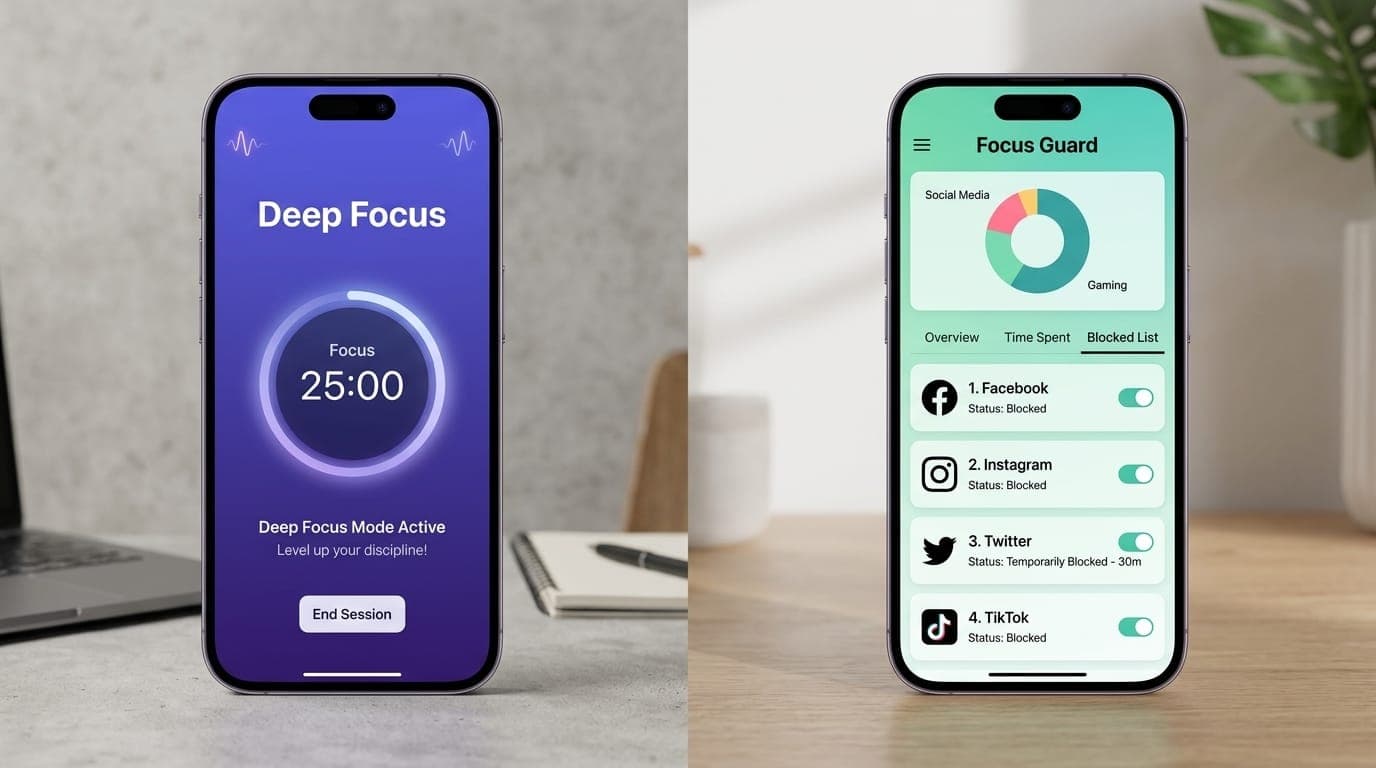
Opal dominates iPhone blocking with deep iOS integration, while Freedom wins cross-platform consistency across Mac, Windows, Android, iOS, and Chrome. If you're iPhone-first, Opal's $99.99/year delivers native Screen Time API enforcement and unlimited rules. If you work across devices, Freedom's $39.96/year (or $99.50 lifetime) syncs block sessions everywhere.
Key takeaways:
- Opal excels on iOS/Mac with native Screen Time API blocking, harder to bypass, and a strong free tier (1 rule, basic blocking)
- Freedom covers Mac, Windows, iOS, Android, and Chromebook with unified cross-device sessions and desktop app blocking
- Pricing: Freedom is cheaper annually ($39.96 vs $99.99), but Opal offers a robust free plan and student discounts
- Enforcement: Opal's Locked Mode is harder to bypass on iOS; Freedom's Locked Mode works across all platforms
- AI integration: Neither offers native AI control, LockIn MCP fills that gap with system-level blocking plus Poke, Claude, and ChatGPT integration
Platform Availability: Where Each App Works
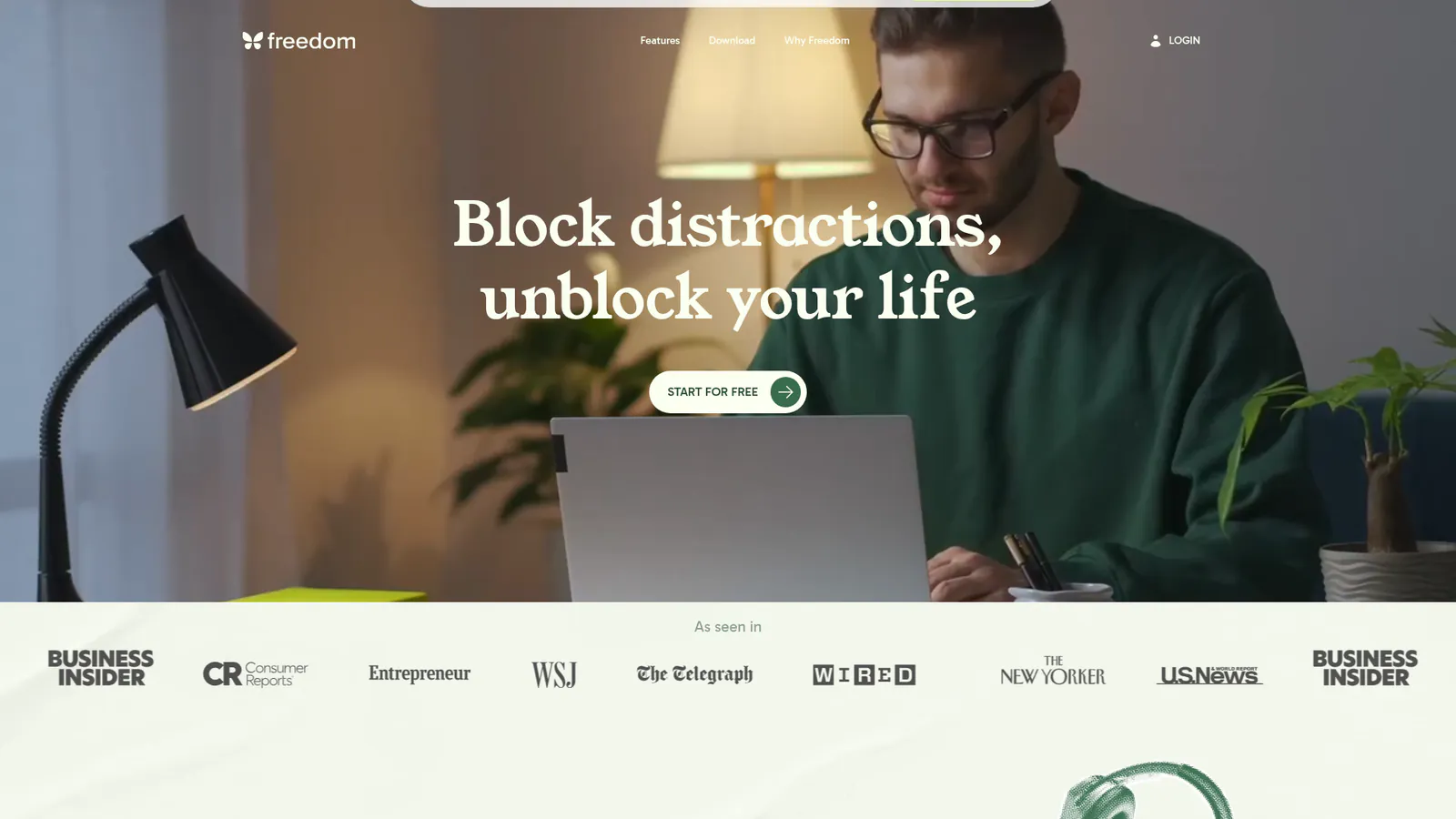
Freedom supports more platforms than any competitor. It runs on Mac, Windows, iOS, Android, and Chromebook, syncing block sessions across all devices simultaneously. Start a session on your phone, and your laptop blocks the same sites instantly. This makes Freedom the default choice for cross-device workflows or anyone who switches between operating systems.
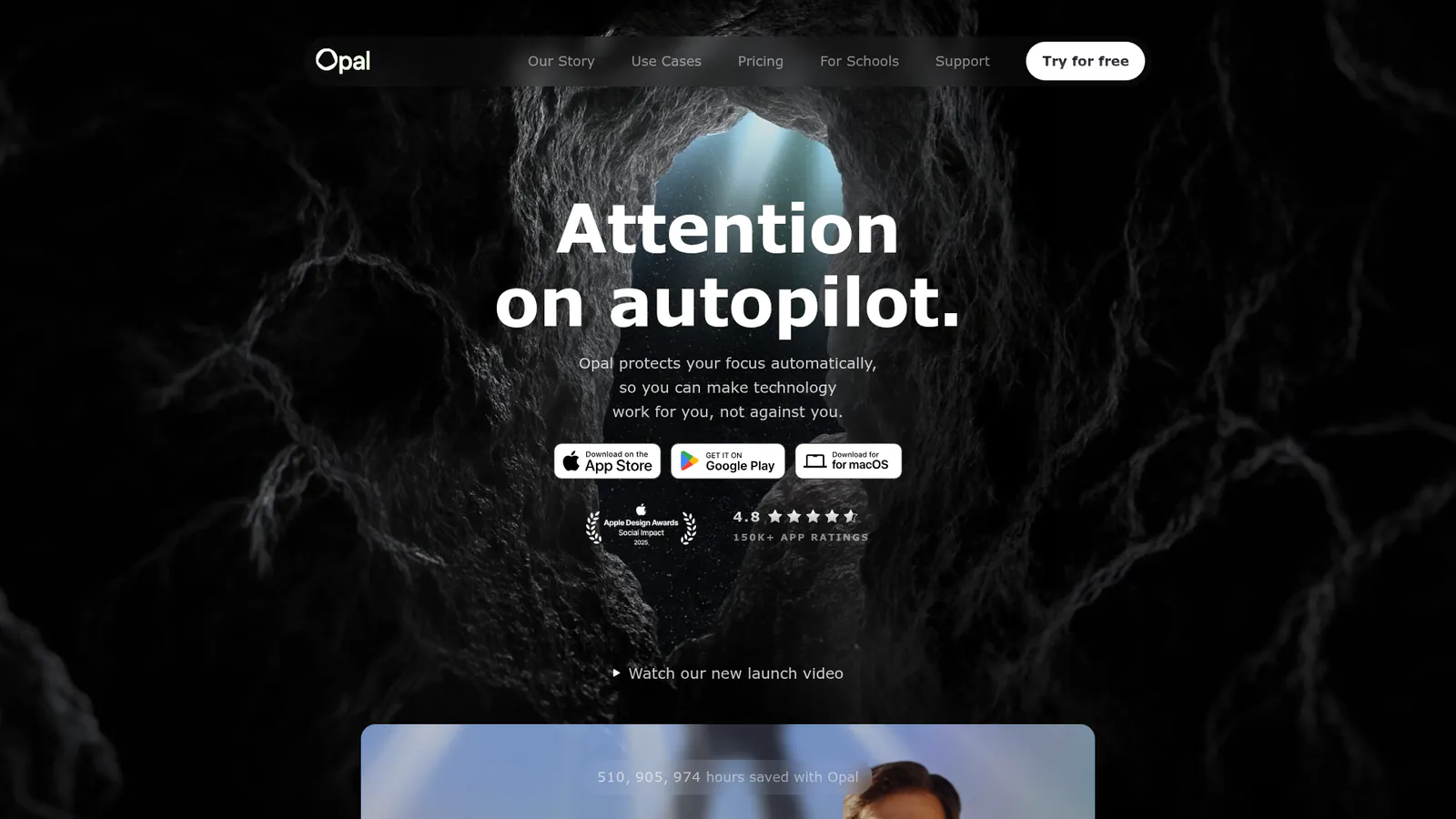
Opal focuses on Apple's ecosystem. It's available on iPhone, iPad, and Mac, with Android support added in 2026. The iOS version uses Apple's Screen Time API for native enforcement, which competitors can't match on that platform. If you're deep in the Apple ecosystem, Opal feels purpose-built for it.
Platform comparison:
| Platform | Opal | Freedom |
|---|---|---|
| iOS | ✓ | ✓ |
| Android | ✓ | ✓ |
| Mac | ✓ | ✓ |
| Windows | ✗ | ✓ |
| Chromebook | ✗ | ✓ |
| Chrome Extension | Limited | ✓ |
Freedom's Windows and Chromebook coverage is unmatched. Opal's strength is depth on iOS, not breadth across devices.
Blocking Strength: How Hard Are They to Bypass?
Blocking strength determines whether an app enforces focus or just suggests it. Both apps offer "Locked Mode," but the implementation differs.
Opal's enforcement uses the Screen Time API on iOS, making it nearly impossible to bypass without resetting your device. On Mac, it blocks at the system level through Screen Time settings. The Pro tier includes "No Unblocks" mode, which removes the "Ignore Limit" button during Deep Focus sessions. According to Opal's feature documentation, users can't disable blocking mid-session without uninstalling the app or factory-resetting the device. That's hardcore.
Freedom's Locked Mode prevents you from quitting sessions or editing blocklists until the timer expires. On desktop (Mac and Windows), it blocks websites at the hosts file level and can block desktop apps by name. On mobile, it uses VPN-based filtering on iOS and accessibility services on Android. Freedom's cross-device blocking means starting a session locks all your devices at once, which is powerful for multi-device procrastination.
The bypass difficulty:
- Opal iOS: Extremely hard (Screen Time API enforcement)
- Opal Mac: Hard (system-level Screen Time)
- Freedom desktop: Hard (hosts file + app blocking)
- Freedom mobile: Moderate (VPN/accessibility-based, can be disabled in settings with effort)
Opal is harder to bypass on iOS specifically. Freedom is harder to bypass when you need desktop app blocking or Windows enforcement.
Pricing Breakdown: What You Actually Pay
Both apps offer free tiers, premium subscriptions, and lifetime licenses. The pricing difference is significant.
Freedom pricing(as of July 2026, per Freedom's premium page):
- Free: Unlimited devices, custom blocklists, up to 7 sessions per day (each under 2 hours), no scheduling
- Premium Monthly: $8.99/month
- Premium Yearly: $39.96/year ($3.33/month, save 40%)
- Forever License: $99.50 (50% off the usual $199)
- Free trial: 7 days for Premium plans
Opal pricing(as of July 2026, per Opal's pricing page):
- Free: 1 recurring rule, basic blocking, today-only focus score
- Pro Yearly: $99.99/year ($8.29/month)
- Pro Monthly: $19.99/month
- Lifetime: $399
- Student discount: 50% off Pro (requires verification)
- Free trial: 7 days for yearly, 3 days for monthly/lifetime
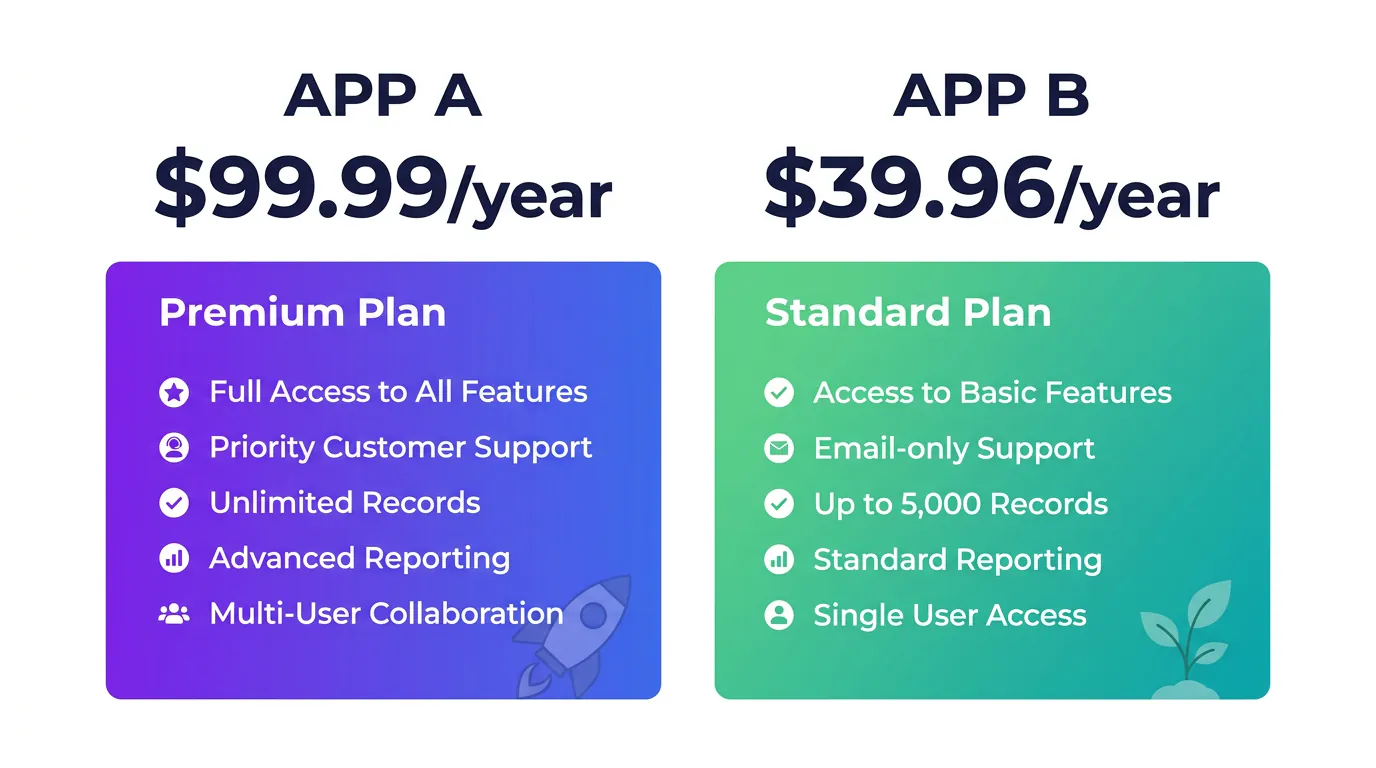
Price comparison at a glance:
| Plan | Opal | Freedom |
|---|---|---|
| Free | 1 rule, basic blocking | 7 sessions/day, all platforms |
| Annual | $99.99/year | $39.96/year |
| Monthly | $19.99/month | $8.99/month |
| Lifetime | $399 | $99.50 |
Freedom is 60% cheaper annually and 75% cheaper lifetime. Opal's premium tier costs as much as 2.5 years of Freedom Premium. However, Opal's free tier is more restrictive (1 rule vs 7 daily sessions), and its student discount cuts the yearly price to ~$50, which narrows the gap for students.
Feature Comparison: What You Get With Each App
Beyond blocking and pricing, daily usability depends on scheduling, customization, and extras.
| Feature | Opal | Freedom |
|---|---|---|
| Cross-device sync | iOS/Mac/Android | Mac/Windows/iOS/Android/Chrome |
| App blocking | iOS/Mac (via Screen Time) | Mac/Windows (by app name) |
| Website blocking | ✓ | ✓ |
| Block entire internet | ✗ | ✓ |
| Scheduled sessions | ✓ (Pro) | ✓ (Premium) |
| Recurring schedules | ✓ (Pro) | ✓ (Premium) |
| Block session limits | Unlimited rules (Pro) | Unlimited sessions (Premium) |
| Focus sounds | ✓ | ✓ |
| "Allow only" mode | ✓ (Pro) | ✗ |
| Website exceptions | ✗ | ✓ (Mac/Windows) |
| Desktop app blocking | Mac only | Mac/Windows |
Opal's "Allow Only" mode lets you block everything except a whitelist of productive apps. It's useful for single-tasking or exam environments. Freedom doesn't offer this, but it can block the entire internet, which achieves a similar result by brute force.
Freedom's desktop app blocking on Windows gives it an edge for gamers, video editors, or anyone tempted by Steam, Discord, or Slack during work. Opal blocks apps on Mac but has no Windows version.
Both apps support recurring schedules in their premium tiers. Set "no social media 9am-5pm weekdays" once, and it runs forever. Freedom's scheduling UI is cleaner, according to user reviews on Reddit, but Opal's iOS Shortcuts integration lets you trigger sessions via Siri or automation.
Neither app offers native AI integration. If you want to ask ChatGPT or Claude to block Instagram for two hours, you need a different tool. That's where LockIn MCP fits, it adds an MCP server layer so AI assistants control your hosts file directly. More on that below.
Who's It For?
Choose Opal if you:
- Work primarily on iPhone and Mac and rarely touch Windows or Chromebook
- Need the hardest-to-bypass blocking on iOS, backed by Apple's Screen Time API
- Want a free tier that actually works (1 rule is enough to block Instagram or TikTok during work hours)
- Prefer "Allow Only" mode to whitelist productive apps and block everything else
- Are a student and qualify for 50% off (bringing Pro to ~$50/year)
Choose Freedom if you:
- Work across multiple platforms (Mac + Windows, or Windows + Android, etc.)
- Need desktop app blocking to stop Steam, Discord, Slack, or other productivity killers
- Want the cheapest premium option ($39.96/year vs $99.99/year)
- Prefer a lifetime license under $100 ($99.50 vs $399)
- Switch devices often and need instant cross-device sync (start a session on your phone, laptop blocks immediately)
- Want to block the entire internet (nuclear option for deep work)
When to Choose Opal
Opal's iOS integration is unmatched. If your phone is your biggest source of distractions, Opal's Deep Focus mode and Screen Time enforcement make it nearly impossible to cheat. The app also tracks your "Opal Score" (focus time vs distracted time), which gamifies staying on task. Some users report the score alone keeps them accountable.
Downsides: expensive if you're not a student, Mac-only for desktop, and no Windows coverage.
When to Choose Freedom
Freedom's cross-device blocking is its killer feature. One session locks your phone, laptop, and tablet at once, so you can't just switch screens when you hit a block. The free trial (7 days) is also more generous than most competitors, and the free tier covers most users who don't need automation.
According to Freedom's case studies, users report saving 2.5 hours per day on average after using Locked Mode for two weeks. The app also integrates with Pomodoro timers and offers focus sounds (rain, café ambience, etc.) to help you stay in the zone.
Downsides: Locked Mode on mobile is easier to bypass than Opal's iOS enforcement, and the UI feels more utilitarian than Opal's polished design.
The AI-Native Alternative: LockIn MCP
Neither Opal nor Freedom integrates with AI assistants. If you already use ChatGPT, Claude, or Poke to manage your workflow, you can't ask them to block distractions, you have to open a separate app and configure it manually.
LockIn MCP solves this by turning your AI assistant into a system-level productivity enforcer. It installs as a one-line command (npx -y lockin-mcp install), runs an MCP server in the background, and modifies your hosts file based on AI commands. Tell Claude "block Twitter and Instagram for 3 hours," and it happens instantly, no separate app, no manual setup.
How LockIn MCP compares:
| Feature | Opal | Freedom | LockIn MCP |
|---|---|---|---|
| iOS blocking | ✓ (native) | ✓ (VPN) | ✗ (desktop only) |
| Desktop blocking | Mac | Mac/Windows | Mac/Windows/Linux |
| AI control | ✗ | ✗ | ✓ (Poke, Claude, ChatGPT) |
| Cross-device sync | iOS/Mac/Android | All platforms | Via AI assistant (manual) |
| Annual price | $99.99 | $39.96 | $29.99 (Pro) or $2.99/month trial |
| Lifetime price | $399 | $99.50 | Not available |
LockIn MCP is the only tool that lets AI assistants enforce focus. If you live in ChatGPT or Claude, it's the most seamless option. The trade-off: no native iOS blocking (it's desktop-only), and cross-device sync requires multiple installs. It's best for developers, knowledge workers, and anyone who wants AI-driven focus without switching contexts.
For a full breakdown, see LockIn MCP vs Freedom and LockIn MCP vs Opal.
Limiting Phone Use: Which App Does It Best?
Phone blocking is where Opal and Freedom diverge most.
Opal's iOS blocking uses the Screen Time API, which means it's enforced at the OS level. Apps you block disappear from your home screen during sessions, and you can't override it without factory-resetting or uninstalling Opal entirely. The Pro tier removes the "Ignore Limit" button, so there's no escape hatch. This is the strongest phone blocking available on iOS, period.
Freedom's iOS blocking uses a VPN to filter traffic. It's effective for blocking websites in Safari and Chrome, and it can block apps by routing their network requests to a dead end. However, it's easier to bypass, users can disable the VPN in Settings, or use cellular data if Freedom's VPN isn't configured to block on cellular. That said, Freedom's Locked Mode makes bypassing harder by requiring a password or waiting out the session timer.
On Android, both apps use accessibility services and VPN filtering. Opal added Android support in 2026, while Freedom has been on Android for years and has more polish. Freedom blocks apps and websites equally well, and its cross-device sync means starting a phone session locks your computer too. Opal's Android version is newer and less feature-complete.
Winner for phone blocking:
- iOS: Opal (Screen Time API is unbeatable)
- Android: Freedom (more mature, better cross-device sync)
- Cross-platform users: Freedom (syncs phone + desktop blocks instantly)
What a Real App Blocker Needs
A real app blocker needs three things: enforcement that survives your future self's excuses, cross-device sync to prevent screen-switching, and scheduling that removes the decision from your hands.
Enforcement means you can't bypass the block without serious effort. Both Opal and Freedom deliver this with Locked Mode, but Opal's iOS Screen Time integration is harder to defeat. Freedom's desktop app blocking is more comprehensive (Windows + Mac vs Mac only).
Cross-device sync prevents the "I'll just use my phone instead" loophole. Freedom syncs blocks across all your devices in real time. Opal syncs iOS, Mac, and Android, but doesn't cover Windows or Chromebook, so users with mixed ecosystems will find gaps.
Scheduling removes willpower from the equation. Both apps let you set recurring "no social media 9am-5pm" rules that run automatically. Freedom's scheduling UI is more flexible (you can schedule sessions weeks in advance), while Opal's iOS Shortcuts integration lets you trigger blocks via Siri or NFC tags.
The missing piece for both apps: AI-driven focus. According to research by the American Psychological Association on digital distractions, the average knowledge worker switches tasks every 3 minutes and takes 23 minutes to fully refocus. AI assistants like Claude and ChatGPT are already managing workflows, calendars, and emails. Letting them control distraction blocking is the logical next step, and neither Opal nor Freedom supports it. LockIn MCP is the only tool bridging that gap.
How These Digital Parenting Tools Actually Function
Both Opal and Freedom market themselves for digital parenting, letting parents block distracting apps on kids' devices. The reality is messier.
Opal offers a Teams plan (pricing on request) that lets admins deploy Opal Pro to multiple users and enforce blocking rules remotely. It's designed for workplaces but works for families too. Parents can set up Screen Time restrictions on their kid's iPhone via Opal's Locked Mode, and the kid can't disable it without the parent's password. The catch: it only works on iOS/Mac, so if your kid has an Android phone or Windows PC, you're out of luck.
Freedom doesn't have a dedicated parental control feature, but its cross-device blocking works well for families. Parents can create a Freedom account, install it on their kid's devices, and start a Locked Mode session remotely from the parent's device. The session syncs to all devices, blocking social media, games, and websites everywhere. This works on Mac, Windows, iOS, Android, and Chromebook, making it more flexible than Opal for mixed-device households.
Neither app is as comprehensive as dedicated parental control tools like Bark or Qustodio, which monitor texts, social media DMs, and location. Opal and Freedom only block apps and websites, they don't spy on content or track usage beyond basic focus scores.
For teens who need focus tools more than surveillance, both work well. Opal is better if the teen uses iPhone + Mac. Freedom is better if they use Windows, Android, or switch between devices. For younger kids, a dedicated parental control app is safer.
Why iOS Screen Time Fails at Strict Enforcement
Apple's built-in Screen Time can block apps and set time limits, but it's notoriously easy to bypass. Kids and adults alike know the workarounds: change the device date/time, use another Apple ID, or spam "Ignore Limit" until it gives up. Apple designed Screen Time for awareness, not enforcement.
Opal fixes this by using the Screen Time API as a foundation but removing the escape hatches. When you enable Opal's Locked Mode and turn on "No Unblocks," the app removes the "Ignore Limit" button and makes it impossible to extend sessions without uninstalling Opal or factory-resetting the device. That's a much higher barrier than Apple's default 15-minute "Ask for More Time" prompts.
Freedom doesn't use the Screen Time API on iOS, it blocks via VPN. This makes it easier to set up (no Screen Time permissions) but also easier to bypass (disable the VPN in Settings). However, Freedom's Locked Mode helps by requiring a password or session timeout before you can quit. It's not as bulletproof as Opal on iOS, but it's good enough for most users.
On desktop, neither Apple Screen Time nor built-in parental controls exist. Opal and Freedom both fill that gap by blocking at the hosts file or system level, which is harder to circumvent than browser extensions.
Comparison: Which App Blocker Is Right for You?
Here's the decision matrix:
Choose Opal if:
- You're iPhone/Mac-first and don't need Windows coverage
- You want the strongest possible iOS blocking (Screen Time API + no escape hatches)
- You're a student with access to the 50% discount
- You prefer a polished, Apple-designed UI and ecosystem integration
- You need "Allow Only" mode to whitelist productive apps
Choose Freedom if:
- You work across Mac, Windows, Android, iOS, or Chromebook
- You need desktop app blocking on Windows (games, chat apps, etc.)
- You want the cheapest annual or lifetime plan
- You prioritize cross-device session sync (block once, enforce everywhere)
- You want to block the entire internet, not just specific sites/apps
Choose LockIn MCP if:
- You already use Poke, Claude, or ChatGPT to manage your workflow
- You want AI-driven focus enforcement ("block Instagram for 3 hours")
- You work on Mac, Windows, or Linux and don't need mobile blocking
- You're comfortable with command-line installs and system-level tools
- You value developer-friendly, open workflows over polished consumer UIs
Most cross-platform users will prefer Freedom for its breadth and price. Most iPhone-heavy users will prefer Opal for its depth and enforcement. Most AI-native workflows will prefer LockIn MCP for seamless integration with assistants they already use.
Other App Blockers to Consider
While Opal and Freedom lead the category, a few alternatives deserve mention:
One Sec takes a different approach: it adds a breathing exercise delay before you open distracting apps like Instagram or TikTok. Instead of blocking completely, it gives you 10 seconds to reconsider. It's less strict than Opal or Freedom but works well for users who want mindful pauses instead of hard blocks. One Sec is iOS-only and costs $19.99/year.
BlockSite is a browser-focused blocker with Chrome, Edge, Firefox, and mobile apps. It's lighter weight than Freedom but less comprehensive. BlockSite offers website and app blocking, scheduled sessions, and a "Work Mode" that blocks everything except a whitelist. Pricing starts at $5.99/month or $39.99/year. It's a good middle ground between free browser extensions and full system-level blockers, though it's easier to bypass (uninstall the extension, use another browser).
Cold Turkey is the most hardcore desktop blocker for Windows. It can block apps, websites, and even the entire OS in "Frozen Turkey" mode, making your computer unusable until the timer expires. There's no escape hatch, not even uninstalling or rebooting works. Cold Turkey is Windows-only, costs $39 lifetime, and is best for users who need extreme enforcement on desktop. See our full Cold Turkey comparison for details.
None of these alternatives match Freedom's cross-platform breadth or Opal's iOS enforcement. They're niche tools for specific use cases: One Sec for mindful delays, BlockSite for browser-only blocking, Cold Turkey for Windows power users.
FAQ
Which is cheaper, Opal or Freedom?
Freedom is significantly cheaper. The annual plan costs $39.96 vs Opal's $99.99, and Freedom's lifetime license is $99.50 vs Opal's $399. However, Opal offers a 50% student discount, which brings the yearly cost to ~$50, narrowing the gap for students.
Can I use Opal and Freedom on the same device?
Yes, but it's not recommended. Both apps modify system-level settings (hosts file, VPN, Screen Time API), and running them simultaneously can cause conflicts or double-blocking. Choose one and stick with it for a cleaner experience.
Does Opal work on Windows?
No. Opal is iOS, Mac, and Android only. If you need Windows coverage, use Freedom or LockIn MCP.
Can Freedom block desktop apps like Steam or Discord?
Yes. Freedom can block desktop apps by name on Mac and Windows. Go to Settings > Blocklists > Add Application, and enter the app name. Opal can block apps on Mac via Screen Time but doesn't support Windows.
Which app has better cross-device sync?
Freedom. It syncs block sessions across Mac, Windows, iOS, Android, and Chromebook in real time. Opal syncs iOS, Mac, and Android but doesn't cover Windows or Chromebook.
Can I schedule focus sessions in advance?
Yes, both apps support scheduling with their premium plans. Freedom's scheduling UI is more flexible (you can schedule sessions weeks out), while Opal integrates with iOS Shortcuts for Siri-triggered blocks.
What's the best app blocker with AI integration?
LockIn MCP. It's the only tool that lets Poke, Claude, or ChatGPT enforce focus by modifying your hosts file directly. Neither Opal nor Freedom integrates with AI assistants.
Conclusion
Opal and Freedom are both excellent distraction blockers, but they solve different problems. Opal is the iPhone power user's choice, native Screen Time enforcement, deep iOS integration, and hardcore Locked Mode make it nearly impossible to bypass on Apple devices. Freedom is the cross-platform workhorse, it covers Mac, Windows, Android, iOS, and Chromebook, syncs sessions everywhere, and costs 60% less annually.
If you're iPhone-first and willing to pay $99.99/year for the strongest iOS blocking available, choose Opal. If you work across multiple devices, need Windows support, or want a $99.50 lifetime license, choose Freedom. If you want AI assistants to manage your focus, skip both and try LockIn MCP.
The best tool is the one that matches your devices and workflow. Neither Opal nor Freedom will magically fix a broken productivity system, but they'll remove the friction between "I should focus" and actually doing it. That's worth the price of admission.
