Blog
Building MCP Servers: A Practical Guide for AI Productivity
Build your first MCP server in 15 minutes with Python or TypeScript. Connect Claude, ChatGPT, or Cursor to custom tools, databases, and focus enforcement workflows.
 Mil Hoornaert · 18 min read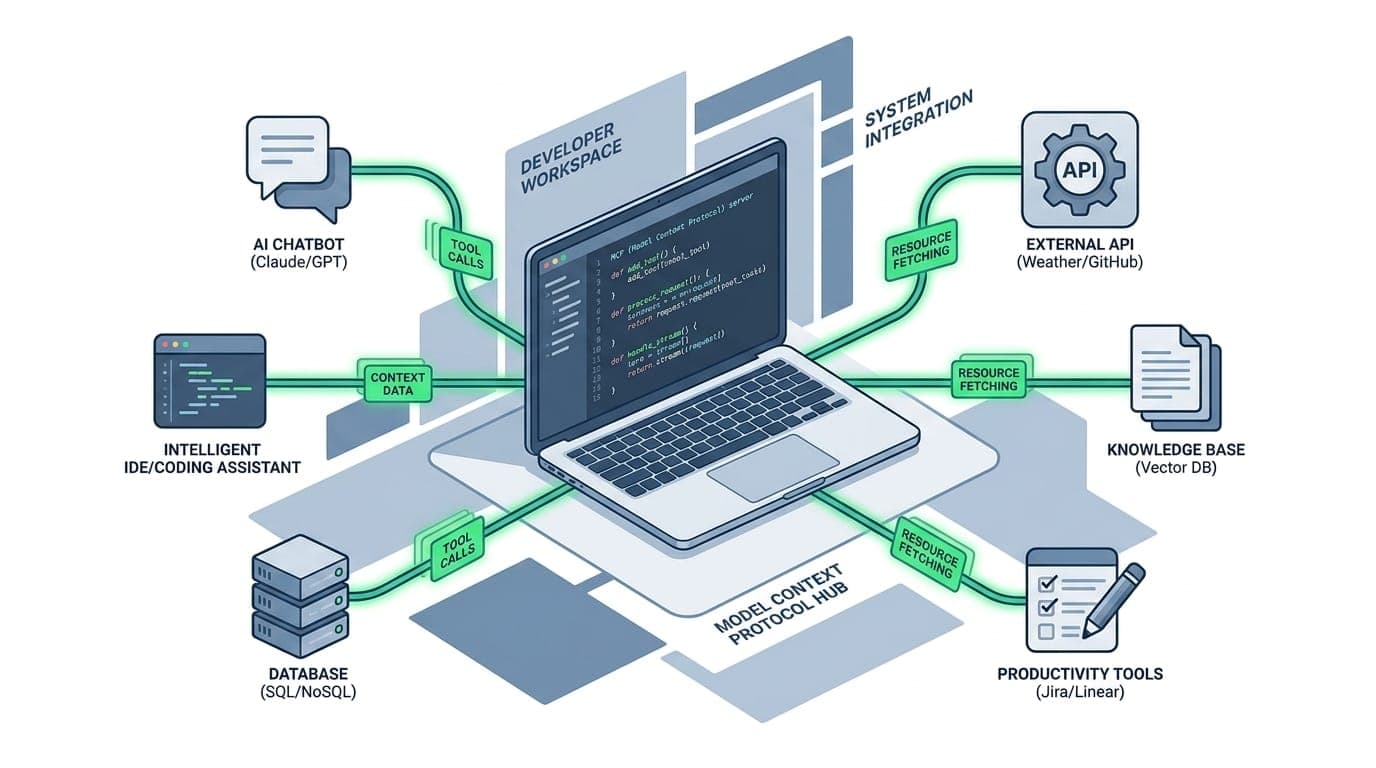

Building MCP servers means creating custom integrations that connect AI assistants like Claude, ChatGPT, or Poke to your data, tools, and workflows. Instead of treating your AI as a standalone chatbot, an MCP server turns it into an active component of your productivity stack that can query databases, control system-level blockers, fetch APIs, and execute workflows you define.
Key Takeaways
- MCP servers expose tools, resources, and prompts that any compatible AI client can discover and call at runtime
- You can build a working server with Python or TypeScript in about 15 minutes using the official SDKs
- Servers run locally over stdio for development, then scale to HTTP when multiple users or machines need access
- Real use cases include connecting AI to databases, internal APIs, focus enforcement tools like LockIn MCP, and custom automation workflows
- Test every server with the MCP Inspector before connecting it to a client to catch schema and return-value issues early
What Is an MCP Server?
An MCP server is a small program that speaks the Model Context Protocol and advertises a catalog of capabilities to AI clients. When you connect an MCP server to Claude Desktop, ChatGPT, or another compatible client, that AI assistant gains the ability to call your custom functions, read your data sources, and use prompt templates you've defined.
Think of it like adding plugins to your AI assistant. The difference is that MCP is an open standard supported across the AI ecosystem. You write the server once and any MCP-compatible client can use it.
The protocol was introduced by Anthropic in November 2024 to solve a core problem: AI models are isolated from the systems where data actually lives. Every custom integration required its own implementation. MCP provides a universal standard that replaces fragmented, one-off integrations with a single protocol.
How the Client-Server Model Works
The flow runs in one direction. The AI client (like Claude Desktop or Cursor) acts as the host. It launches or connects to your MCP server, asks "what tools do you have?", and the model decides when to call them based on the user's request.
Your server doesn't call the model. It's a passive provider that waits for the client to connect, answers discovery requests, and executes whatever tool the model invokes. This architecture keeps servers simple: you write functions and describe them, then the client handles everything else.
An MCP server can expose three types of capabilities:
- Tools, functions the model can call (e.g., "search this database", "block this domain")
- Resources, read-only data the model can load (e.g., a file, a database record)
- Prompts, reusable prompt templates with variables
Most servers you'll build will be tool-heavy. Resources and prompts are optional and less common in practice.
Why Build Your Own MCP Server
If you're already using LockIn MCP or similar AI productivity tools, you've experienced what happens when an AI assistant can control system-level functions. Building your own server extends that model to any data source or workflow you control.
Here are the concrete reasons to build:
Connect AI to internal data.Your company's database, CRM, or API isn't accessible to a stock ChatGPT or Claude instance. An MCP server bridges that gap. Instead of copying data into chat, you give the model a live query tool that runs against your Postgres instance.
Automate repetitive workflows.If you're manually triggering the same sequence (pull data, process it, update a tracker), wrap it in a tool. The model can then execute that workflow when context suggests it's needed.
Extend productivity enforcement.LockIn MCP blocks distracting sites when you tell your AI to lock in. You can build a similar server that enforces other focus rules: mute Slack, pause email sync, or start a Pomodoro timer. The AI becomes the interface to system-level controls you define.
Build once, use everywhere.Any MCP-compatible client can call your server. Claude, ChatGPT, Cursor, VS Code Copilot, and other tools support the protocol. You don't write separate integrations for each.
According to TECHSY's production data, a first MCP server with two tools takes about 15 minutes to build and run locally. The setup cost is low enough that you can prototype a tool, test it, and decide whether it's worth keeping in the same session.
Getting Started: Prerequisites and Setup
Before you write code, you need to pick a language and install the right SDK. MCP has official SDKs for Python, TypeScript, Java, Kotlin, and C#. We'll focus on Python and TypeScript because they have the broadest adoption and the fastest development cycles.
Should You Use Python or TypeScript?
Pick whichever language your team already ships. Both produce servers that behave identically to the client.
Python with FastMCP is the shortest path to your first server. A decorator turns a plain function into an MCP tool, and type hints automatically generate the input schema. If you want to move fast and your stack is already Python, start here.
TypeScript with the official SDK is slightly more verbose but gives you excellent types and deploys cleanly to Node hosts. If you're building for a production environment that runs on Node or you prefer explicit schemas with Zod, use TypeScript.
System Requirements
| Requirement | Python | TypeScript |
|---|---|---|
| Runtime | Python 3.10+ (3.11 recommended) | Node.js 20 LTS or later |
| Package manager | uv (recommended) or pip | npm, pnpm, or bun |
| SDK | mcp 1.x / FastMCP 2.x | @modelcontextprotocol/sdk 1.x |
| Test tool | npx @modelcontextprotocol/inspector | Same |
You'll also need an MCP-compatible client to test with: Claude Desktop, Claude Code, Cursor, or VS Code with Copilot. For initial testing, the MCP Inspector is all you need.
Step-by-Step: Building Your First MCP Server
Let's build the same server twice, once in Python, once in TypeScript. It will expose two tools: an add calculator and a fetch_url helper that retrieves web content. These are simple examples, but the pattern scales to database queries, API calls, and system commands.
Building an MCP Server in Python
Step 1: Set up the project.
Open a terminal and create a new directory:
uv init mcp-demo
cd mcp-demo
uv add "mcp[cli]"
If you prefer pip: python -m venv .venv && source .venv/bin/activate && pip install "mcp[cli]"
Step 2: Write the server.
Create a file called server.py:
from mcp.server.fastmcp import FastMCP
import httpx

# Name shows up in the client's tool list
mcp = FastMCP("demo-server")

@mcp.tool()
def add(a: int, b: int) -> int:
 """Add two numbers and return the sum."""
 return a + b

@mcp.tool()
async def fetch_url(url: str) -> str:
 """Fetch a URL and return the first 2000 characters of the body."""
 async with httpx.AsyncClient(timeout=10) as client:
 resp = await client.get(url)
 return resp.text[:2000]

if __name__ == "__main__":
 mcp.run() # defaults to stdio transport
Two things to notice. The docstring becomes the tool description the model reads, so write it like an instruction. Type hints (a: int) become the input schema automatically. FastMCP generates the JSON Schema for you.
Step 3: Run it.
During development, use the dev runner:
uv run mcp dev server.pymcp.run() starts the server on stdio, the transport clients use to launch local servers. You don't run this directly in production; the client launches it as a subprocess.
Step 4: Return clean output.
Always return a string or a typed value, not a nested dict. Ambiguous return types can get truncated silently in some clients. This is a common gotcha that costs debugging time.
Building an MCP Server in TypeScript
The TypeScript path uses the official SDK directly and Zod for input validation.
Step 1: Set up the project.
mkdir mcp-demo && cd mcp-demo
npm init -y
npm install @modelcontextprotocol/sdk zod
npm install -D typescript @types/node tsx
Step 2: Write the server.
Create server.ts:
import { McpServer } from "@modelcontextprotocol/sdk/server/mcp.js";
import { StdioServerTransport } from "@modelcontextprotocol/sdk/server/stdio.js";
import { z } from "zod";

const server = new McpServer({ name: "demo-server", version: "1.0.0" });

server.tool(
 "add",
 "Add two numbers and return the sum.",
 { a: z.number(), b: z.number() },
 async ({ a, b }) => ({
 content: [{ type: "text", text: String(a + b) }],
 }),
);

server.tool(
 "fetch_url",
 "Fetch a URL and return the first 2000 characters.",
 { url: z.string().url() },
 async ({ url }) => {
 const resp = await fetch(url);
 const body = await resp.text();
 return { content: [{ type: "text", text: body.slice(0, 2000) }] };
 },
);

const transport = new StdioServerTransport();
await server.connect(transport);
Step 3: Run it.
npx tsx server.tsFor production, compile with tsc and run the built .js with Node.
Step 4: Understand the return shape.
Every tool returns { content: [{ type: "text", text: ... }] }. That explicit content array is the TypeScript equivalent of Python's "return a clean string" rule. The SDK expects typed content blocks, not raw objects.
The z.string().url() schema rejects bad input before your handler runs, which is exactly what you want when a model is generating the arguments.
Testing Your MCP Server
Before you wire your server into Claude or another client, test it in isolation. The MCP Inspector is a browser UI that connects to your server, lists its tools, and lets you call them by hand.
Run the Inspector against your server:
# Python
npx @modelcontextprotocol/inspector uv run server.py

# TypeScript
npx @modelcontextprotocol/inspector npx tsx server.ts
The Inspector opens a local page where you can see your add and fetch_url tools, fire a test call, and read the raw response.
This is the single best habit for MCP development. If a tool's schema is malformed or a return value is wrong, you'll see it here in seconds instead of staring at a silent failure inside the client. Production teams at TECHSY caught a bad input schema this way that would have cost a full debugging round-trip through the client.
Test in the Inspector first, every time.
Connecting to Claude, ChatGPT, and Other Clients
Once the Inspector shows green, point a real client at your server. Each client reads a config file that tells it how to launch your server over stdio.
Claude Desktop
Edit claude_desktop_config.json. On macOS, it's at ~/Library/Application Support/Claude/claude_desktop_config.json. On Windows, check %APPDATA%\Claude\.
{
 "mcpServers": {
 "demo-server": {
 "command": "uv",
 "args": ["--directory", "/absolute/path/to/mcp-demo", "run", "server.py"]
 }
 }
}
Restart Claude Desktop and your tools appear under the connectors icon.
Claude Code
Add the server with one command from your project:
claude mcp add demo-server -- uv run server.pyClaude Code stores it in your project config and loads it on launch.
Cursor
Add the same mcpServers block to .cursor/mcp.json in your project root. The shape matches Claude Desktop's config.
ChatGPT and Other Clients
ChatGPT's MCP support follows the same pattern. Check the client's documentation for the config file path, but the mcpServers structure is standardized.
One critical rule: use absolute paths in every config. Relative paths are the most common reason a server fails to launch silently.
stdio vs HTTP: Which Transport Should You Use?
MCP servers communicate over two transports. stdio runs the server as a local subprocess the client launches. HTTP (using Server-Sent Events) runs the server as a network service clients connect to over HTTP.
| Transport | Best for | Auth | Setup |
|---|---|---|---|
| stdio | Personal tools, dev, single machine | Inherits user's machine | Just a command |
| HTTP | Shared servers, teams, SaaS, cloud | Needs OAuth 2.1 or token auth | Needs hosting + endpoint |
The rule: build and test on stdio, then switch to HTTP only when more than one person or machine needs the server.
According to production measurements from TECHSY, local stdio tool calls add roughly 8-12 ms of overhead per call. Moving the same server to HTTP on a VPS increases that to 40-70 ms, almost entirely network round-trip rather than protocol cost.
Most servers never need to leave stdio. The mcp.run() and StdioServerTransport() calls in the examples above are already configured for stdio.
Production Considerations
When your server needs to be shared beyond your local machine, you'll need to handle authentication, error handling, and hosting.
Authentication
Remote MCP servers must use OAuth 2.1 per the MCP specification. For internal tools, a bearer-token check on the HTTP endpoint is the pragmatic minimum.
Never ship a public, unauthenticated tool server. A tool that runs SQL or hits internal APIs is a live attack surface.
Error Handling
Wrap tool bodies in try/except (Python) or try/catch (TypeScript) and return a typed error message instead of throwing. The model handles "the query failed, here's why" far better than a dropped connection.
@mcp.tool()
def query_database(sql: str) -> str:
 """Run a read-only SQL query."""
 try:
 result = db.execute(sql)
 return str(result)
 except Exception as e:
 return f"Query failed: {str(e)}"
Hosting
Any platform that runs a long-lived Node or Python process works: a small VPS, Fly.io, Railway, or a container on your infrastructure. Keep the process warm; cold starts add latency to the first tool call.
For Python, switch the run call to mcp.run(transport="http"). For TypeScript, swap StdioServerTransport for the SDK's HTTPServerTransport. The tool definitions don't change.
Concurrency and Cost
If your tools call an LLM or paid API downstream, put rate limiting in front of them. A runaway loop can burn through API credits fast.
Best Practices and Common Pitfalls
Building MCP servers in production surfaces a few lessons that only show up once real traffic hits.
Write Tool Descriptions for the Model, Not Humans
The docstring or description parameter is what the model reads to decide whether to call your tool. Write it like an instruction:
Good: "Fetch the latest sales data from the database and return it as JSON."
Bad: "A helper function that queries the sales table."
The first tells the model when and why to use it. The second is documentation for developers.
Return Typed Strings, Not Nested Dicts
A tool that returns a raw Python dict might render fine in the Inspector but come back truncated inside Claude Desktop. Wrap return values as typed text strings or explicit content blocks.
This gotcha cost production teams at TECHSY about two hours of debugging. The fix is simple once you know it.
Use Absolute Paths in Client Configs
Relative paths in claude_desktop_config.json or .cursor/mcp.json fail silently. The client can't find the server, shows no error, and your tools never appear.
Always use absolute paths like /Users/yourname/projects/mcp-demo or C:\Users\yourname\projects\mcp-demo.
Test in the Inspector Before Connecting a Client
If a tool fails inside Claude or Cursor, you don't know whether the issue is your server, the client's integration, or the config. Running npx @modelcontextprotocol/inspector first isolates your server. If the Inspector works, the problem is the client config.
Keep Servers Focused
A server with 20 tools is harder to debug and slower to load than five servers with 4 tools each. Split by domain: one server for database access, one for file operations, one for API calls.
MCP clients can connect to multiple servers simultaneously, so you're not trading off capability for modularity.
Real-World Examples
Focus Enforcement Server
LockIn MCP uses an MCP server to let AI assistants control system-level website blocking. You tell Claude "lock in for 2 hours," and the server updates your hosts file and starts a timer.
You can build a similar server that:
- Starts and stops focus sessions
- Blocks domains at the system level
- Tracks focus time
- Requests temporary unblocks with accountability
This is the pattern LockIn MCP uses to turn AI into an active productivity enforcer instead of a passive coach.
Database Query Server
A read-only Postgres tool lets the model answer questions about your data without you writing SQL:
@mcp.tool()
def query_sales(start_date: str, end_date: str) -> str:
 """Query total sales between two dates (YYYY-MM-DD)."""
 sql = f"SELECT SUM(amount) FROM sales WHERE date BETWEEN '{start_date}' AND '{end_date}'"
 result = db.execute(sql)
 return f"Total sales: ${result[0][0]}"
The model decides when to call it based on user questions like "what were sales last quarter?"
API Integration Server
Wrap third-party APIs in MCP tools so the model can fetch live data:
server.tool(
 "get_weather",
 "Get current weather for a city using OpenWeather API.",
 { city: z.string() },
 async ({ city }) => {
 const resp = await fetch(`https://api.openweathermap.org/data/2.5/weather?q=${city}&appid=${API_KEY}`);
 const data = await resp.json();
 return { content: [{ type: "text", text: JSON.stringify(data) }] };
 },
);
The model calls this tool when context suggests weather information is relevant.
File System Server
Give the model controlled access to read and write files:
@mcp.tool()
def read_file(path: str) -> str:
 """Read a file and return its contents."""
 with open(path, 'r') as f:
 return f.read()

@mcp.tool()
def write_file(path: str, content: str) -> str:
 """Write content to a file."""
 with open(path, 'w') as f:
 f.write(content)
 return f"Wrote {len(content)} characters to {path}"
This pattern is how Claude Code and Cursor give AI models the ability to edit files in your project.
How LockIn MCP Uses Servers for System-Level Control
LockIn MCP runs a background MCP server that exposes tools for starting focus sessions, blocking domains, and managing timers. When you connect Poke, Claude, or another client, those tools appear in the AI's catalog.
You can tell your AI assistant "lock in for 90 minutes and block Twitter," and the model calls the appropriate LockIn MCP tools to update your hosts file and start tracking.
This is the core pattern: the AI decides when to enforce focus based on your request, but the server does the actual blocking. The model doesn't need to understand hosts file syntax or timer management. It just needs to call the right tool with the right arguments.
If you're building productivity enforcement into your workflow, this is the architecture. Write the system-level logic once in a server, then let any AI client trigger it.
FAQ: Building MCP Servers
What's the difference between an MCP server and an API?
An MCP server exposes tools, resources, and prompts specifically for AI clients using the Model Context Protocol. An API is a general-purpose interface for any HTTP client. MCP servers are designed for the AI-to-system integration use case, with discovery, schema validation, and tool calling built into the protocol.
Do I need to know MCP protocol internals to build a server?
No. The official SDKs (Python mcp, TypeScript @modelcontextprotocol/sdk) handle all protocol details. You write normal functions, add a decorator or tool definition, and the SDK translates them into MCP tools automatically.
Can I use an MCP server with ChatGPT, Claude, and Gemini?
Yes. MCP is an open standard supported by ChatGPT, Claude, Cursor, VS Code Copilot, and other AI clients. You build the server once and any compatible client can connect to it.
How do I debug a server that isn't showing up in my client?
Run it through the MCP Inspector first: npx @modelcontextprotocol/inspector followed by your run command. If the Inspector works, check your client config for absolute paths and restart the client.
What happens if a tool throws an error?
By default, the error bubbles up to the client and the tool call fails. For a better experience, wrap your tool logic in try/except and return a descriptive error message as a string. The model can then explain what went wrong to the user.
Should I build one big server or multiple small ones?
Multiple focused servers. A server with 5-10 related tools is easier to test, debug, and deploy than one server with 50 tools. MCP clients can connect to multiple servers simultaneously.
How long does it take to build an MCP server?
A first server with 1-2 tools takes about 15 minutes once your runtime is installed. Adding authentication, HTTP transport, and production hosting takes additional time, but the server itself is fast to prototype.
Can I build an MCP server in languages other than Python and TypeScript?
Yes. The Model Context Protocol has official SDKs for Python, TypeScript, Java, Kotlin, and C#. Community SDKs exist for other languages. Because MCP is a wire protocol (JSON-RPC over stdio or HTTP), any language can implement a server.
Lock In and Build
Building MCP servers turns your AI assistant from a chatbot into an active integration layer. You get to decide what data it can access, what workflows it can trigger, and what system-level controls it can enforce.
The fastest path: pick Python or TypeScript, build a two-tool server following the examples above, test it in the Inspector, and connect it to Claude Desktop or Cursor. You'll have a working integration in under 20 minutes.
If you're already using LockIn MCP, you've experienced what happens when AI can control system-level focus enforcement. Now you can extend that model to any workflow, data source, or tool you control.
Ready to connect your AI to your productivity stack? Install LockIn MCP to see MCP servers in action, then use the patterns here to build your own.
