Blog
How to Automate Website Blocking (4 Methods That Stick)
 Mil Hoornaert · 13 min read
You can automate website blocking by using scheduled tasks that modify your system's hosts file, AI-powered productivity tools, browser extensions with time-based rules, or dedicated blocking apps with automation features. The best method removes willpower from the equation, your computer enforces focus whether you feel motivated or not.
Key takeaways:
- Automated blocking works by scheduling rules to activate during work hours without manual intervention
- System-level methods (hosts file + task schedulers) provide the strongest enforcement
- AI tools like LockIn MCP let you start focus sessions via chat and block websites automatically
- Browser extensions offer the easiest setup but are easier to bypass than OS-level blocks
- Combining scheduled automation with "strict mode" features prevents you from disabling blocks mid-session
Why Automate Website Blocking?
Manual blocking fails because it depends on willpower at the exact moment you're most vulnerable. You decide to block website distractions like Reddit, then three hours later you're stressed and you disable the block "just for five minutes."
Automation solves this. Set the rules once, and your machine enforces them on a schedule.
The numbers tell the story. Workers now receive an interruption, from meetings, emails, or chat tools, every two minutes, adding up to roughly 275 interruptions per day during core work hours, according to Microsoft's 2025 Work Trend Index. After each interruption, it takes an average of 25 minutes to fully return to a task, based on research by Gloria Mark at UC Irvine.
That's not a willpower problem, it's math. Every time you manually toggle blocking on and off, you're creating more interruption points. Automation removes that friction entirely.
The pattern is predictable: websites are engineered for engagement. YouTube's autoplay, TikTok's algorithm, and Reddit's infinite scroll are built to keep you clicking. Fighting that with daily manual decisions is exhausting. Workplace distractions cost the US economy an estimated $650 billion per year, according to a 2026 Gitnux report. Scheduled blocking takes the decision off the table.
Why We Struggle to Stay Away from Specific Sites
Attention spans have collapsed. Gloria Mark's research tracking screen attention over two decades shows we now hold focus for just 47 seconds before switching, down from about 2.5 minutes in 2004, according to the University of California.
Workers toggle between apps and websites about 1,200 times a day, adding up to nearly four hours a week spent reorienting, per a Harvard Business Review study of 137 users at Fortune 500 companies.
The result? The average knowledge worker gets only 2 hours and 48 minutes of genuinely productive time per day, from a RescueTime analysis of 185 million working hours. And 40% of knowledge workers never get a single stretch of more than 30 uninterrupted minutes in a workday.
That's not distraction, that's attention fragmentation. Automated website blocking is one of the few interventions that actually addresses the root cause: it removes the choice to context-switch.
Method 1: Scheduled Hosts File Blocking (Windows, macOS, Linux)
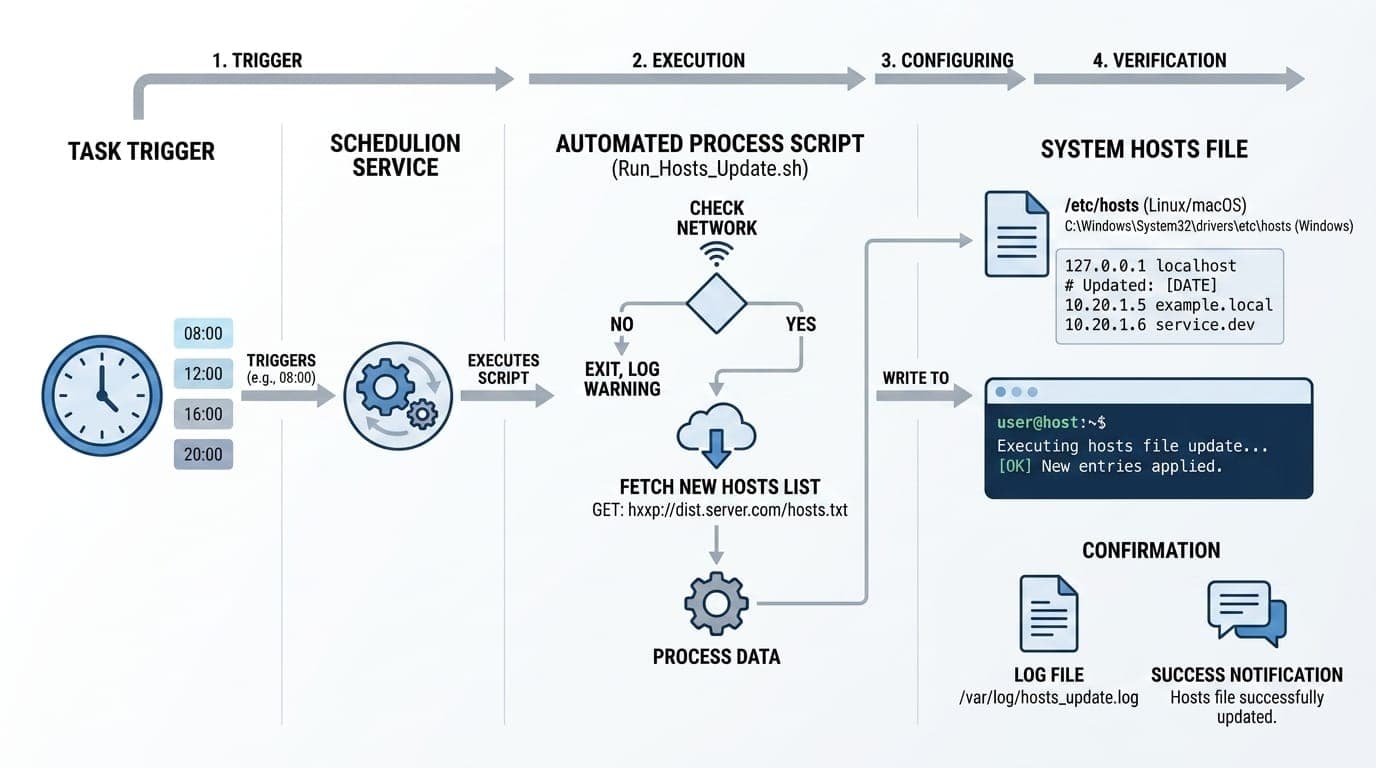
The hosts file is a system-level configuration file that maps domain names to IP addresses. Your computer checks it before making any DNS query. By pointing distracting domains to 127.0.0.1 (your own machine) or 0.0.0.0, you block website access across all browsers and apps at once.
This is the strongest blocking method available, no browser extension or DNS filter to bypass.
How it works
On Windows, the hosts file lives at C:\Windows\System32\drivers\etc\hosts. On macOS and Linux, it's at /etc/hosts. You add lines like:
127.0.0.1 youtube.com
127.0.0.1 www.youtube.com
Now YouTube won't load, period. This method to block website traffic works at the operating system level.
The automation piece comes from scheduling the changes to that file. Developer Kyle Bignell documented a practical Windows automation workflow using three tools:
- hostctl, a CLI tool that manages hosts file "profiles" so you can enable/disable groups of blocked sites with one command
- AutoHotkey, a Windows scripting tool that wraps the hostctl commands into executable scripts
- Task Scheduler, the built-in Windows utility that runs those scripts at specific times
His setup enables a focus profile at 10:00 AM every weekday and disables it at 6:00 PM. No manual intervention required. He writes:
"This has proven to be a very effective solution at reducing distraction time and retraining my brain to do a little less dopamine hunting. The fact that it is automated is essential."
macOS and Linux alternatives
On macOS, replace AutoHotkey with AppleScript or a shell script, and use launchd (via launchctl) instead of Task Scheduler. On Linux, cron is the standard scheduler. The logic is identical: a script enables the blocking rules at work-start, another disables them at work-end.
Important: browsers cache DNS lookups for up to 60 seconds. After modifying your hosts file, you may need to wait a minute or clear your browser cache for the block to take effect.
Method 2: AI-Powered Blocking with LockIn MCP
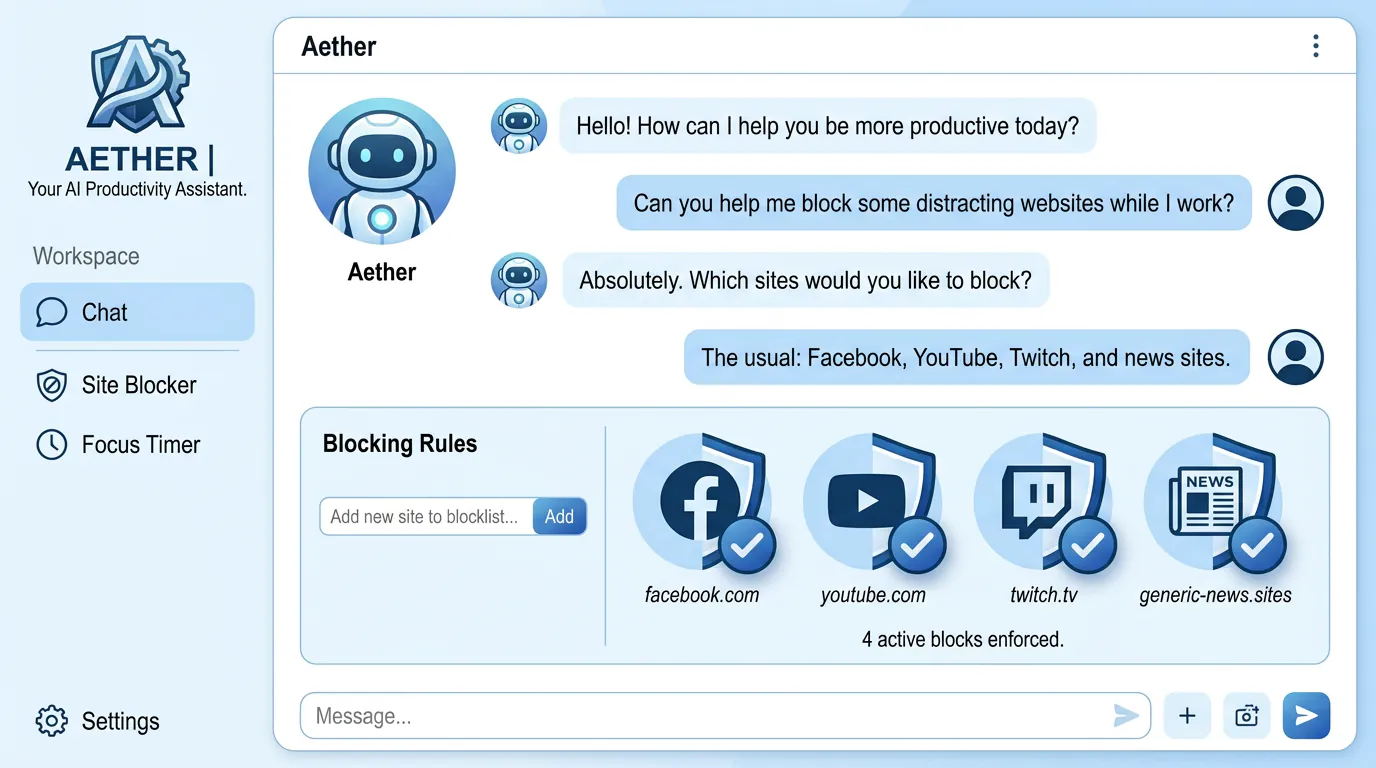
LockIn MCP takes automation one step further by integrating website blocking directly into AI assistants like ChatGPT, Claude, Perplexity, and Poke. Instead of pre-scheduling rigid time blocks, you start a focus session via a chat command, and the AI enforces the block at the system level.
The workflow looks like this:
- You tell your AI assistant: "Block YouTube and Twitter for the next two hours."
- LockIn MCP modifies your hosts file in real time.
- The AI tracks the session and automatically unblocks when the timer ends.
This combines the enforcement strength of hosts file blocking with the flexibility of on-demand sessions. You're not locked into a 9-to-5 schedule, you adapt blocking to your actual work rhythms.
LockIn MCP runs as a local MCP server (Model Context Protocol) in the background, which means your AI assistant has system-level permissions to manage blocking. It works on macOS, Linux, and Windows, and connects to AI tools via a one-line npx installer.
The advantage over manual blocking is accountability built in. If you ask the AI to unblock a site mid-session, it can prompt you to justify the request or log the bypass. This creates a layer of friction that manual toggles don't provide. For more on how this works in practice, see our guide on turning your AI assistant into a productivity enforcer.
Method 3: Browser Extensions with Scheduling
If you want quick setup without editing system files, browser extensions are the easiest entry point. Tools like AppBlock, Block Site, and LeechBlock offer scheduling features that automatically enable blocks during specified hours.
How to block a specific website on Google Chrome
- Install a blocking extension from the Chrome Web Store (e.g., Block Site or AppBlock)
- Open the extension settings
- Add domains to your block list (e.g.,
youtube.com,reddit.com) - Configure a schedule: "Monday–Friday, 9:00 AM to 5:00 PM"
- Enable Strict Mode (if available) to prevent you from disabling the block during active hours
Most extensions let you block website access by URL or keyword. Keyword blocking is more effective, if you block the term reddit, any URL containing that string gets blocked, catching subdomains and alternate paths automatically.
Limitations
Browser extensions only block within that browser. If you have Chrome and Firefox installed, blocking in Chrome leaves Firefox open. And if you really want to bypass the block, you can disable the extension in seconds.
For this reason, extensions work best when paired with Strict Mode features that lock settings during a session, or when you combine them with a system-level block as a backup.
AppBlock offers one of the stronger implementations with cross-device sync and mobile app support, making it harder to bypass by simply switching browsers or devices. For a detailed comparison, see our best system-level website blockers guide.
Method 4: Network-Level Blocking with Pi-hole or DNS Filters
For households or workspaces with multiple devices, network-level blocking automates enforcement across every connected device, phones, tablets, laptops, without installing software on each one.
Pi-hole is an open-source DNS sinkhole that runs on a Raspberry Pi or virtual machine. It intercepts DNS queries for your entire network and blocks requests to domains on your blacklist. Set it up once, and every device on your Wi-Fi is protected.
You can schedule blocks by integrating Pi-hole with cron jobs (on Linux) or using Pi-hole's built-in group management to toggle block lists at specific times. For example:
- Enable "social media" block list at 8:00 AM
- Disable it at 12:00 PM (lunch break)
- Re-enable at 1:00 PM
- Disable at 6:00 PM
DNS-based blocking is harder to bypass than browser extensions because it requires changing your device's DNS server settings, which most users don't know how to do. However, tech-savvy users can still route around it using VPNs or alternative DNS servers like Cloudflare DNS or Google Public DNS.
For businesses, enterprise DNS filtering services like Cisco Umbrella or NextDNS provide similar automation with centralized policy management.
Method 5: Dedicated Focus Apps with Built-In Automation
Purpose-built productivity apps combine blocking with scheduling and often add features like session tracking, accountability, and analytics.
Top automation-friendly focus apps in 2026
| App | Platform | Automation Features | Bypass Difficulty |
|---|---|---|---|
| Freedom | Windows, macOS, iOS, Android | Recurring schedules, sync across devices | Medium (can disable with password) |
| Cold Turkey | Windows, macOS | Scheduled blocks, "Frozen Turkey" mode locks until timer ends | Very high (near-impossible to bypass) |
| LockIn MCP | Windows, macOS, Linux | AI-triggered sessions, hosts file blocking | High (system-level enforcement) |
| AppBlock | iOS, Android, Chrome | Keyword blocking, Strict Mode, schedules | Medium (app-level, requires uninstall to bypass) |
Cold Turkey is the gold standard for unbypassable blocking. Its "Frozen Turkey" mode is a timed lockdown that can't be disabled even if you reboot, uninstall the app, or edit the registry. It's extreme, but effective for people who need absolute enforcement.
Freedom is a more user-friendly middle ground, with recurring "Freedom Sessions" that can run on a schedule (e.g., "Block social media every weekday from 9 AM to noon"). It syncs across devices, so your phone and laptop are both locked down simultaneously.
For developers and AI enthusiasts, LockIn MCP offers the best of both worlds: system-level blocking and flexible automation via AI commands. You're not locked into a rigid schedule, but the enforcement is as strong as manual hosts file editing. For a full comparison, read LockIn MCP vs Freedom and LockIn MCP vs Cold Turkey.
Comparing Automation Methods
| Method | Setup Difficulty | Bypass Difficulty | Flexibility | Best For |
|---|---|---|---|---|
| Scheduled hosts file | Medium (requires CLI tools) | Very high | Low (fixed schedule) | Developers, consistent work hours |
| AI-powered (LockIn MCP) | Low (one-line install) | High | Very high (on-demand sessions) | AI users, variable schedules |
| Browser extensions | Very low (click to install) | Low | High | Quick setup, low commitment |
| Network-level (Pi-hole) | High (requires hardware/VM) | High | Medium | Families, multi-device households |
| Focus apps (Freedom, Cold Turkey) | Low | Medium to very high | Medium | Non-technical users, mobile + desktop |
If you have consistent work hours and comfort with the command line, scheduled hosts file blocking gives you maximum control. If you want flexibility without sacrificing enforcement, AI-powered tools like LockIn MCP are the best fit. For instant setup, start with a browser extension and upgrade to system-level blocking if you find yourself bypassing it.
Tips for Effective Automated Blocking
- Start with a whitelist mindset. Block entire categories (social media, video platforms, news sites) instead of individual URLs. Keyword blocking makes this easier.
- Schedule breaks. Blocking 9-to-5 with no exceptions leads to burnout. Build in a lunch break and a mid-afternoon break where blocks lift automatically. Research shows focus efficiency dropped to 60% in 2025, a three-year low, suggesting rigid schedules don't work.
- Combine methods. Use a browser extension as your first line of defense and a scheduled hosts file rule as a backstop. Layered enforcement catches more bypass attempts.
- Log your bypasses. If you frequently disable your automation, that's data. Review what you unblocked and why. Adjust your schedule or block list instead of abandoning automation entirely.
- Pair blocking with AI accountability. Tools like LockIn MCP let your AI assistant track focus sessions and surface patterns. If you skip three sessions in a row, the AI can flag it and ask what's blocking you (pun intended).
Common Pitfalls and How to Avoid Them
Pitfall 1: Blocking too aggressively
If you block websites too broadly, you'll disable the automation within a week. Start narrow, block your top three time sinks, and expand gradually. Internet browsing leads at 47%, followed by social media at 45% and texting at 44%, according to 2026 workplace distraction data.
Pitfall 2: Not accounting for browser DNS cache
After modifying your hosts file, browsers may still load blocked sites from cache for up to 60 seconds. Either wait a minute or flush the DNS cache manually:
- Windows:
ipconfig /flushdns - macOS:
sudo dscacheutil -flushcache - Linux:
sudo systemd-resolve --flush-caches
Pitfall 3: Forgetting mobile devices
A desktop-only block just shifts the distraction to your phone. Use cross-platform tools like Freedom or AppBlock, or set up network-level blocking with Pi-hole. 82% of employees keep their phones within view during work hours, and 76% respond to smartphone notifications within five minutes, per workplace statistics.
Pitfall 4: No accountability layer
Automation without accountability is just another tool to disable. Use Strict Mode in apps, or pair blocking with an AI assistant that asks you to justify bypasses. The added friction makes you think twice. Given that multitasking wastes 20-40% of productive time, per the American Psychological Association, every bit of friction matters.
Frequently Asked Questions
Can I automate website blocking without installing software?
Yes. Editing your system's hosts file requires no additional software, but automating the edits (e.g., scheduling them) does require a task scheduler (built into Windows/macOS/Linux) and a script or CLI tool like hostctl. For zero-install blocking, use your router's parental controls or a DNS filtering service like NextDNS.
What's the difference between blocking in a browser extension vs. the hosts file?
A browser extension only blocks in that specific browser and can be disabled in seconds. Hosts file blocking works at the operating system level, affecting all browsers and apps, and requires admin privileges to modify. Hosts file blocks are significantly harder to bypass.
How do I block websites on a schedule without manual intervention?
Use a task scheduler (Task Scheduler on Windows, launchd on macOS, cron on Linux) to run a script that modifies your hosts file or toggles a blocking app at specific times. Alternatively, use an app like Freedom or LockIn MCP that has scheduling built in.
Can I use AI to automate website blocking?
Yes. LockIn MCP integrates with ChatGPT, Claude, Perplexity, and other AI assistants via the Model Context Protocol. You start and stop focus sessions by chatting with your AI, which then modifies your hosts file automatically. This combines system-level enforcement with conversational flexibility.
Will blocking a website also block its notifications?
On iOS, restricting an app via Screen Time blocks its notifications as well. On desktop, blocking a website via hosts file or browser extension does not block notifications, you'll need to disable those separately in your browser or operating system settings.
What if I need to access a blocked site for work during a focus session?
Most automation tools support allowlists (formerly called whitelists). Configure these before starting your session so essential tools remain accessible. With LockIn MCP, you can request a temporary unblock via your AI assistant, which logs the request and asks for justification, adding accountability without total lockout.
Can automated blocking work across multiple devices simultaneously?
Yes. Apps like Freedom sync blocks across desktop and mobile. Network-level solutions like Pi-hole block for every device on your Wi-Fi. LockIn MCP runs locally per device, but you can start sessions from any AI assistant connected to the MCP server.
Next Steps
Start small. Pick one distraction and one automation method from this guide.
If you're comfortable with the command line, try the scheduled hosts file approach. If you want instant setup, install a browser extension with scheduling. If you already use ChatGPT or Claude daily, LockIn MCP gives you the best of both worlds, flexible AI control with system-level enforcement.
Automation works because it removes the moment of decision. Your computer blocks distractions whether you feel motivated or not. Set it once, and let it run.
