Blog
What Is Cold Turkey Blocker? Features, Pricing, and Who It's For in 2026
Cold Turkey Blocker is a Mac and Windows app that blocks websites, apps, and even your whole computer with hard-to-bypass locks. Features, pricing, and who it's for in 2026.
 Mil Hoornaert · 14 min read
Some links are affiliate links. We may earn a commission if you buy through them, at no extra cost to you.
Cold Turkey Blocker is a desktop application for Mac and Windows that blocks distracting websites, apps, and even your entire computer with near-impossible bypass resistance. Unlike browser extensions you can disable in seconds, Cold Turkey enforces blocks at the system level, surviving uninstall attempts, restarts, and workarounds. The free version blocks websites on a timer; the Pro version ($45 one-time) adds app blocking, scheduling, and the nuclear "Frozen Turkey" mode that locks down your entire machine.
Key takeaways:
- Cold Turkey Blocker blocks websites, apps, and your entire computer with the strictest enforcement available on desktop
- Free version blocks websites; Pro ($45 one-time) adds application blocking, scheduling, Frozen Turkey mode, and advanced locking
- System-level blocking survives uninstall attempts, browser switches, restarts, and most workarounds
- No subscriptions or data collection, pay once, own forever, all settings stored locally
- Best for writers, students, and professionals who need absolute enforcement, not gentle nudges
What Is Cold Turkey Blocker?
Cold Turkey Blocker is a productivity tool designed to block digital distractions on Mac and Windows. It blocks websites in all browsers, desktop applications (games, social media apps, streaming apps), and can lock down your entire computer during focus sessions.
The software has been downloaded millions of times and holds a 4.6-star rating across thousands of user reviews. It's widely regarded as the most difficult-to-bypass blocker on any platform, earning it a cult following among writers on deadline, students during finals, and anyone who's defeated softer blocking tools.
Cold Turkey was created by developer Felix Belzile as a one-time-purchase alternative to subscription-based blockers. The pricing model is straightforward: the free version blocks websites, and the Pro upgrade ($45) unlocks all features for life on every computer you own.
How Cold Turkey Blocker Works
Cold Turkey Blocker operates at the system level, not just in your browser. When you install the desktop app on Mac and Windows, it installs browser extensions for Chrome, Firefox, Edge, and other supported browsers. These extensions communicate with the local background app, which enforces blocks even if you disable the extension, switch browsers, or restart your computer.
Once a block is locked, the app prevents:
- Uninstalling Cold Turkey
- Disabling the browser extension
- Editing the hosts file to bypass blocks
- Changing system time/date to workaround timers
- Force-quitting the blocking process
This persistence is what sets Cold Turkey apart from browser-only blockers. According to a 2019 Cambridge University meta-analysis, problematic internet use is associated with significant cognitive deficits in attentional inhibition and decision-making. Cold Turkey removes the decision entirely, you can't override the block until the timer expires.
The blocking mechanism uses multiple enforcement layers:
- Browser extensions intercept and block URLs in real-time
- Desktop app monitors running processes and kills blocked applications
- Registry/system hooks (Windows) or kernel extensions (macOS) prevent tampering
- Network-level filtering for advanced blocking modes
All blocking rules and statistics are stored locally on your device. Cold Turkey never collects or transmits your browsing data.
Cold Turkey Blocker Features
Cold Turkey packs a comprehensive feature set into a surprisingly simple interface. Here's what you can block and how.
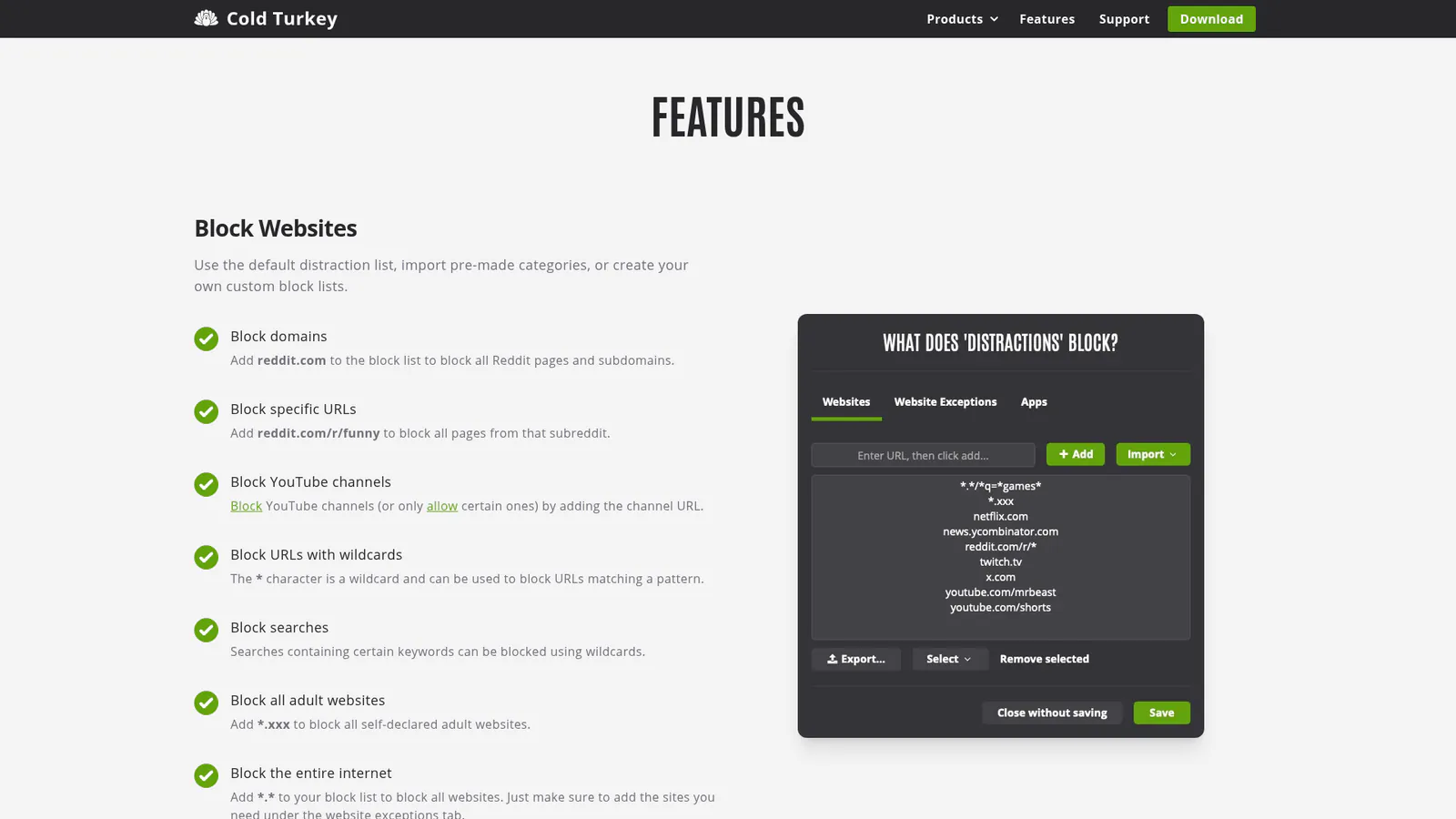
Website Blocking
The free version includes full website blocking across all browsers. You can:
- Block entire domains (reddit.com blocks all Reddit pages and subdomains)
- Block specific URLs (reddit.com/r/funny blocks only that subreddit)
- Block YouTube channels by URL
- Block search queries containing certain keywords using wildcards
- Block the entire internet by adding
*.*and then whitelisting only the sites you need - Block all adult websites and content with a single wildcard rule (
*.xxx)
Cold Turkey ships with pre-made block lists (social media, shopping, news, gaming) you can import and customize. The block page displays a motivational message when you try to visit a blocked site, reminding you to get back to work.
One unique feature: Pause for a Cause lets you donate to the World Wildlife Fund for a 10-minute break. It's optional and can be disabled, but it adds friction to bypass attempts while supporting conservation.
Application Blocking (Pro)
The Pro version blocks desktop applications alongside websites. You can add:
- Executable files (.exe on Windows, .app on macOS)
- Entire folders (blocks all apps in that location)
- Microsoft Store apps (Windows only)
- Window titles (useful for blocking specific windows in an app)
This is critical for blocking distractions that live outside the browser: Steam, Discord, messaging apps, mobile game emulators, or any other time sink on your computer. If you can launch it, Cold Turkey Pro can block it.
Frozen Turkey Mode (Pro)
Frozen Turkey is Cold Turkey's nuclear option. It doesn't block specific sites or apps, it blocks your entire computer.
When a Frozen Turkey block activates, you can choose to:
- Lock the screen (requires password to unlock, but block persists)
- Log off (ends your session)
- Shutdown (turns off the computer)
This mode is designed for scheduled breaks. Set Frozen Turkey to lock your computer every 90 minutes for a 10-minute walk, or schedule automatic shutdowns at night to enforce a sleep routine. It helps you improve focus by forcing time away from your device.
It's extreme, but effective. One user review on the Chrome Web Store called it "the most locked-down and difficult to circumvent that I've found."
Locking & Scheduling
Cold Turkey's real power is in locking mechanisms that prevent you from disabling the block. You can lock a block with:
- Timer: block persists until a future time (you can extend, but not shorten)
- Time range: only allow changes during specific hours/days
- Random text: type 50-5000 randomized characters to unlock
- Delay: wait 1 minute to 40 days before unlocking
- Password: require a password (useful for accountability partners or parents)
- Restart: require a full computer restart to unlock
- Schedule lock: prevent changes during or before scheduled blocks
The scheduled blocks feature (Pro) lets you click and drag on a weekly calendar to set recurring blocks. The schedule auto-repeats every week. Set it once, block Reddit and YouTube every weekday from 9 AM to 5 PM, and forget it.
Cold Turkey also supports flexible break modes:
- Pomodoro (work 25 minutes, break 5 minutes, repeat)
- Allowance (use blocked sites for 30 minutes per day, refills daily/weekly/monthly)
- Reward (earn breaks by working; breaks expire at the end of each period)
- Sessions (allow a set number of visits per day/week)
These let you limit time on distractions instead of blocking them entirely.
Statistics & Privacy
Cold Turkey tracks which websites and apps you visit, how long you spend on them, and when. The statistics panel shows your top distractions over custom date ranges, helping you see patterns and adjust your block lists. Copy the data to analyze trends or expand your blocking strategy as you discover new time sinks.
Critically, all statistics are stored locally on your computer. Cold Turkey's privacy policy states clearly: "Your settings and statistics are stored locally on your device. We can't access them, even if we try." There are no accounts, no cloud sync, no data collection. You can export your stats as JSON or delete them entirely.
For users concerned about digital privacy, this is a major differentiator. Competing blockers like Freedom require accounts and sync data across devices, convenient, but not private.
Cold Turkey Pricing: Free vs Pro
Cold Turkey uses a simple two-tier model:
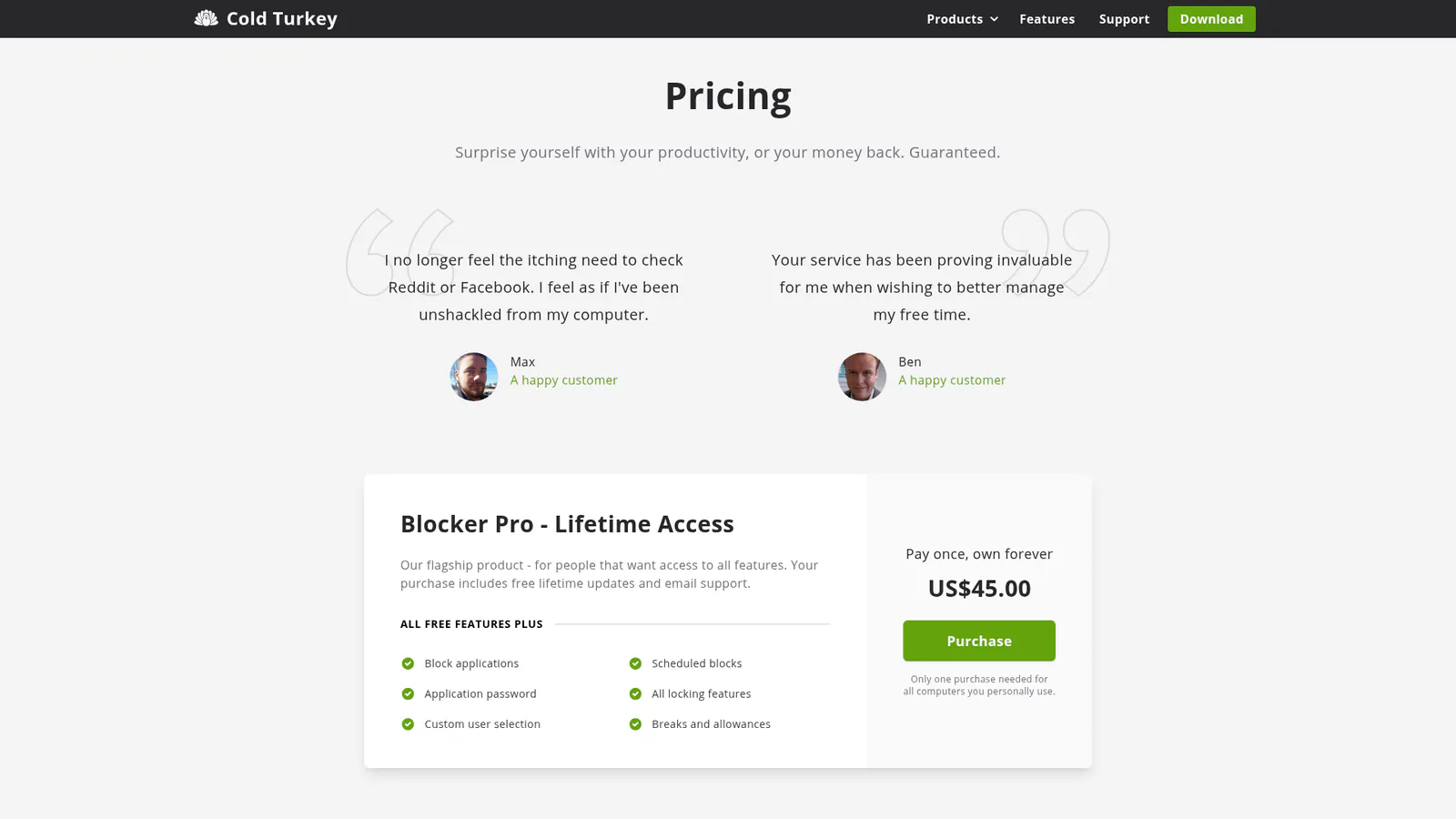
Cold Turkey Blocker Free:
- Block websites in all browsers
- Timed blocks (set duration)
- Website exceptions (whitelist)
- Usage statistics
- 7-day free trial of all Pro features
Cold Turkey Blocker Pro: $45 (one-time, lifetime)
- All free features, plus:
- Block desktop applications
- Scheduled blocks (recurring weekly calendar)
- Frozen Turkey mode (lock/logoff/shutdown computer)
- All locking mechanisms (password, random text, delay, etc.)
- Breaks and allowances (Pomodoro, daily limits, rewards)
- Custom user selection (for shared computers)
- Settings password
One purchase covers all computers you personally own, for both Windows and macOS. There are no recurring fees. Students can request a 20% discount through the support page.
Cold Turkey offers a 30-day money-back guarantee if you're not satisfied.
How Cold Turkey Pricing Compares
Compared to subscription-based blockers, Cold Turkey saves money over time:
| Blocker | Free Tier | Premium Price | 5-Year Cost |
|---|---|---|---|
| Cold Turkey | Website blocking | $45 one-time | $45 |
| Freedom | Trial period | $39.99/year | $200+ |
| LockIn MCP | System-level blocking | $2.99/month | $179 |
If you plan to use a blocker for more than one year, Cold Turkey's one-time fee is cheaper than any subscription. If you need cross-device sync (phone, tablet, laptop), Freedom or LockIn MCP might be better fits, but for pure desktop blocking, Cold Turkey is unmatched.
Cold Turkey Blocker vs Alternatives
Cold Turkey occupies a specific niche: the strictest, most unbypassable desktop blocker available. Here's how it compares to alternatives.
Cold Turkey vs Freedom
Freedom is a cross-platform blocker (Mac, Windows, iOS, Android, Chrome) with cloud sync. It's easier to use and works on mobile, but it's less strict and requires a subscription.
- Blocking severity: Cold Turkey is harder to bypass
- Platforms: Freedom covers mobile; Cold Turkey is desktop-only
- Pricing: Freedom $39.99/year vs Cold Turkey $45 once
- Sync: Freedom syncs across devices; Cold Turkey is local-only
Choose Freedom if you need mobile blocking. Choose Cold Turkey if you need the strongest desktop enforcement and hate subscriptions. Read our full LockIn MCP vs Freedom comparison for more context.
Cold Turkey vs LockIn MCP
LockIn MCP is a newer system-level blocker that integrates with AI assistants (ChatGPT, Claude, Poke) via the Model Context Protocol. It blocks websites at the OS level (hosts file + MCP server) and lets you start focus sessions by asking your AI assistant.
- Blocking method: Both use system-level enforcement
- Integration: LockIn connects to AI tools; Cold Turkey is standalone
- Pricing: LockIn $2.99/month or free tier; Cold Turkey $45 once
- AI control: LockIn lets AI manage blocks; Cold Turkey uses schedules and timers
Choose LockIn if you already use AI assistants and want AI-native productivity coaching. Choose Cold Turkey if you want a mature, battle-tested blocker with a proven track record. See our detailed LockIn MCP vs Cold Turkey breakdown.
Cold Turkey vs Browser Extensions
Browser-only blockers (BlockSite, StayFocusd, LeechBlock) are free and easy to set up, but trivial to bypass, just disable the extension, switch browsers, or use incognito mode.
Cold Turkey's system-level enforcement is leagues ahead. If you've defeated browser extensions in the past, Cold Turkey is the upgrade you need. Read our guide to the best system-level website blockers for more comparisons.
Who Should Use Cold Turkey Blocker?
Cold Turkey is not for everyone. It's strict, unforgiving, and designed for people who need absolute enforcement.
Use Cold Turkey if:
- You've defeated softer blockers in the past (browser extensions, willpower-based tools)
- You need to enforce deep work on desktop (writing, coding, studying, research)
- You prefer one-time purchases over subscriptions
- You value privacy and want local-only data storage
- You need the nuclear option (Frozen Turkey mode to lock down your entire computer)
Don't use Cold Turkey if:
- You need mobile blocking (phone, tablet), Cold Turkey is desktop-only
- You want gentle nudges instead of hard enforcement
- You need cross-device sync, Cold Turkey doesn't sync settings between computers
- You prefer cloud-based tools, everything is local
Cold Turkey is popular among:
- Writers on deadline who need to block everything but their word processor
- Students during exam periods who need unbreakable focus
- Developers who want to block GitHub, Hacker News, and Stack Overflow during deep work
- Anyone recovering from internet/gaming addiction who needs external enforcement
One Chrome Web Store reviewer wrote: "Cold Turkey Blocker has, in some ways, saved my life... in this day and age of monthly fees, he charges a one-time fee and continues to support the app and make improvements."
How to Install Cold Turkey Blocker
Getting started with Cold Turkey takes about five minutes to install and configure on Mac and Windows.
Step 1: Download the installer
Visit getcoldturkey.com/pricing and download the installer for Windows or macOS. The free version includes a 7-day trial of all Pro features, no credit card required.
Step 2: Install the desktop app
Run the installer and follow the prompts. The app installs a background service that runs on startup. The install process is quick, typically completing in under two minutes.
Step 3: Install browser extensions
After installing the desktop app, Cold Turkey will prompt you to install browser extensions for Chrome, Firefox, Edge, and other supported browsers. Click the links to add them. This step is required to block social media sites and other web content.
Step 4: Create your first block
Open Cold Turkey, click "Add Block," and add websites or apps to block. Set a timer, choose a lock type (or skip locking for testing), and click "Start."
When a block is active, you'll see a block page when you try to visit a restricted site. If you locked the block, you won't be able to stop it until the timer expires or you complete the unlock condition (typing random text, waiting through a delay, etc.).
Pro tip:Start with short, unlocked blocks to test your settings before locking yourself out for hours. For a complete walkthrough, see our guide on how to block websites on Windows.
Pros and Cons
Pros:
- Most unbypassable desktop blocker available, survives restarts, uninstall attempts, and workarounds
- One-time payment with lifetime updates (vs recurring subscriptions)
- Local data storage, no accounts, no cloud, no data collection
- Comprehensive features, blocks websites, apps, entire computer
- Flexible scheduling and break modes (Pomodoro, allowances, rewards)
- 30-day money-back guarantee
Cons:
- Desktop-only, no mobile or tablet support (Windows/Mac only)
- No cross-device sync, settings don't sync between computers
- Extremely strict, not ideal if you need flexibility or want gentle nudges
- Learning curve, advanced features (wildcards, locking modes) can be confusing
- No cloud backup, lose your computer, lose your stats (export manually as JSON)
Conclusion
Cold Turkey Blocker is the gold standard for unbypassable desktop blocking. If you've defeated browser extensions, ignored app timers, or talked yourself out of focus sessions, Cold Turkey removes the choice. It locks you in, literally, until the work is done.
The free version is a solid website blocker for anyone who wants to test system-level enforcement. The Pro version ($45 one-time) is worth it if you need app blocking, scheduling, or the nuclear Frozen Turkey mode. No subscriptions, no data collection, no excuses.
For most people who need desktop blocking, Cold Turkey is the answer. If you need mobile support or AI-driven productivity coaching, explore LockIn MCP or Freedom instead. But if you want the strictest, most unbypassable blocker money can buy, download Cold Turkey and lock in.
FAQ
Is Cold Turkey Blocker free?
Yes. The free version blocks websites in all browsers with timed blocks. The Pro version ($45 one-time) adds app blocking, scheduling, Frozen Turkey mode, and advanced locking. The free version includes a 7-day trial of all Pro features.
Can you uninstall Cold Turkey Blocker during a block?
No. When a block is locked, Cold Turkey prevents uninstalling the app, disabling the extension, or editing system files to bypass the block. The only way to remove a locked block early is to complete the unlock condition (wait for the timer, type the random text, enter the password, etc.).
Does Cold Turkey Blocker work on mobile?
No. Cold Turkey only works on Mac and Windows. For mobile blocking, consider Freedom, Opal (iOS), or LockIn MCP (desktop AI-native alternative).
What is Frozen Turkey mode?
Frozen Turkey is a Pro feature that locks, logs off, or shuts down your entire computer on a schedule. It's designed for scheduled breaks, force yourself to take a 10-minute walk every 90 minutes, or automatically shut down your computer at 10 PM to enforce a bedtime.
Can you bypass Cold Turkey Blocker?
Cold Turkey is designed to be extremely difficult to bypass. It survives browser switches, restarts, uninstall attempts, and system time changes. Advanced users can bypass it by booting into safe mode or editing system-level files, but doing so requires significant technical effort, far more friction than simply waiting for the block to expire.
How much does Cold Turkey Blocker Pro cost?
Cold Turkey Pro costs $45 (USD) as a one-time purchase. One license covers all computers you personally own, for Mac and Windows. Students can request a 20% discount. There is a 30-day money-back guarantee.
Does Cold Turkey Blocker collect my data?
No. Cold Turkey stores all settings and statistics locally on your device. The developer cannot access your data, and there are no accounts or cloud sync. Read the full privacy policy for details.
