Blog
How to Block Distracting Websites: 4 Methods That Work in 2026
Learn how to block distracting websites with browser extensions, system-level blockers, parental controls, and AI-powered tools — plus how to choose the right method.
 Mil Hoornaert · 12 min read
Some links are affiliate links. We may earn a commission if you buy through them, at no extra cost to you.
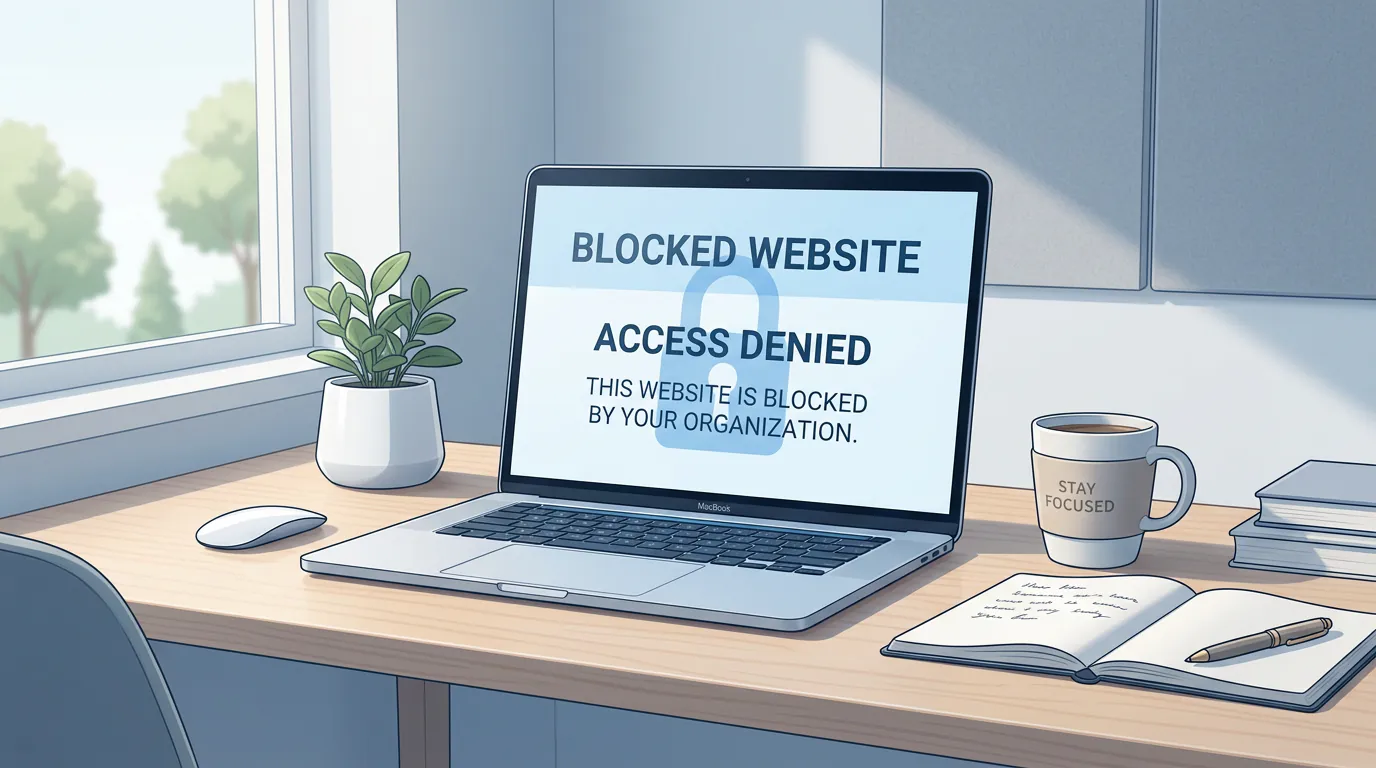
Blocking distracting websites removes the temptation before it drains your willpower. You install a browser extension, system-level blocker, or automation tool that prevents access to specific sites during work hours. The method you choose depends on how easily you bypass blocks and whether you need cross-device enforcement.
Key takeaways:
- Research shows it takes an average of 23 minutes to regain focus after a distraction, making proactive blocking more effective than resisting in the moment
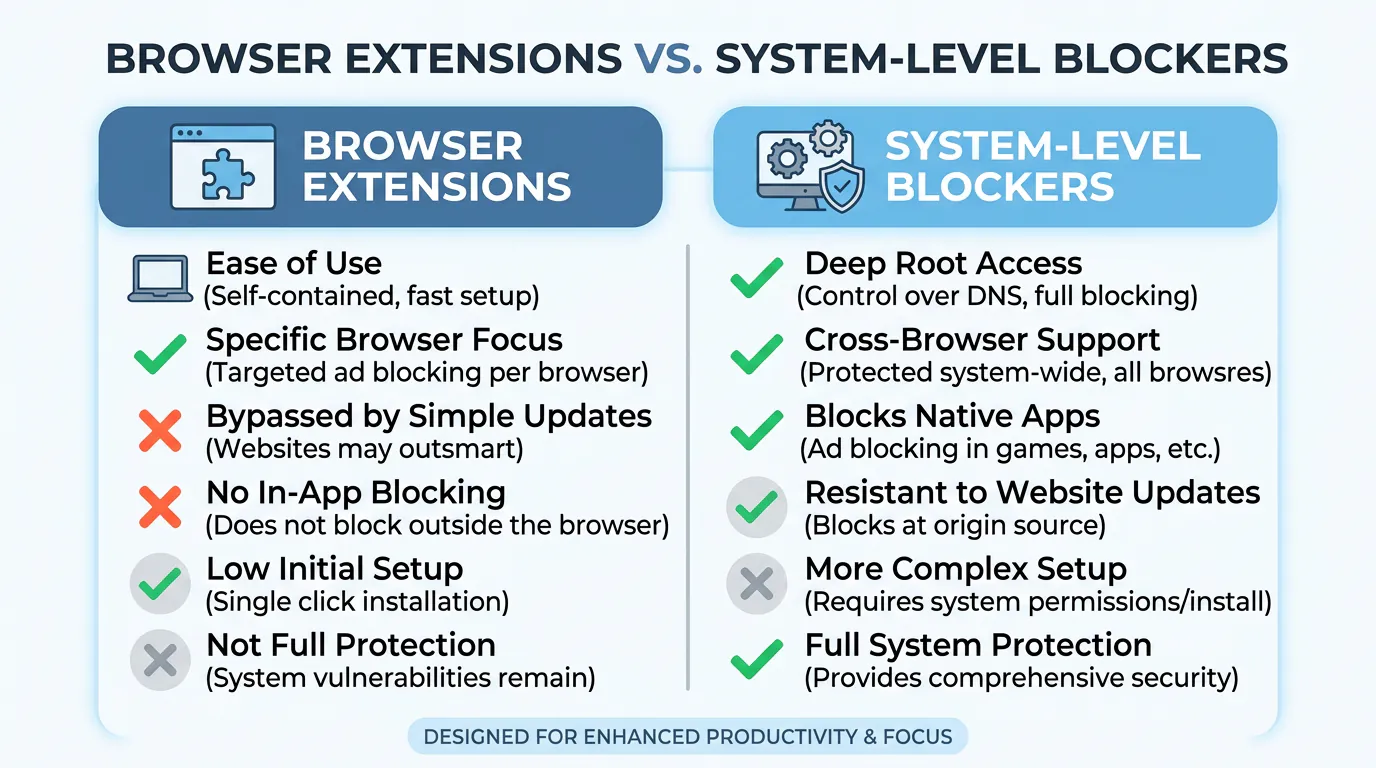
- Browser extensions like StayFocusd and BlockSite are free and easy to set up but can be disabled in seconds
- System-level blockers modify your hosts file or run background processes, making them harder to bypass than extensions
- AI-powered tools like LockIn MCP automate blocking by connecting to ChatGPT, Claude, or other assistants that trigger focus sessions based on your behavior
- Users of website blockers report saving 2-3 hours per day previously lost to social media and other distractions
Why Blocking Websites Works Better Than Willpower
Willpower is a finite resource that depletes throughout the day. Every time you resist checking social media or opening YouTube, you're using mental energy you could spend on actual work.
Website blockers eliminate this drain by making the decision for you. When you try to visit a blocked site, you get a reminder screen instead of an infinite scroll. That brief interruption breaks the automatic reflex most of us develop after years of phone checking and tab switching.
The science backs this up. Studies on internet use and productivity found that knowledge workers lose an entire workday per month to unnecessary browsing. Short-form video platforms like TikTok, YouTube Shorts, and Instagram Reels are designed to keep you watching. The algorithms have gotten frighteningly good at knowing what will hold your attention.
Blocking these sites during work hours isn't about eliminating them forever. It's about adding friction where you need it most.

4 Methods to Block Distracting Websites
1. Browser Extensions
Browser extensions are the fastest way to block websites. You install them from the Chrome Web Store or Firefox Add-ons, add your block list, and they start working immediately.
Popular options:
- StayFocusd (Chrome only), Set time limits for specific websites. Once you hit your allowed time, the site gets blocked for the rest of the day. Over 8,700 reviews.
- LeechBlock NG (Firefox), Create custom sets of websites with rules for when and how they're blocked. More flexible than StayFocusd but takes longer to configure.
- BlockSite (Chrome, Firefox, iOS, Android), Cross-platform blocking with work mode schedules and the ability to block adult content.
- Pause (Chrome), Takes a different approach by showing a 5-second calming screen before letting you continue to a distracting site. Doesn't block access but adds enough friction to make you reconsider.
Pros:Free, easy setup, works immediately Cons: Easy to disable or bypass by switching browsers, opening incognito mode, or uninstalling the extension
2. System-Level Blockers
System-level tools run outside your browser and modify your operating system's hosts file or network settings. They block websites at the DNS level, which means they work across all browsers and apps.
This makes them significantly harder to bypass. You can't just disable an extension or open an incognito window.
Popular options:
- Freedom (Windows, Mac, iOS, Android), Schedule recurring block sessions across all your devices. You can block specific apps, websites, or the entire internet. Over 2 million users. One study found 22% higher hourly earnings when Freedom was active. Subscription-based starting at $2.99/month.
- Cold Turkey (Windows, Mac), Desktop blocker with locked mode that prevents you from disabling or uninstalling it until your timer ends. One-time purchase of $39 for lifetime access. The free version covers basic website blocking. Includes a Nuclear Option mode for maximum enforcement.
- SelfControl (Mac only), Free, open-source blocker. Once you start a session, you can't access blocked sites even if you restart your computer or delete the app. No workarounds.
- LockIn MCP, System-level blocker that integrates with AI assistants like ChatGPT, Claude, and Poke. Your AI can start focus sessions, modify your block list, and enforce blocking through a background MCP server. One-line install via npx. Starting at $2.99/month or $59.99 lifetime.
Pros:Much harder to bypass, works across all browsers and apps, enforces accountability Cons: Requires installation permissions, takes a few minutes to set up, paid options typically required for full features
3. Built-In Parental Controls
Both Windows and Mac include parental controls that let you block websites without installing third-party software. You create a separate "child" user account with restrictions, then log into it when you want to stay focused.
Windows:Go to Settings > Accounts > Family & other people > Add a child. Under Web browsing, add URLs to the "Always blocked" list. Full instructions from Microsoft.
Mac:System Preferences > Parental Controls > Create a new user account with parental controls. Select which websites and apps to block and set time limits. Full instructions from Apple.
Pros:Free, already installed, can't be bypassed without admin password Cons: Requires logging in and out of different accounts, not flexible for quick changes, awkward if you're blocking yourself
4. AI-Powered Blocking
The newest approach is letting your AI assistant manage blocking for you. Instead of manually starting sessions or scheduling them in advance, your AI detects when you're distracted and blocks sites automatically.
LockIn MCP is the most integrated example. It runs as an MCP server that connects to ChatGPT, Claude, Perplexity, Poke, and other AI tools. You can tell your AI things like "block social media for the next 2 hours" or "start a focus session when I spend more than 30 minutes on YouTube today."
The AI tracks your behavior and enforces blocking based on rules you set. It's like having a productivity coach that actually has the power to lock distractions.
RescueTime offers a similar approach with its FocusTime feature. It tracks where you spend time, then automatically blocks distracting sites when you hit daily limits or start specific calendar events. You can also connect it to Slack to enable do-not-disturb mode during FocusTime sessions.
Pros:Automated enforcement, adapts to your behavior, removes the need to remember to start sessions Cons: Requires subscription, needs initial setup time to configure rules and connect services
Best Website Blockers by Use Case
Easiest to start:StayFocusd (Chrome) or BlockSite (cross-browser). Install and add your top 3 time-wasting sites in under 2 minutes.
Hardest to bypass: Cold Turkey in locked mode or SelfControl. Once the timer starts, there's no escape hatch.
Best for mobile and desktop sync: Freedom works across all platforms and syncs your block lists.
Best for AI integration: LockIn MCP if you already use ChatGPT or Claude. Your AI can manage blocking through natural conversation.
Best free option:SelfControl for Mac users, Cold Turkey's free version for Windows.
Best for freelancers billing by the hour: RescueTime with FocusTime. Automatically blocks sites when you start timers in Harvest or other time-tracking apps.
How to Choose the Right Blocking Method
Ask yourself two questions:
1. How likely am I to bypass the block?
If you're good at rationalizing "just one quick check," you need system-level blocking. Browser extensions are too easy to disable. Cold Turkey, SelfControl, or LockIn MCP force you to wait out the timer.
2. Do I need cross-device blocking?
If you switch between desktop and phone when blocked, choose Freedom or use separate blockers on each device. LockIn MCP handles desktop blocking at the system level but doesn't block mobile browsers (yet, use Screen Time on iOS or Digital Wellbeing on Android for that).
Most people start with a free browser extension, realize they can bypass it too easily, then graduate to a system-level tool. Skip the trial period and go straight to system-level if you're serious.
Tips for Effective Website Blocking
Start Small and Scale Up
Don't block 50 sites on day one. Block YouTube, Reddit, and Instagram (or whatever your actual vices are). Add more as you notice new escape routes. Most people waste the majority of their time on 2-3 sites. Focus there first.
Schedule Blocks Automatically
Set a recurring morning block from 8 AM to noon, or use calendar integration to trigger blocking during "deep work" events. Tools like Freedom and RescueTime handle this automatically.
The key is removing the decision to start a session. If you rely on willpower to manually start blocking, you'll skip it on hard days when you need it most.
Use Time Limits for Borderline Sites
You might need Twitter for work research but waste 45 minutes scrolling. Set a 15-minute daily limit so you can do the research without falling into the feed.
Freedom lets you customize the amount of time you spend on specific sites before they're blocked. This helps you stay focused without completely cutting off access to sites you occasionally need.
Combine Desktop and Mobile Blocking
Desktop blockers don't help if you just grab your phone. Set app limits on iOS or Android to cover both devices. Moving social media apps off your home screen and into a folder also adds enough friction to reduce mindless opening.
Track Your Progress
Most blocking apps show how much time you've saved or how many block attempts you triggered. Seeing "you tried to visit YouTube 47 times this week" is motivating data. It keeps you honest about your habits.
Allow Temporary Unblocks with Accountability
LockIn MCP lets you ask your AI for a temporary unblock, but you have to justify why. That extra step is often enough to make you reconsider whether you really need access.
This approach helps you stay focused while keeping flexibility for legitimate needs. You're building accountability into the system.
Common Website Blocker Features to Look For
Customize Your Block Lists
The best tools let you create multiple block lists for different situations. You might block social media during work hours but allow it during lunch breaks. Or block everything except specific work tools during deep focus sessions.
Session Scheduling
Look for tools that let you schedule recurring block sessions. Weekday mornings, after lunch, or evening hours. Automation removes the friction of remembering to start sessions manually.
Cross-Platform Support
If you work on multiple devices, choose a blocker that syncs across Windows, Mac, iOS, and Android. Freedom and LockIn MCP both offer this.
In-App Blocking Features
Some tools like StayFocusd now include In App Blocking to hide distracting elements on sites you can't fully block. Hide YouTube Shorts, Reddit comment sections, or Facebook news feeds while still accessing the parts of the site you need.
Locked Mode Options
For maximum accountability, choose a tool that offers locked or Nuclear Option modes where you can't disable blocking once it starts. Cold Turkey and SelfControl excel here.
When Blocking Isn't Enough
Website blockers work for most people, but they're not magic. If you disable the blocker every day or constantly find workarounds, the real issue might be:
- Unclear priorities. You're blocking distractions but haven't defined what you should be working on instead. Time blocking your calendar helps.
- Burnout. Constant distraction can be a symptom of being overwhelmed or working on things you hate. Blocking sites won't fix that.
- Undiagnosed ADHD. If you struggle with focus even when distractions are removed, talk to a doctor. Blocking tools are helpful but aren't a replacement for treatment.
Blocking is one piece of a larger productivity system. Pair it with clear daily goals, scheduled deep work blocks, and regular breaks.
Who Uses Website Blockers?
Website blocking tools are used by millions of people across different fields:
- Knowledge workers who need deep focus for writing, coding, design, or analysis
- Students preparing for exams or working on research papers
- Freelancers billing by the hour who need to protect their billable time
- Remote workers managing distractions in a home environment
- Teams and companies implementing focus policies across their organization
Freedom reports over 2 million registered users, including teams at Microsoft, Google, and other major companies. Their research shows users are 20% more productive when blocking is active. Many companies now offer Freedom licenses to entire teams as a productivity benefit.
Getting Your Team on Board
If website blockers work for you personally, consider rolling them out to your team.
Freedom offers team licenses with centralized billing and admin controls. You can create shared block lists, schedule company-wide focus hours, and track aggregate productivity improvements (without invading individual privacy).
LockIn MCP works well for developer teams already using AI coding assistants. Your team's AI tools can enforce focus sessions while they're working on critical sprints or releases.
The key is positioning it as a benefit, not surveillance. Frame it as "we're giving you tools to protect your focus" rather than "we're monitoring your web usage."
FAQ
What is the best website blocker app in 2026?
Freedom is the most popular with over 2 million users, working across Mac, Windows, iOS, and Android with scheduled blocking and device syncing. Cold Turkey is a strong alternative for desktop with a one-time $39 purchase instead of a subscription. SelfControl is the best free Mac option where blocks can't be undone. For AI integration, LockIn MCP connects to ChatGPT and Claude to automate blocking.
How do I block distracting websites on Google Chrome?
Install a Chrome extension like StayFocusd or BlockSite from the Chrome Web Store. StayFocusd lets you set daily time limits for distracting sites, once your allowed time expires, the site is blocked for the rest of the day. BlockSite lets you create block lists and set work mode schedules. Both are free to use. For harder-to-bypass blocking, use a system-level tool instead.
Can I block websites only during work hours?
Yes. Most website blockers support scheduled blocking. Freedom lets you create recurring sessions that automatically block chosen sites during specific days and times, like weekdays from 8 AM to 5 PM. Cold Turkey and RescueTime offer similar scheduling. You can set different block lists for different times of day, allowing access to social media during lunch while blocking it during deep work hours.
Do website blockers actually improve productivity?
Yes. By removing the option to visit distracting websites, you eliminate the willpower drain of constantly resisting temptation. Studies show willpower is a finite resource that depletes throughout the day. Website blockers preserve your willpower for important decisions by automating the "no" response. Users of tools like Freedom report saving 2-3 hours per day previously lost to mindless browsing. The key is combining blockers with intentional work habits like time blocking.
How do I block distracting websites and apps on my phone?
On iPhone, use Screen Time in Settings to set app limits and block specific websites through Content Restrictions. The Opal app provides more detailed controls. On Android, Freedom and BlockSite both offer mobile apps that sync with your desktop block lists. Moving social media apps off your home screen and into a folder also adds enough friction to reduce mindless opening by 30-50%.
How long does it take to regain focus after being distracted?
Research from the University of California Irvine found it takes an average of 23 minutes and 15 seconds to fully regain focus after a distraction. A quick 2-minute check of social media actually costs you closer to 25 minutes of productive time. Over a day with multiple interruptions, you can lose 2-3 hours of focused work. This is why proactive blocking is more effective than relying on willpower.
What are the most distracting websites I should block?
The most commonly blocked websites are social media (Facebook, Instagram, Twitter/X, TikTok, Reddit), video streaming (YouTube, Netflix, Twitch), news sites (CNN, BBC, Reddit news feeds), and email if you check it compulsively. In 2026, AI chat tools like ChatGPT can become distractions if used recreationally during work hours. Start by blocking your top 3 time-wasting sites for one week and measure how your focus improves.
Can I still access blocked websites if I really need them?
It depends on the tool. Browser extensions like StayFocusd can be disabled anytime. System-level blockers like SelfControl and Cold Turkey in locked mode cannot be bypassed until the timer ends, even if you restart your computer. LockIn MCP lets you request temporary unblocks through your AI assistant, but you have to justify why, that accountability often makes you reconsider whether you really need access.
Ready to lock in and eliminate distractions? Install LockIn MCP with one command and let your AI assistant handle blocking for you.
