Blog
How to Block YouTube at Work: Extensions, System Blocks & AI
Block YouTube at work with browser extensions, hosts-file blocking, dedicated apps, AI-enforced focus via LockIn MCP, mobile Screen Time, and network DNS.
 Mil Hoornaert · 11 min read
Some links are affiliate links. We may earn a commission if you buy through them, at no extra cost to you.
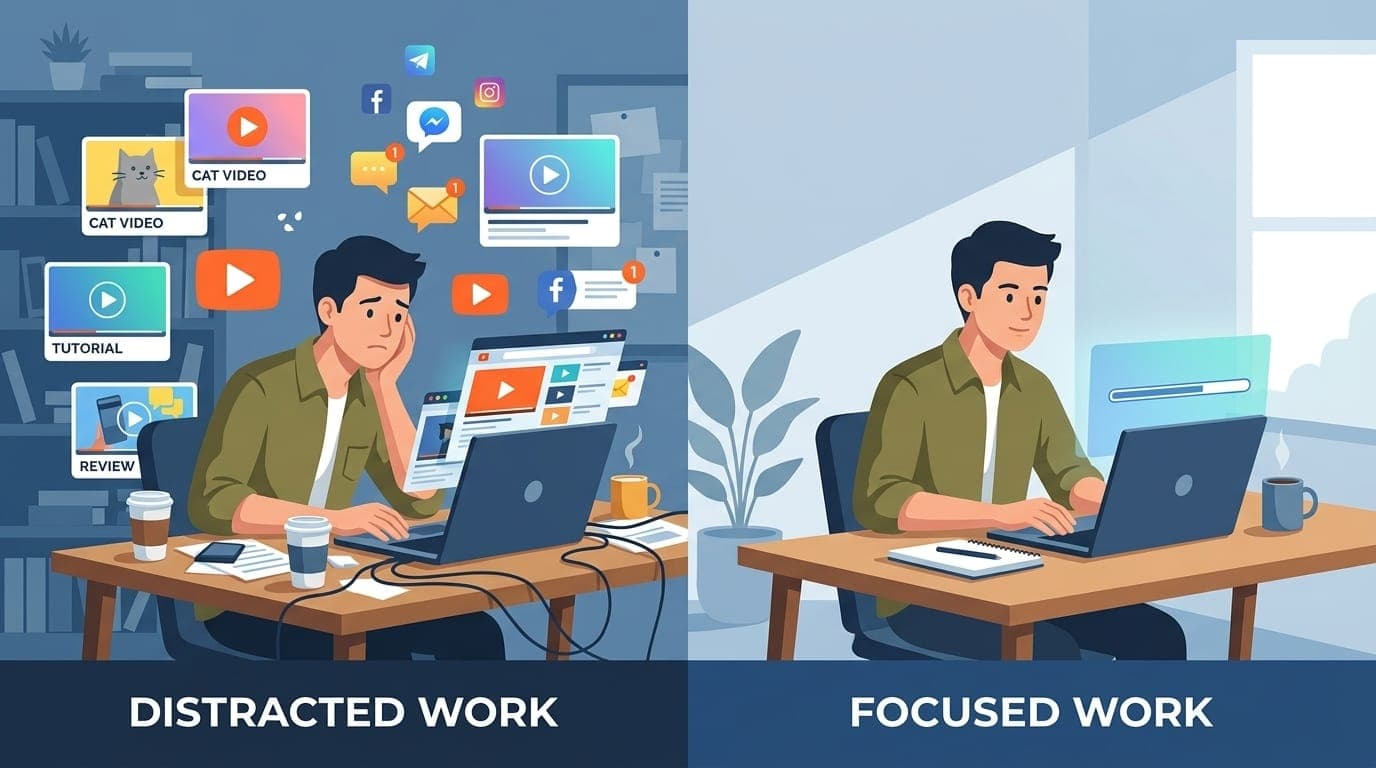
YouTube's algorithm is designed to keep you watching. Block it during work hours using browser extensions, system-level blocking, or AI-integrated tools that enforce focus sessions. The right method depends on how easily you bypass restrictions and how much control you need.
Key takeaways:
- YouTube's autoplay and recommendation algorithm create a distraction loop that costs the average user over 40 minutes per unplanned visit
- Browser extensions like BlockSite offer quick setup but can be disabled in seconds
- System-level methods (hosts file editing, Freedom, Cold Turkey) provide stronger enforcement across all browsers
- AI-integrated tools like LockIn MCP add accountability through your existing AI assistants
- Network-level DNS blocking works across all devices but requires router access
- Combining multiple methods creates the strongest defense against procrastination
Why YouTube Is So Hard to Resist at Work
YouTube isn't just another website. It's engineered to maximize watch time.
The platform uses a recommendation algorithm trained on billions of hours of viewing data to serve you the next video it thinks you'll watch. According to YouTube's own engineering team, the system optimizes for expected watch time as its primary metric. That means every suggested video, thumbnail, and autoplay decision is calculated to keep you on the platform longer.
The cost to your productivity is measurable. A 2024 study by RescueTime found that knowledge workers who visited YouTube during work sessions spent an average of 43 minutes on the platform before returning to their tasks. That's not a quick break. That's nearly an hour gone.
This isn't about willpower. It's about friction. You need technical barriers that make accessing YouTube harder than staying focused.
Quick Solutions: Browser Extensions
Browser extensions work if you need a lightweight reminder system and you're not fighting serious procrastination habits.
How Browser Extensions Block YouTube
Extensions like BlockSite, StayFocusd, and LeechBlock intercept requests to YouTube at the browser level. When you try to visit youtube.com, the extension redirects you to a blocked page instead.
Pros:
- Install in under 60 seconds
- Free options available
- Can schedule blocks for specific work hours
- Some allow temporary unblocks with a delay
Cons:
- Easy to disable (just turn off the extension in two clicks)
- Only work in one browser at a time
- Don't block the YouTube app on mobile
- Ineffective if you have low self-control during focus sessions
Best Extension: BlockSite
BlockSite offers scheduled blocking, password protection (so you can't easily disable it mid-session), and works across Chrome, Firefox, and Edge. The free tier blocks unlimited sites.
To set it up:
- Install BlockSite from your browser's extension store
- Click the extension icon and go to Block Sites
- Add youtube.com and m.youtube.com to your block list
- Set a schedule (e.g., Monday–Friday, 9 AM–5 PM)
- Enable password protection under Settings > Security
This method works for people who just need a nudge, not enforcement.
Stronger Blocking: System-Level Methods
If you find yourself disabling browser extensions mid-session, you need system-level blocking that works across all browsers and requires technical steps to undo.
Method 1: Edit Your Hosts File (Free)
Your computer's hosts file maps domain names to IP addresses. By redirecting youtube.com to a non-existent address, you block access at the operating system level before any browser gets involved.
On Windows:
- Open Notepad as Administrator (right-click > Run as administrator)
- Open the file at
C:\Windows\System32\drivers\etc\hosts - Add these lines at the bottom:
127.0.0.1 www.youtube.com
127.0.0.1 youtube.com
127.0.0.1 m.youtube.com- Save and close
- Open Command Prompt as Administrator and run
ipconfig /flushdns
On Mac:
- Open Terminal
- Run
sudo nano /etc/hosts - Enter your password
- Add the same three lines as above
- Save (Control+O, Enter, Control+X)
- Run
sudo dscacheutil -flushcache; sudo killall -HUP mDNSResponder
Pros:
- Free
- Works across all browsers
- Requires deliberate technical steps to undo
Cons:
- Doesn't sync across devices
- Easy to undo if you know what you're doing
- No scheduling or temporary unblock features
- Doesn't block YouTube in apps or on mobile
This method creates friction but won't stop you if you're determined to procrastinate.
Method 2: Dedicated Blocking Apps (Stronger Enforcement)
Apps designed specifically for focus blocking offer features that make bypassing harder.
Freedom blocks YouTube across Mac, Windows, iOS, and Android with session scheduling and device sync. Unlike browser extensions, Freedom runs at the system level and requires ending a session to regain access.
Freedom costs $8.99/month or $39.99/year (with a 7-day free trial). The app allows you to:
- Block YouTube and other sites across all your devices simultaneously
- Schedule recurring focus sessions (e.g., weekdays 9-5)
- Use "Locked Mode" to prevent ending a session early
According to Freedom's 2025 productivity report, users who enabled Locked Mode were 3.2 times more likely to complete their planned focus sessions compared to users with standard blocking.
Setup takes about 5 minutes. You create a blocklist (including YouTube), start a session with a set duration, and select which devices to lock down.
Cold Turkey is the most aggressive desktop blocker available. It's Windows-only and designed to be unbypassable.
The free version blocks websites and apps. Cold Turkey Pro ($39 one-time) adds scheduling, timers, and "Frozen Turkey" mode, which prevents you from modifying or ending blocks even if you restart your computer or try to uninstall the app.
Cold Turkey is overkill for most people, but if you have a serious YouTube addiction during work hours, it's the most effective single-device solution. You literally cannot access YouTube until your session ends, even in Safe Mode.
AI-Enforced Focus: LockIn MCP & Modern Solutions
The newest approach integrates blocking directly into your AI workflow. Instead of fighting against your tools, you give your AI assistant the ability to enforce focus sessions for you.
LockIn MCP: Block YouTube Through Your AI Assistant
LockIn MCP turns ChatGPT, Claude, Perplexity, Gemini, or Poke into a productivity coach that blocks distracting sites at the system level. It works by installing a lightweight MCP server on your Mac, Windows, or Linux machine that your AI connects to via the Model Context Protocol.
Here's what makes it different from traditional blockers:
Natural workflow integration:You tell your AI assistant "lock in for 2 hours" or "block YouTube until 5 PM" in natural language. The AI starts a focus session through the MCP server, which edits your hosts file to block the domains you specified.
Accountability through AI:If you try to unblock YouTube mid-session, you have to ask your AI for permission. The AI can deny the request or require you to explain why you need access, adding a layer of friction that browser extensions and static blockers don't provide.
Cross-device enforcement:If you connect LockIn MCP to multiple machines, your AI can start sessions on all of them at once.
Pricing: $2.99/month or $29.99/year after a free trial. A $59.99 lifetime license is also available.
Setup takes one command:
npx -y lockin-mcp installThen connect your AI assistant (instructions for Claude, ChatGPT, Poke, etc.) and tell it to block YouTube during your next work session.
The system-level blocking is as strong as manually editing your hosts file, but the AI layer adds context and accountability that static tools can't match. It's built for people who already use AI assistants for productivity and want to close the loop between planning focus sessions and enforcing them.
For a comparison of LockIn MCP against Freedom and other tools, see our LockIn MCP vs Freedom breakdown.
Mobile Blocking Methods
Blocking YouTube on your phone requires different tools than desktop.
iOS: Screen Time
Apple's built-in Screen Time feature can block the YouTube app and website:
- Open Settings > Screen Time
- Tap App Limits
- Add Limit > Entertainment
- Select YouTube and set a 1-minute daily limit
- Go to Content & Privacy Restrictions > Content Restrictions > Web Content
- Select Limit Adult Websites
- Under Never Allow, add youtube.com and m.youtube.com
To make this harder to bypass, set a Screen Time passcode that you give to a trusted friend or use a random password generator and store it somewhere inconvenient.
Android: Digital Wellbeing + Third-Party Apps
Android's Digital Wellbeing can set app timers, but it's easy to override. For stronger blocking, use Freedom (which works on Android) or AppBlock, which requires more steps to disable mid-session.
The most effective mobile strategy is to delete the YouTube app entirely and block the website in your browsers. YouTube in a mobile browser is a worse experience than the app, which adds natural friction.
Network-Level Blocking
If you control your home or office router, you can block YouTube for all devices on the network.
Router-Level DNS Blocking
Most routers let you block specific domains via their admin panel:
- Log in to your router (usually at 192.168.1.1 or 192.168.0.1)
- Find the "Content Filtering," "Parental Controls," or "Access Control" section
- Add youtube.com, www.youtube.com, and m.youtube.com to the block list
- Apply and restart the router
This method blocks YouTube on every device connected to your Wi-Fi: laptops, phones, tablets, smart TVs. The downside is that anyone else on the network loses access too, so it only works if you live alone or everyone in your household agrees.
DNS Services: NextDNS and OpenDNS
NextDNS and OpenDNS let you create custom DNS filtering rules that block domains before they resolve. You configure your router (or individual devices) to use their DNS servers, then set blocking rules in their web dashboard.
NextDNS offers free accounts with 300,000 queries per month. The paid tier ($19.90/year) removes the query limit. OpenDNS is free for home use.
This approach works well if you want network-wide blocking but don't want to dig into your router's admin panel. The downside is that tech-savvy users can bypass DNS blocks by changing their device's DNS settings.
Which Method Should You Use?
Your blocking strategy depends on how much friction you need and where you waste the most time.
Use a browser extension if:
- You just need a reminder, not enforcement
- You rarely try to bypass blocks
- You only watch YouTube in one browser
Use the hosts file method if:
- You want free, cross-browser blocking on one device
- You're comfortable with command-line tools
- You don't need scheduling or temporary unblocks
Use Freedom or Cold Turkey if:
- You need cross-device blocking
- You want scheduled focus sessions
- You need stronger enforcement than browser extensions
Use LockIn MCP if:
- You already use ChatGPT, Claude, or another AI assistant for productivity
- You want AI-enforced accountability, not just static blocking
- You want to integrate focus sessions into your existing AI workflow
Use network-level blocking if:
- You want to block YouTube on all devices in your home or office
- You control the router or DNS settings
- You're okay with blocking YouTube for everyone on the network
Most people benefit from combining methods. For example, use LockIn MCP on your work laptop for AI-enforced sessions, edit the hosts file on a personal machine you use at night, and set up Screen Time limits on your phone. Multiple layers make bypassing harder.
FAQ
Can I block YouTube but still access specific videos for work?
Yes, but it requires manual whitelisting. Freedom and some browser extensions let you whitelist specific URLs or channels. A simpler approach is to use YouTube's "Watch Later" feature to save work-related videos, then view them after your block session ends. If you genuinely need YouTube for work, consider blocking only during specific hours (e.g., 9 AM–12 PM) rather than all day.
Will blocking YouTube on my computer also block it on my phone?
No, unless you use a cross-device app like Freedom or network-level blocking. Browser extensions and hosts file edits only work on the device where you install them. To block YouTube on your phone, you need to set up Screen Time (iOS), Digital Wellbeing (Android), or install a mobile blocker separately.
Can I bypass these blocks if I really need to?
Yes, every method in this guide can be undone. That's by design, you should always have access in a genuine emergency. The goal is to add enough friction that you don't bypass blocks on impulse. Hosts file edits require terminal access. Freedom's Locked Mode prevents ending sessions early. LockIn MCP requires asking your AI for permission, which adds a layer of accountability. The question isn't whether you can bypass a block, but whether it's easier to stay focused than to undo it.
Does blocking YouTube improve productivity?
According to a 2023 study published in Computers in Human Behavior, participants who used website blockers during work sessions reported 28% higher task completion rates and 19% lower perceived stress compared to a control group. However, blocking alone isn't enough. You also need a clear task list and a plan for what to do when you feel the urge to procrastinate.
What if I use YouTube for background music or white noise while working?
Switch to a dedicated music service like Spotify, Apple Music, or Brain.fm, which are designed for focus and don't include algorithmic rabbit holes. YouTube's interface is built to suggest the next video, which makes it a poor choice for background audio during deep work. If you must use YouTube for music, search for hour-long playlists, open the video, press play, and immediately turn off your monitor or switch to a different desktop.
Can my employer block YouTube on my work computer?
Yes, most corporate IT departments block YouTube at the network level or via device management software (MDM). If you're using a company-owned device, assume that your employer can see and control which sites you access. Personal blocking tools won't bypass corporate network restrictions.
Is there a way to block only YouTube Shorts or specific types of videos?
Some browser extensions like Unhook and DF YouTube let you hide YouTube's homepage, recommendations, and Shorts feed while still allowing you to access videos via direct links or search. This is a lighter approach than full blocking, it removes the distraction triggers (recommended videos, infinite scroll) but keeps the platform accessible for intentional use.
How do I block YouTube on a Chromebook?
Chromebooks rely heavily on browser-based controls since you can't edit system files as easily. Use a Chrome extension like BlockSite or LeechBlock, or set up supervised user accounts via Google Family Link if the Chromebook is managed by a school or organization. Network-level blocking (router DNS settings) also works for Chromebooks.
Stop Letting YouTube Decide Your Focus
YouTube will always be one tab away. The platform's entire business model depends on keeping you watching, which means you're fighting billions of dollars in algorithm research every time you try to resist.
Blocking YouTube while working isn't about eliminating distraction forever. It's about adding friction when you need to focus and making intentional breaks easier to manage. Start with one method from this guide, test it for a week, and adjust based on how often you bypass it.
If browser extensions don't hold, move to system-level blocking. If you need AI-integrated enforcement with built-in accountability, try LockIn MCP. The right tool is the one that makes staying focused easier than procrastinating.
Block YouTube. Get your work done. Watch videos later.
