Blog
What Is a Game Blocker? Best Tools to Stop Gaming Distractions in 2026
A game blocker restricts video games, gaming sites, and launchers so you can get work done. Compare approaches and tools that actually stick in 2026.
 Mil Hoornaert · 11 min read
A game blocker is software that restricts or blocks access to video games, gaming websites, and game launchers on your computer or mobile device. It helps people who struggle with gaming addiction, parents managing screen time, and anyone who wants to eliminate gaming distractions during work or study hours.
Key takeaways:
- System-level game blockers (Cold Turkey, LockIn MCP) are harder to bypass than browser extensions
- Game blockers work by blocking websites, applications, or using hosts file manipulation
- Look for features like scheduling, uninstall prevention, and cross-device sync
- Free options exist, but premium blockers ($2.99-$49/year) offer stronger enforcement
- Combine blockers with self-regulation techniques for best results
How Game Blockers Work
Game blockers use three main approaches to restrict gaming access.
System-level blocking modifies your operating system's hosts file or runs as a background service that monitors and closes gaming applications. This method is difficult to circumvent because it operates at the OS level. Tools like Cold Turkey and LockIn MCP use this approach to block games and apply restrictions across all browsers.
Browser extensions block gaming websites within your web browser. They're easy to install but also easy to bypass by switching browsers, using incognito mode, or uninstalling the extension. Games Blocker for Chrome is one example, though user reviews often note its limitations.
Network-level blocking uses DNS filtering or VPN routing to block gaming domains across all devices on your network. BetBlocker uses VPN-based restriction to block gambling sites (including some gaming sites) and covers 354,500+ blocked websites with 104,700+ active users.
When You Need a Game Blocker
Gaming becomes problematic when it interferes with your responsibilities, relationships, or well-being.
Signs you might benefit from a game blocker include:
- Playing games when you planned to work or study
- Missing deadlines because of gaming sessions
- Lying about how much time you spend gaming
- Feeling anxious or irritable when you can't game
- Neglecting sleep, meals, or personal hygiene to keep playing
A 2019 meta-analysis by Cambridge University found that problematic internet use (including gaming) was associated with significant cognitive deficits in attention, decision-making, and working memory.
Parents also use game blockers to enforce healthy screen time limits. Microsoft Family Safety and parental control features in BetBlocker help create age-appropriate digital environments.
Best Game Blockers Compared
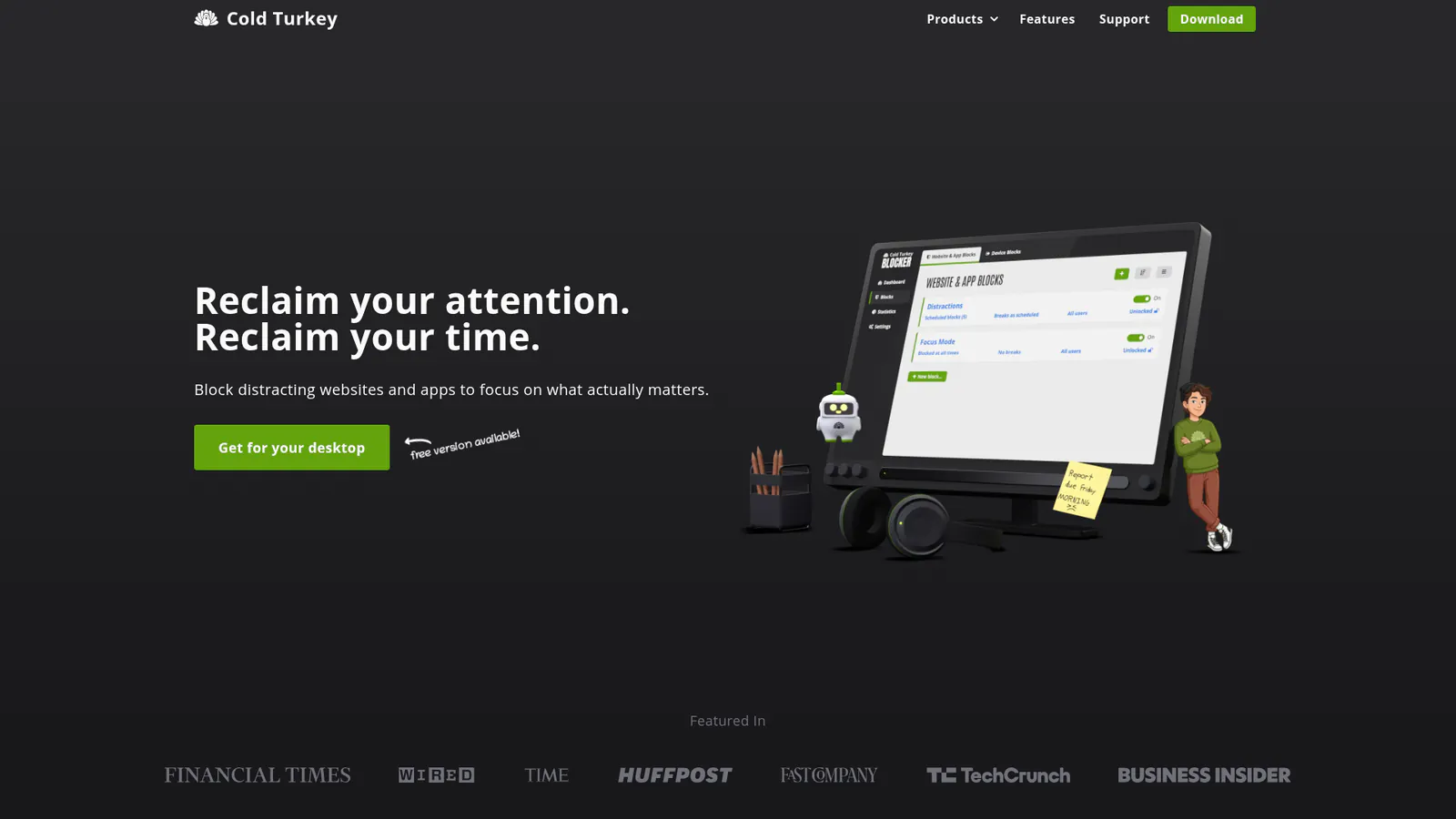
Here's how the top game blockers stack up:
| Tool | Type | Platforms | Price | Best For |
|---|---|---|---|---|
| LockIn MCP | System-level (hosts file + MCP) | Windows, Mac, Linux | From $2.99/month | Tech-savvy users who want AI-controlled blocking integrated with ChatGPT, Claude, or Poke |
| Cold Turkey | System-level (app + website blocker) | Windows, Mac | Free (Pro $49 one-time) | Users who need unbypassable blocks and are willing to lock themselves out |
| Freedom | Cross-device sync | Windows, Mac, iOS, Android, Chrome | $8.99/month or $39.99/year | Multi-device users who want scheduled blocking across all platforms |
| BetBlocker | VPN-based | Windows, Mac, iOS, Android, Linux | Free | Blocking gambling sites and gaming sites with gambling mechanics |
| Games Blocker (Chrome) | Browser extension | Chrome only | Free | Quick, lightweight blocking for web-based games only |
| Microsoft Family Safety | OS-level parental control | Windows, Xbox | Free | Parents managing children's gaming time on Microsoft devices |
Cold Turkey has been downloaded millions of times and maintains a 91% user satisfaction rate with 4 or 5 stars, according to their public metrics. Users consistently praise its strict enforcement in reviews. One reviewer noted, "The most locked-down and difficult to circumvent that I've found."
LockIn MCP differentiates itself by letting you control blocking through AI assistants. Instead of manually configuring blocklists, you tell your AI productivity coach to start a focus session, and it enforces blocks at the system level.
When reading reviews and comparing options, look for mentions of bypass prevention, customer support quality, and how quickly developers apply updates to fix issues.
How to Choose the Right Game Blocker
Pick based on your blocking needs and tech comfort level.
Choose system-level blockers(Cold Turkey, LockIn MCP) if you:
- Have a history of bypassing browser-based tools
- Want to block installed games and launchers (Steam, Epic Games, etc.)
- Need scheduling with enforced lock periods
- Are comfortable with one-time setup
Choose browser extensions if you:
- Only play web-based games
- Want a quick, reversible solution
- Don't mind easier bypass options
- Are testing whether blocking helps you
Choose parental control tools if you:
- Need to manage children's gaming across devices
- Want activity reports and time limits
- Prefer built-in OS features over third-party software
Consider these features when comparing:
- Uninstall prevention, Can the blocker be removed while active?
- Scheduling, Can you set daily limits or specific block windows?
- Whitelisting, Can you allow specific games while blocking others?
- Cross-device sync, Does it work across desktop and mobile?
- Price model, One-time purchase vs. subscription
Before you apply any game blocker, search reviews on Google, Reddit, and app stores to see what real users report about reliability and support responsiveness.
How to Set Up a Game Blocker

Most game blockers follow similar setup steps.
For system-level blockers:
- Download the installer from the official website
- Run the installer with administrator/root permissions
- Install any required browser extensions
- Create a blocklist of games, websites, or applications
- Set your blocking schedule (24/7, work hours, weekends, etc.)
- Activate the block with a lock duration
- (Optional) Set a password or enable uninstall prevention
LockIn MCP uses a one-line installer: npx @lockin/install installs the MCP server and hosts file blocker in under two minutes. Then you connect your AI assistant to control blocking through natural language.
Cold Turkey requires configuring blocks in their desktop app, then locking them with a timer. Once locked, even uninstalling the software won't end the block until the timer expires.
For browser extensions:
- Install from your browser's extension store (Chrome Web Store or similar)
- Add gaming sites to the blocklist
- Set active hours or enable the block immediately
Browser extensions like Games Blocker for Chrome take seconds to set up but offer minimal enforcement. You can bypass them by switching to another browser or disabling the extension.
For parental controls:
Microsoft Family Safety requires:
- Creating a Microsoft family group
- Adding your child's account
- Setting screen time limits in Settings > Content Restrictions
- Turning on "Block inappropriate apps, games & media"
Most parental control apps apply restrictions instantly once you save your settings. Check your blocklist after setup by attempting to access a blocked game or website to confirm the block works.
Common Bypass Attempts and How Blockers Prevent Them
People trying to circumvent game blockers often attempt these workarounds.
Uninstalling the software, Strong blockers like Cold Turkey prevent uninstallation while a block is active. Attempting to remove the app via Control Panel or the command line fails. LockIn MCP runs as a background service that protects its process.
Using another browser, System-level blockers modify the hosts file, which affects all browsers. Browser extensions only work in one browser, making them easy to bypass.
Changing the system clock, Premium blockers detect system time manipulation and either ignore it or extend the block duration as punishment.
Editing the hosts file directly, Effective blockers protect their hosts file entries and restore them if deleted. Some run integrity checks every few seconds.
Booting into Safe Mode, Cold Turkey and similar tools install services that run even in Safe Mode. BetBlocker's VPN-based approach works at the network level, unaffected by OS mode.
Using a VPN or proxy, Hosts file blockers work before network requests are made, so VPNs can't bypass them. DNS-based blockers can be circumvented by VPNs, which is why system-level tools are more reliable.
According to a 2021 Stanford study on social media and mental health, the same dopamine pathways involved in addiction are activated by variable rewards in games and apps. Strong enforcement matters because impulsive override attempts happen during dopamine-driven cravings.
Alternatives to Game Blockers
Software blockers work best alongside other strategies.
Environmental design removes gaming triggers. Uninstall games from your devices, delete gaming accounts, or use a separate non-gaming computer for work. One Reddit user in r/StopGaming noted that physical separation (keeping gaming consoles in another room) worked better than any software.
Replacement activities fill the time previously spent gaming. Schedule specific alternative activities: gym sessions, reading time, social plans. Empty time creates temptation.
Accountability partnerships mean telling someone about your gaming goals. Share your screen time reports with a friend or join a support community like r/StopGaming or seek professional support services.
Professional support helps with compulsive gaming. If gaming blocks aren't enough, consider therapy. Cognitive behavioral therapy (CBT) addresses the underlying patterns that drive excessive gaming. Many therapists now offer telehealth support in English and other languages.
The Pomodoro Technique structures work sessions with breaks. Allow yourself 15 minutes of gaming after 90 minutes of focused work. This approach works for people who can moderate but not abstain completely.
FAQ
What's the best free game blocker?
Cold Turkey's free version blocks websites and apps on Windows and Mac. BetBlocker is completely free and blocks gambling/gaming sites across all devices. For basic needs, both work well. Paid options like LockIn MCP (from $2.99/month) and Cold Turkey Pro ($49 one-time) add scheduling, uninstall prevention, and stronger enforcement. Before you apply any free game blocker, read user reviews to check reliability.
Can game blockers block Steam and Epic Games?
Yes. System-level blockers like Cold Turkey and LockIn MCP can block game launchers (Steam, Epic Games Store, Battle.net, Google Play Games, etc.) by monitoring running processes and closing them immediately. Browser extensions can't block desktop applications, only websites. If you play games through launchers, system-level tools are your only effective option.
How do I block games on my child's computer?
Use built-in parental controls (Microsoft Family Safety for Windows, Screen Time for macOS) or install dedicated software like BetBlocker with parental controls enabled. Set time limits, block specific apps, and require a password to change settings. According to Microsoft's parental control documentation, you can set daily limits per app or game category. Apply the restrictions immediately and test them before leaving your child unsupervised.
Can I temporarily unblock a game if I need to?
It depends on the blocker. Cold Turkey Pro lets you set password-protected breaks or "Pause for a Cause" donations (donating to WWF gives you a short break). LockIn MCP allows requesting temporary unblocks through your AI assistant, which logs the request for accountability. Free blockers and strict settings usually don't allow mid-block changes, that's the point. Check reviews for each tool to see how users report the flexibility vs. strictness trade-off.
Do game blockers work on phones?
Yes. Freedom, BetBlocker, and built-in parental controls work on iOS and Android. System-level desktop blockers (Cold Turkey, LockIn MCP) only work on computers. For comprehensive blocking, use a cross-device solution like Freedom or set up separate mobile blockers. Many gamers play on both desktop and mobile, so apply blocking across all your devices for best results.
What if I can still access games with a VPN?
Use a system-level blocker that modifies the hosts file (LockIn MCP, Cold Turkey) instead of DNS-based tools. Hosts file blocking happens before network requests, so VPNs can't bypass it. Also block your VPN application itself during focus sessions. Some users report success by blocking VPN websites and apps in their game blocker configuration.
Is using a game blocker admitting I have a problem?
No. It's a practical productivity tool. Using time-blocking software doesn't mean you lack willpower, it means you're designing your environment for success. Even people without addiction use blockers to enforce boundaries between work and leisure. A March 2026 trial found Meta and YouTube liable for designing platforms to hook young users, highlighting how technology is explicitly built to be hard to resist. Search online for stories of successful people who use game blockers and focus tools.
Can schools or employers detect game blocker software?
Most game blockers run locally and don't send data to external servers. Cold Turkey and LockIn MCP store all settings locally and don't report your activity. However, IT departments with monitoring software can see installed applications on work devices. If you're using a work device, check your employer's software policies first. For personal computers, blockers won't show up in network logs unless they use VPN-based blocking (like BetBlocker).
Stop Gaming, Start Producing
Game blockers give you the enforcement structure that willpower alone can't provide. Whether you're fighting a gaming habit, enforcing parental limits, or just trying to stay focused at work, system-level blockers work better than self-control or browser extensions.
Start with a tool that matches your technical comfort and blocking needs. Try Cold Turkey's free version for desktop blocking, BetBlocker for gambling-focused restriction, or LockIn MCP if you want AI-native focus enforcement that works with ChatGPT, Claude, and Poke.
The best blocker is the one you actually set up and lock. Search reviews, pick a tool today, apply your first block, and reclaim your time.