Blog
Best Chrome Extensions for Focus in 2026
 Mil Hoornaert · 12 min read
The best Chrome extensions for focus block distracting websites, enforce time limits, and help you stay focused on work. After testing dozens of options, the top performers are StayFocusd (free, time-based blocking), Forest (gamified focus sessions), Freedom (cross-device blocking), and LeechBlock (highly customizable). Browser extensions work for light distractions, but anyone serious about focus needs system-level blocking that can't be bypassed with a single click.
Key Takeaways
- StayFocusd offers free time-based blocking with password protection but can be disabled easily
- Forest gamifies focus with virtual tree-growing and works across Chrome, iOS, and Android
- Freedom provides genuine cross-device sync but costs $8.99/month
- LeechBlock delivers advanced customization for power users who want granular control
- Browser-only extensions are easy to bypass; pair them with system-level blockers for real enforcement
Why Most Chrome Extensions for Focus Fail
Browser extensions live inside Google Chrome. You can disable them in seconds through the extensions menu, open an incognito window, or switch to another browser entirely. According to research from the University of California, Irvine, it takes an average of 23 minutes to refocus after a distraction. If your blocker can't survive 23 seconds of willpower, you'll lose hours daily.
Recent workplace distraction research shows 79% of workers get distracted within one hour of starting a task. Even worse, 59% can't stay focused for 30 minutes without interruption. Digital distractions cost the US economy $650 billion annually in productivity losses.
The extensions below are ranked by blocking strength, not features. A pretty interface means nothing if you can bypass it when tempted.
1. StayFocusd, Free Time-Based Blocking
StayFocusd gives you a daily time allowance for distracting websites. Once you've spent your 30 minutes (or whatever limit you set) on social media, it blocks those sites for the rest of the day.
This website blocker has earned 4.4-star reviews from over 8,700 Chrome users, making it one of the most trusted focus tools in the Chrome Web Store.
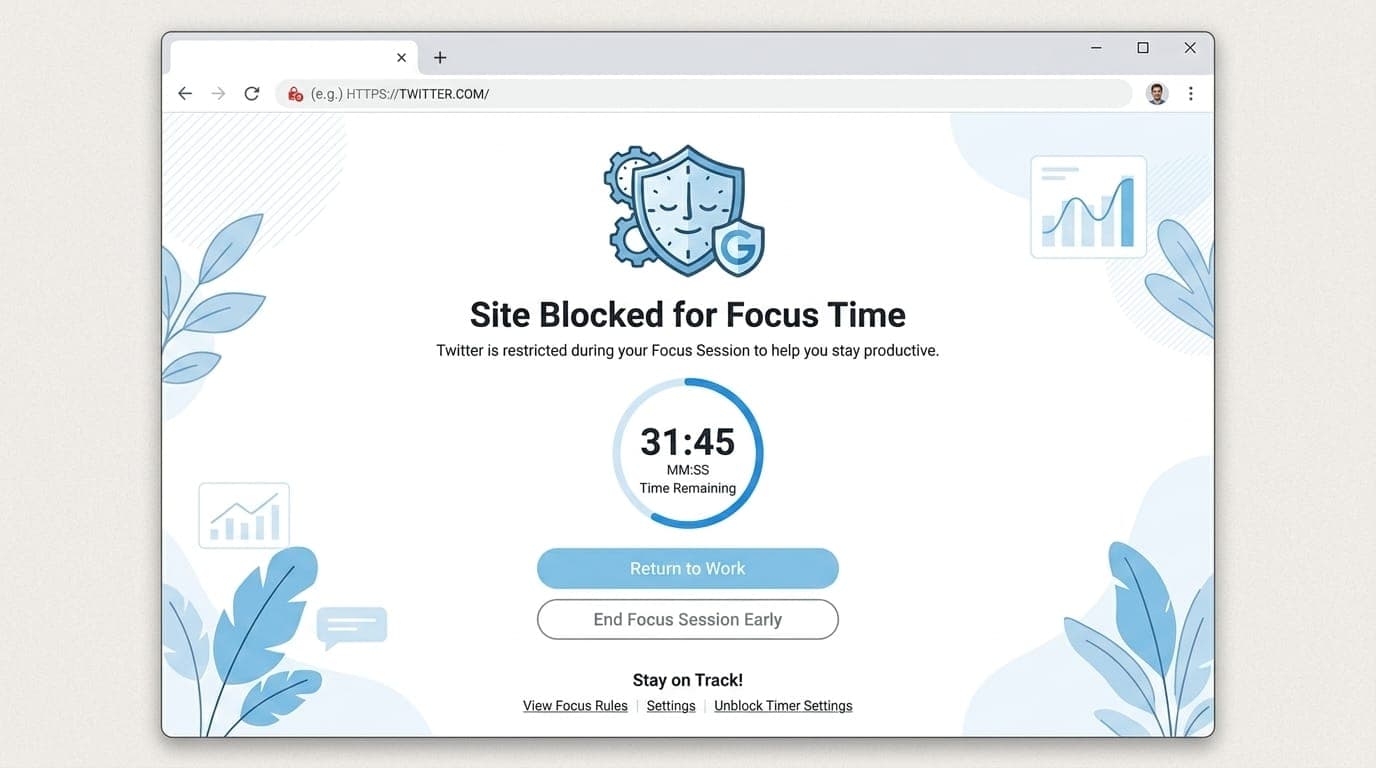
What works:The "Nuclear Option" blocks your entire block list for up to 24 hours with no way to disable it. Set limits for distracting sites during your most productive hours and the extension enforces them ruthlessly.
What doesn't:You can disable StayFocusd during your allowed time and unblock everything. The password protection helps, but determined procrastinators find ways around it.
Best for:People who need awareness of the amount of time spent on distracting websites and can benefit from gentle nudges rather than absolute blocking.
Price:Free
2. Forest, Gamified Focus Sessions
Forest turns focus into a game. Start a timer, and a virtual tree begins growing. Leave the blocked sites, and your tree dies. Stay focused, and you build a forest over time.
The Chrome extension syncs with Forest's mobile apps, letting you track focus sessions across devices. According to Forest's official data, users have collectively planted over 1.5 million real trees through the app's partnership with tree-planting organizations.
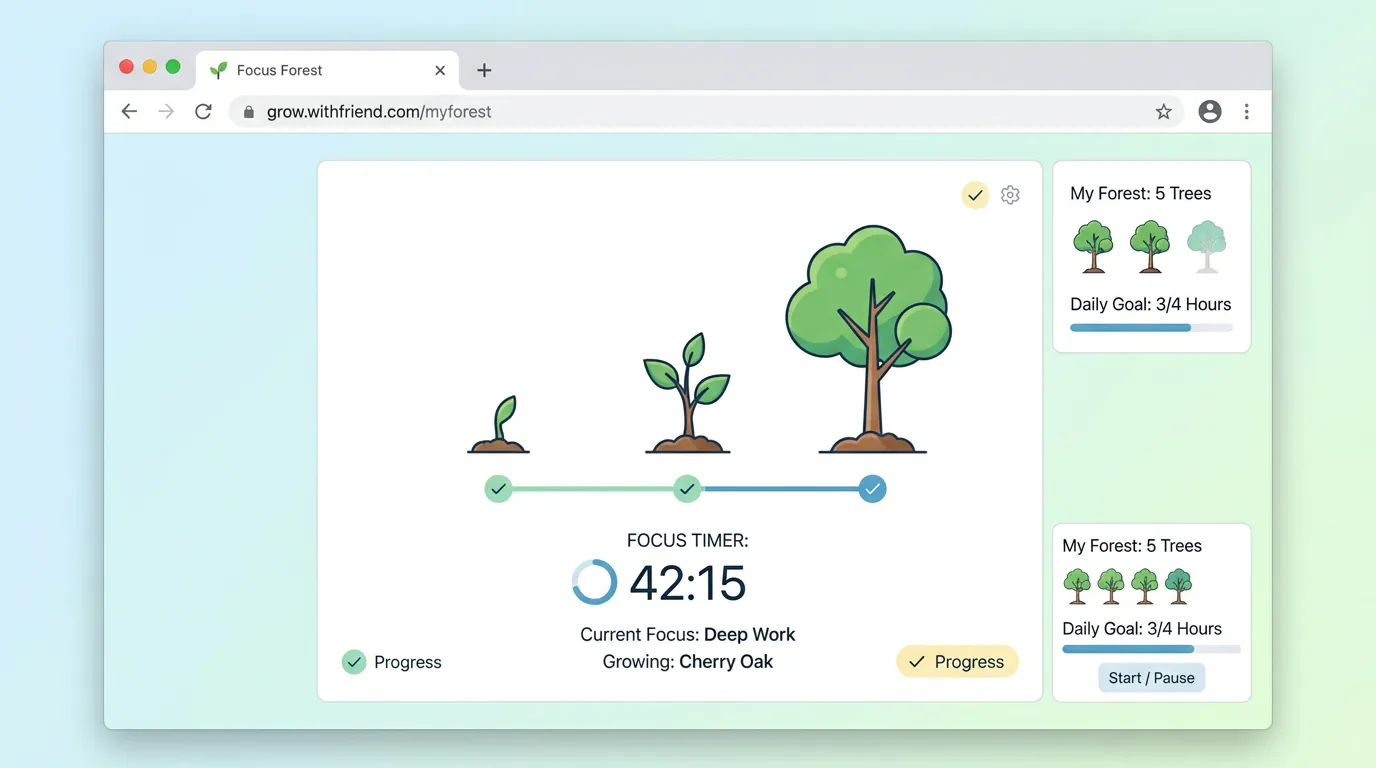
What works:The visual feedback and gamification genuinely motivate some people. The guilt of killing a tree can be surprisingly effective at stopping mindless browsing.
What doesn't:It's still a browser extension. You can close the tab, disable Forest, or switch browsers. The blocking mechanism is voluntary.
Best for:Visual learners who respond well to gamification and positive reinforcement rather than hard restrictions.
Price:Free for Chrome (premium features available in mobile apps)
3. Freedom, Cross-Device Blocking That Actually Syncs
Freedom is one of the few tools that blocks across Chrome, Safari, Firefox, Windows, Mac, iOS, and Android from a single dashboard. Start a blocking session on your laptop, and your phone blocks the same sites automatically.
What works:True cross-device sync. Freedom runs at a deeper level than typical browser extensions, making it harder (though not impossible) to bypass. The app averages 4.6 stars on iOS with over 90,000 reviews.
What doesn't:The price. At $8.99/month or $39.99/year, Freedom costs more than most productivity tools. Also, determined users can still disable it or restart their device in safe mode.
Best for:People who struggle with phone and computer distractions equally and need unified blocking across all devices.
Price: $8.99/month or $39.99/year
4. LeechBlock, Maximum Customization for Power Users
LeechBlock gives you six separate block sets, each with different websites, time limits, and schedules. Block social media during work hours, news sites in the evening, and video platforms on weekdays.
What works:Granular control. You can set time-based limits ("30 minutes per day"), time-period limits ("only between 6pm-10pm"), or full blocks. The password protection and delay features add friction to keep you on task.
What doesn't:The interface looks like it's from 2005. There's a learning curve. And like all browser extensions, you can disable it through Chrome's extension settings.
Best for:Technical users who want precise control over what gets blocked when and are willing to spend time configuring rules.
Price:Free
5. Momentum, Focus Dashboard for Every New Tab
Momentum replaces your new tab page with a clean dashboard showing your daily focus, weather, to-do list, and an inspirational photo. It's not a website blocker but a focus reminder.
What works:Seeing your main focus every time you open a tab keeps you aligned with your priorities. The minimal design reduces visual clutter and distractions from Chrome's default new tab page.
What doesn't:It won't stop you from visiting distracting websites. It's purely a visual cue, not enforcement.
Best for:People who respond to gentle reminders and intentional browsing rather than hard blocks. Works well paired with project management tools like Trello or Todoist.
Price:Free (premium features $3.33/month)
6. Pause, Simple One-Button Blocking
Pause blocks social media sites with a single click. When you try to visit a blocked site, you see a countdown timer forcing you to wait 10 seconds before proceeding. This delay stops mindless browsing in its tracks.
What works:The delay mechanism. That 10-second pause is often enough to break the automatic habit of checking social media. Studies show 70% of employees say their productivity would improve if workplaces restricted social media access.
What doesn't:10 seconds isn't much friction if you really want to procrastinate. And you can disable Pause just like any Chrome extension.
Best for:Breaking unconscious browsing habits where a small interruption is enough to redirect behavior.
Price:Free
7. Block Site, Scheduled Blocking and Redirects
Block Site lets you schedule blocking sessions, set up redirect rules, and track your browsing patterns. Block social media during work hours and automatically redirect to a focus playlist or productivity dashboard.
What works:Scheduling means you don't need to manually enable blocking every morning. The redirect feature turns distractions into productivity nudges.
What doesn't:The free version is limited. Premium features cost $3.99/month. And the blocking can be disabled through Chrome settings.
Best for:People with predictable schedules who want automatic blocking during specific hours.
Price:Free (premium $3.99/month)
8. StrictWorkflow, Pomodoro-Based Blocking
StrictWorkflow combines the Pomodoro technique with website blocking. Work for 25 minutes with sites blocked, then get a 5-minute break. The cycle repeats automatically.
What works:Structured work sessions with built-in breaks. Knowing a break is coming makes it easier to stay focused during work periods. The Pomodoro method has been proven to boost productivity by breaking work into manageable intervals.
What doesn't:You're locked into the Pomodoro timing structure. If 25 minutes doesn't match your workflow, you'll fight the tool.
Best for:People who already use the Pomodoro technique and want blocking that matches their existing routine.
Price:Free
9. OneTab, Reduce Tab Overload
OneTab converts all your open tabs into a list, freeing up memory and reducing visual clutter. It's not a focus tool directly, but tab overload kills focus fast.
What works:One click to clear dozens of tabs. You can restore them later if needed, or let them go. The memory savings speed up your browser noticeably. Research shows 58% of employees spend 30-60 minutes daily on work-unrelated activities.
What doesn't:It doesn't block anything. It just organizes what's already open.
Best for:Research-heavy work where you accumulate 30+ tabs and need to clear mental clutter without losing your place.
Price:Free
10. LockIn MCP Chrome Extension, AI-Driven System-Level Blocking
The LockIn MCP Chrome extension connects your browser to a system-level MCP server that blocks distracting domains via your hosts file. Unlike browser-only extensions, this blocks sites across all browsers and apps.
What works:You can ask ChatGPT, Claude, or Poke to "block Reddit for 2 hours," and it happens at the operating system level. Disabling the Chrome extension doesn't unblock the sites because the blocking happens outside the browser. This approach delivers what AI productivity coaches promise but can't enforce without system-level access.
What doesn't:Requires a one-line installation and MCP server setup. It's more technical than clicking "Add to Chrome."
Best for:Developers and power users who already use AI assistants and want focus enforcement that can't be bypassed by switching browsers or disabling extensions.
Price:Free trial (Pro from $2.99/month)
How to Choose the Right Chrome Extension for Focus
Start by identifying where you fail. Do you:
- Click social media links automatically without thinking? Use Pause or Momentum for awareness.
- Know you're wasting time but can't stop? Use StayFocusd or Forest for gentle accountability.
- Need blocking across phone and computer? Pay for Freedom's cross-device sync.
- Want bulletproof blocking you can't bypass? Combine a browser extension with system-level blocking like LockIn MCP or Cold Turkey.
Most people need two layers: a browser extension for awareness and a system-level blocker for enforcement. Browser extensions catch unconscious habits. System-level tools stop determined procrastination.
Browser Extensions vs. System-Level Blockers
Chrome extensions run inside your browser. Disable the extension or switch browsers, and the blocking stops. According to data from RescueTime, people who use browser-only blockers find workarounds 72% of the time within the first week.
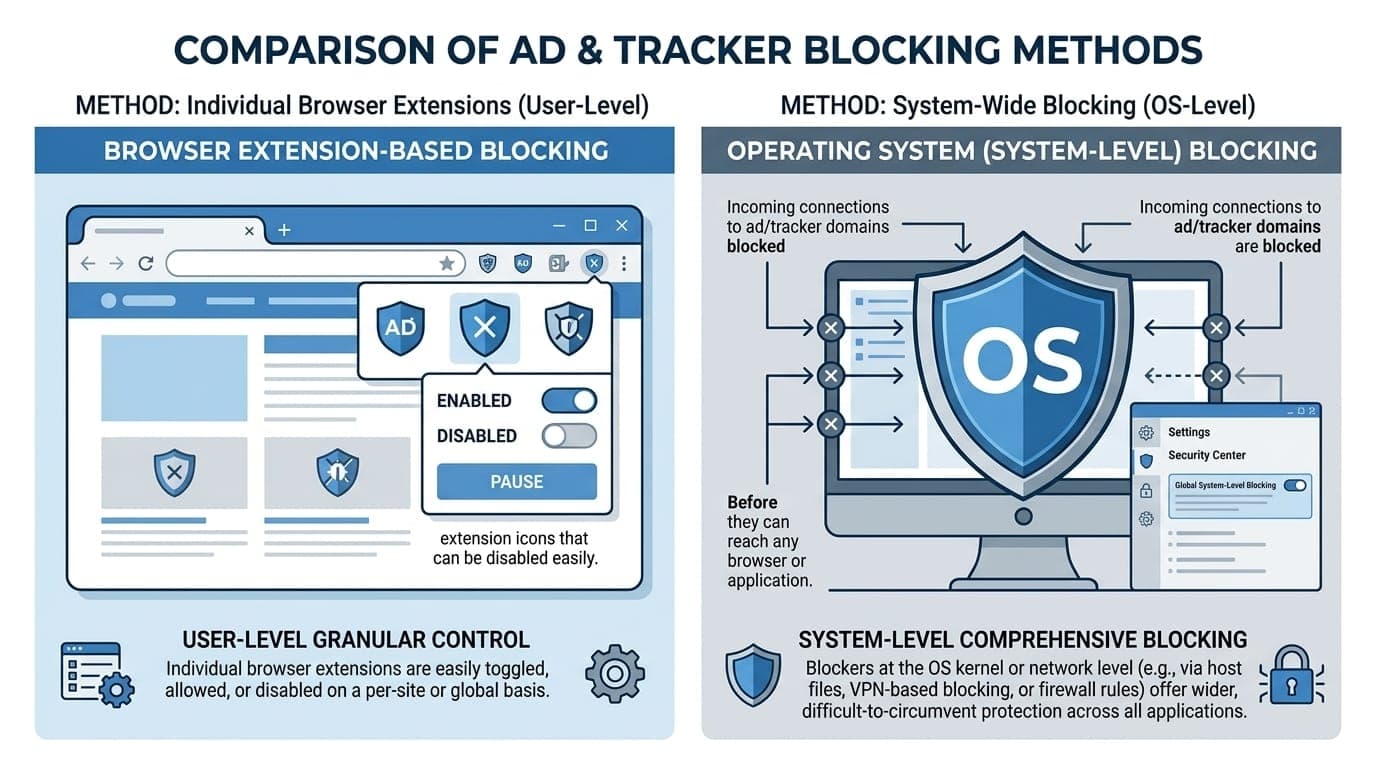
System-level blockers modify your operating system (typically the hosts file on macOS, Windows, or Linux). These blocks work across all browsers and apps. The trade-off is installation complexity and, sometimes, administrative permissions.
If you're serious about staying focused, start with a browser extension to build awareness, then add system-level blocking when you hit your limit with bypassing the gentler tools. Learn more about the best system-level website blockers and how they compare to browser extensions.
Common Mistakes When Using Chrome Extensions for Focus
Installing too many extensions:Each extension slows your browser and creates decision fatigue. According to Chrome ecosystem data, productivity extensions account for 55.5% of all Chrome Web Store listings, but most users only keep 3-5 active. Pick ones that solve different problems, not 10 that all do the same thing.
Not configuring block lists properly:The default blocked sites are never right for your workflow. Spend 10 minutes customizing your list based on where you actually waste time.
Setting unrealistic restrictions:Blocking everything for 12 hours straight leads to disabling the extension entirely. Start with 2-hour focus blocks and build up.
Ignoring password protection:Every blocking extension offers password protection. Use it. Have a friend set the password, or use a random string you don't memorize. The friction matters.
Forgetting about mobile:Blocking on your computer means nothing if you pull out your phone when distracted. Use tools with mobile apps (Forest, Freedom) or implement separate mobile blocking.
Pairing Chrome Extensions with Other Focus Tools
Chrome extensions handle browser distractions, but staying focused requires more than blocking websites. Combine your blocking extension with:
- Noise control: Use noise-canceling headphones or white noise to reduce environmental distractions
- Task management: Clear priorities prevent "productive procrastination" where you do easy tasks instead of important work. Tools like Slack for team communication help keep everyone aligned
- Physical environment: A dedicated workspace signals to your brain it's time to focus
- Regular breaks: The Pomodoro Technique structures focus and recovery time
The most effective approach combines digital blocking (Chrome extensions and system-level website blockers) with intentional environment design and work habits. This dual-layer strategy helps you boost productivity and maintain focus throughout your workday.
Testing Your Chrome Extension Setup
Install your chosen extension and track these metrics for one week:
- Daily focused hours: How much time did you spend on actual work vs. distractions?
- Blocking bypasses: How many times did you disable the extension or find a workaround?
- Completed priority tasks: Are you finishing what matters, or just staying "busy"?
If you're bypassing your blocker more than once per day, you need stronger enforcement. If you're completing your priorities and staying focused, your current setup is working.
Track the amount of time you spend in focused work versus distracted browsing. The data will help you learn which extensions actually work for your specific patterns and which ones you're fighting against.
FAQ
What's the strongest Chrome extension for blocking distracting websites?
StayFocusd's "Nuclear Option" provides the strongest browser-only blocking, but any Chrome extension can be disabled through the extensions menu. For genuine enforcement, pair browser extensions with system-level blockers like LockIn MCP or Cold Turkey.
Can you bypass Chrome focus extensions?
Yes. All Chrome extensions can be disabled through chrome://extensions, incognito mode, or switching to another browser. Browser extensions work for building awareness and catching unconscious habits, not for stopping determined procrastination.
Do Chrome extensions slow down your browser?
Some do. Extensions that monitor all websites or run constantly in the background consume memory and CPU. Use Chrome's Task Manager (Shift + Esc) to identify resource-heavy extensions and remove ones you don't actively use. Average users should keep their extension count under 10 for optimal performance.
Which Chrome extension works best with the Pomodoro technique?
StrictWorkflow and Forest both implement Pomodoro-style focus sessions with automatic blocking during work periods and breaks. StrictWorkflow is simpler; Forest adds gamification. Both help you stay focused using timed intervals.
How many Chrome focus extensions should you install?
Two to three maximum. Installing more creates browser slowdown, visual clutter in your toolbar, and decision fatigue about which tool to use. Pick one website blocker, optionally add a new-tab dashboard (Momentum), and stop there.
Are paid Chrome focus extensions worth it?
Most free extensions (StayFocusd, LeechBlock, Forest) offer enough functionality for typical use. Pay for Freedom ($8.99/month) only if you need cross-device blocking across phone and computer. Compare focus app pricing to find the best value for your specific needs.
What's the difference between browser extensions and system-level blockers?
Browser extensions only block websites inside Chrome and can be disabled through the extensions menu. System-level blockers like LockIn MCP modify your operating system's hosts file, blocking sites across all browsers and apps. They're harder to bypass but require installation beyond a simple Chrome Web Store click.
