Blog
Best Mac Productivity Apps in 2026: Essential Tools for Focus & Work
The best Mac productivity stack in 2026: LockIn MCP for focus enforcement, Raycast for speed, Things or Todoist for tasks, and Obsidian or Notion for notes.
 Mil Hoornaert · 16 min read
The best Mac productivity apps in 2026 solve specific bottlenecks in your workflow: LockIn MCP enforces focus by blocking distractions, Raycast speeds up every action, Things or Todoist organize your tasks, and Obsidian or Notion manage your knowledge. No single app does everything well, build a layered stack instead of chasing one perfect tool.
Key takeaways:
- Focus enforcement matters more than planning. Apps like LockIn MCP block distracting sites at the system level and integrate with AI assistants to keep you on track.
- Free options compete with premium tools. Rectangle, Raycast (free tier), Obsidian, and Apple Notes handle window management, launching, notes, and tasks without subscriptions.
- Launchers save hundreds of clicks daily. Raycast and Alfred replace Spotlight with keyboard-driven speed for apps, files, snippets, and workflows.
- A layered stack beats all-in-one solutions. Combine focus blocking, task management, notes, and speed tools rather than forcing one app to do everything.
- Mac-native apps feel faster and smoother than Electron wrappers or web-based alternatives optimized for Apple Silicon.
Why productivity apps fail without focus enforcement
Most productivity lists skip the most important category: distraction blocking. Task managers and note apps help you plan work, but they don't stop you from opening Reddit, Twitter, or YouTube when focus gets hard.
That's the gap LockIn MCP fills. It turns AI assistants like ChatGPT, Claude, Perplexity, and Poke into productivity enforcers by blocking distracting domains at the system level using your Mac's hosts file. Unlike browser extensions you can disable in two clicks, system-level blocking works across all browsers and apps.
You can start a focus session by telling your AI assistant, "Lock in for 2 hours and block social media." LockIn MCP enforces it. If you need a temporary unblock, you ask, and the AI logs your reason for accountability. Installation takes one command (npx -y lockin-mcp install), and it runs in the background without slowing your Mac.
Pricing starts at $2.99/month with a free trial. For anyone who already uses AI assistants daily, LockIn MCP is the missing enforcement layer that makes planning actually work. Learn more about how it works.
Alternatives: Freedom and Cold Turkey
If you need traditional distraction blocking without AI integration, Freedom ($8.99/month or $39.99/year) blocks sites across Mac, Windows, iOS, and Android with scheduled sessions. Cold Turkey ($39 one-time) is Windows-focused but offers hardcore blocking that's extremely difficult to bypass, according to their blocking methodology documentation.
LockIn MCP's advantage is AI-native control and accountability logging built into the assistants you already use. For a deeper comparison, check our LockIn MCP vs Freedom breakdown and LockIn MCP vs Cold Turkey comparison.
Task management: pick one and stick with it
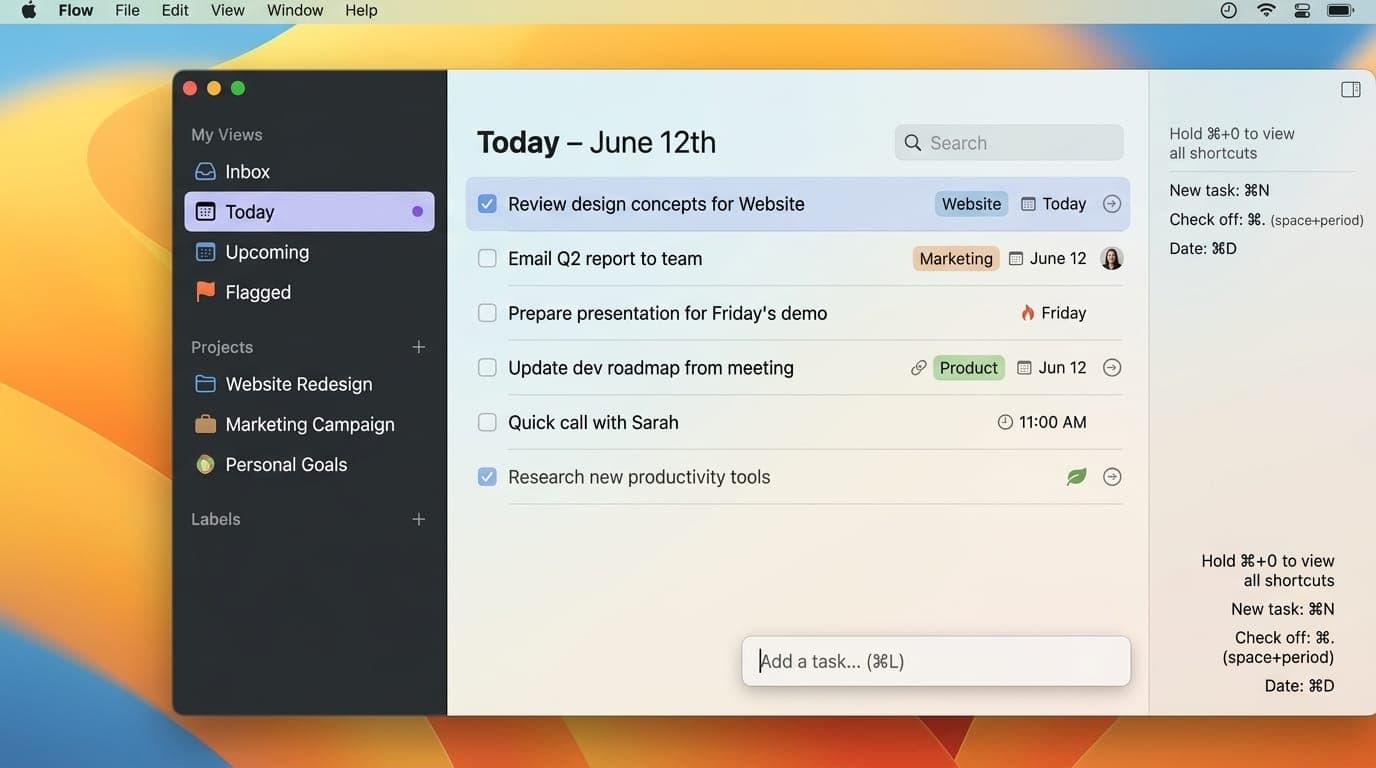
You need a task manager that fits your workflow, not the other way around. The top Mac choices in 2026 split into three camps: Apple-only polish, cross-platform flexibility, and GTD power users.
Things: best for Mac-only users
Things remains the cleanest task manager on macOS. Its Today view, quick entry, and keyboard shortcuts make daily planning feel effortless. Projects, areas, and headings organize complex work without clutter. If you stay inside the Apple ecosystem and don't need collaboration, Things is hard to beat.
The tradeoff: no web app, no Windows version, and no team features. You also pay separately for Mac ($49.99), iPad ($19.99), and iPhone ($9.99). But those one-time purchases include all future updates, and Things Cloud syncs instantly across devices for free.
Todoist: best for cross-platform work
If your workflow spans Mac, Windows, browser, and mobile, Todoist is the safest pick. Natural-language input ("tomorrow at 3pm") is fast, and shared projects make collaboration easy. Filters and labels let you build custom views without the complexity of OmniFocus.
The free tier supports up to 5 active projects. The Pro plan ($4/month) adds unlimited projects, reminders, and calendar views. Todoist doesn't feel as polished as Things on Mac, but it works everywhere reliably, as confirmed in their cross-platform sync documentation.
OmniFocus: best for GTD systems
OmniFocus is the most powerful option here, built for Getting Things Done (GTD) workflows. Custom perspectives, defer dates, review loops, and deep automation make it ideal for managing layered commitments.
The learning curve is steep. If you want a simple daily list, OmniFocus is overkill. But for people running serious GTD systems with dozens of projects, it still goes deeper than any competitor. Pricing is $9.99/month or $99.99/year (includes web access and all platforms).
Alternative: Trello for visual project management
If you prefer kanban boards over lists, Trello offers visual task management with cards, columns, and drag-and-drop organization. The free plan includes unlimited boards and basic power-ups. Trello works well for content calendars, editorial workflows, and team collaboration where visual progress matters more than GTD structure. It's available on Mac, web, and mobile with real-time sync.
Launchers: speed up everything you do
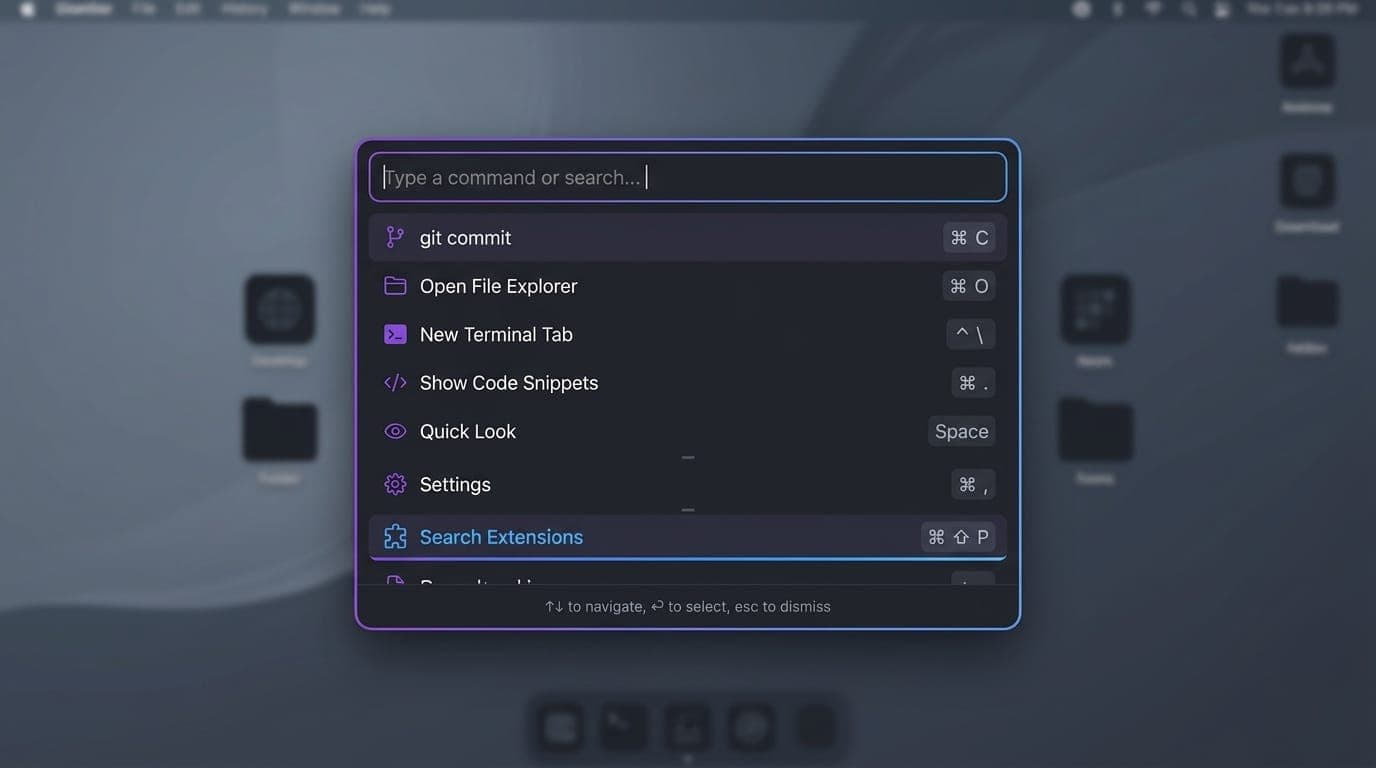
Launchers replace Spotlight with keyboard-driven speed. They launch apps, search files, run calculations, expand text snippets, and trigger workflows, all without touching your mouse.
Raycast: modern and free
Raycast is the best free launcher on Mac. Its command palette is fast, the extensions ecosystem is massive (GitHub, Jira, Linear, Slack integrations), and window management is built in. You can create custom commands, access clipboard history, and use snippets, all on the free tier.
The Pro plan ($8/month) adds cloud sync and AI chat, but most users won't need it. Raycast feels modern, actively developed, and offers the best free-tier value in this category. The Raycast Store has over 1,000 community extensions for developer tools and productivity services.
Alfred: powerful and customizable
Alfred rewards gradual investment. The free version replaces Spotlight with faster search. The Powerpack (£34 one-time, or £59 for lifetime upgrades) unlocks clipboard history, text snippets, and workflows, automations that save dozens of clicks daily.
Alfred's strength is control. Workflows can be tuned very precisely, and the community gallery has thousands of user-made automations. It's best for users who want to shape the launcher around their habits instead of adapting to preset commands.
If you prefer a one-time purchase and deep customization, choose Alfred. If you want a polished free experience with modern defaults, choose Raycast. Both integrate well with Keyboard Maestro if you need even more advanced Mac automation.
Notes and knowledge management
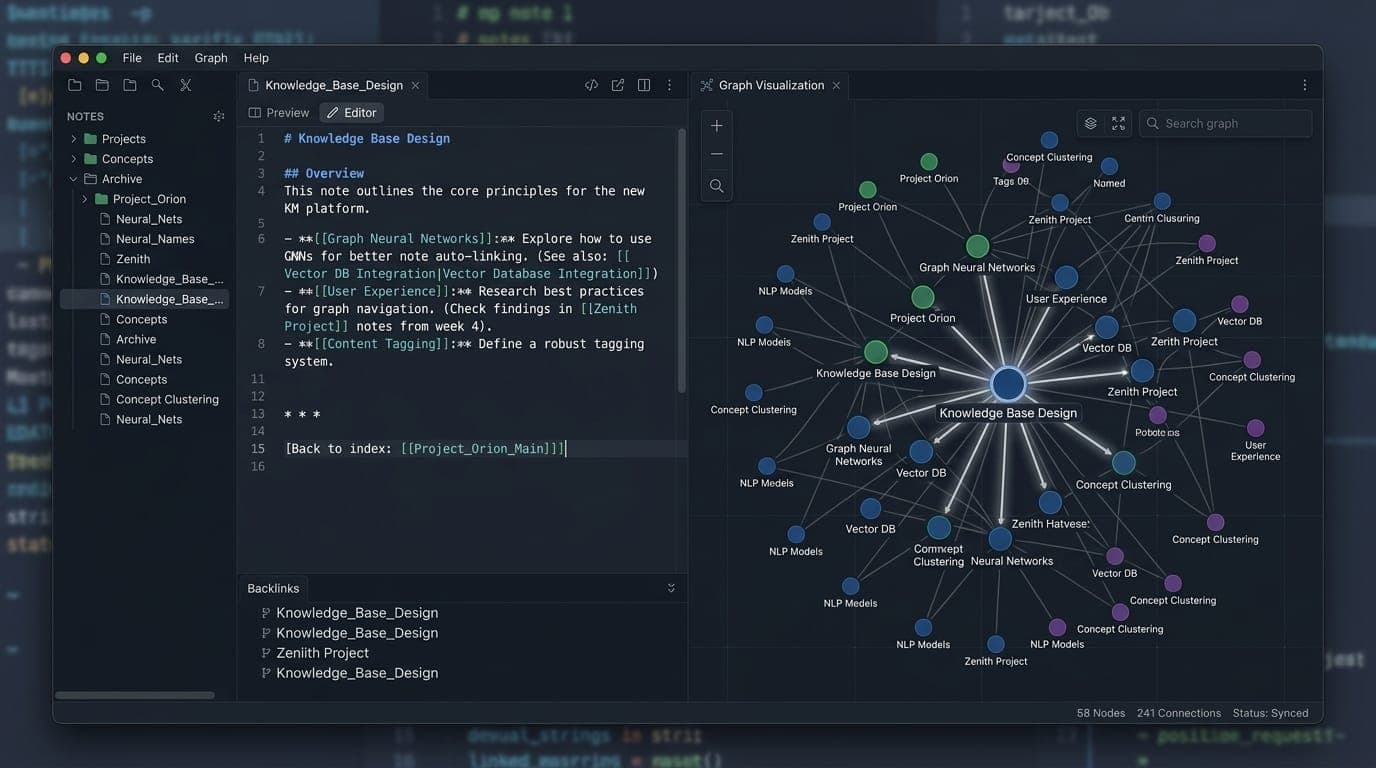
Your notes app depends on whether you prioritize ownership, collaboration, or speed.
Obsidian: local-first and extensible
Obsidian stores your notes as plain Markdown files on your Mac. No proprietary format, no cloud lock-in, complete offline access. Bidirectional links and the graph view let you connect ideas across notes, and 1,500+ community plugins extend functionality for study systems, research, and writing.
Obsidian is free for personal use. Optional paid services include Sync ($5/month) and Publish ($8/month for a hosted site from your notes). The mobile app is less polished than the desktop experience, but local ownership and plugin flexibility make Obsidian the strongest choice for long-term knowledge work, as highlighted in the Obsidian documentation.
Notion: all-in-one workspace
Notion combines notes, tasks, databases, and docs in one flexible workspace. Its block editor lets you mix text, tables, kanban boards, and embeds. Built-in AI can draft content, summarize meeting notes, and auto-fill properties.
Notion works best when you accept its all-in-one logic rather than forcing it to behave like a simple notes app. The free plan is generous for personal use. Paid plans start at $10/month per seat. Performance can lag on very large workspaces, and the app feels less native than Mac-only alternatives, but it reduces app-switching for mixed workflows.
Bear: beautiful writing
Bear is the most pleasant writing environment on Mac. It's fast, visually calm, and uses nested hashtags instead of folders. Individual notes can be encrypted, and the distraction-free editor with inline Markdown rendering makes writing feel light.
Bear is Apple-only (no web or Android app), and the Pro plan ($2.99/month or $29.99/year) is required for sync and advanced export. If you want a low-maintenance notes app that's nicer than Apple Notes but simpler than Obsidian, Bear is excellent.
Apple Notes: underrated default
Apple Notes keeps improving. It's fast, syncs via iCloud, supports rich formatting, checklists, tables, and scanned documents. For quick capture and lightweight organization, it's already installed and works well.
Apple Notes lacks bidirectional links, advanced search, and plugin extensibility, but it's free, reliable, and requires zero setup. Don't dismiss it just because it's the default.
Alternative: Ulysses for long-form writing
If you're writing articles, blog posts, or books, Ulysses ($49.99/year) offers a distraction-free editor optimized for long-form text. It exports to WordPress, Medium, PDF, and ePub formats. Ulysses uses a library-based approach with tags and filters rather than folders, making it ideal for managing hundreds of writing projects. The app syncs across Mac, iPad, and iPhone via iCloud.
System utilities that remove friction
These apps fix macOS annoyances and save time every day.
Rectangle: window management
Rectangle is a must-have free app that brings keyboard-driven window snapping to macOS. Use hotkeys to tile windows into halves, thirds, quarters, or custom layouts. Drag windows to screen edges to snap them instantly. It's open source, lightweight, and solves a glaring gap in the default Mac experience.
Rectangle Pro ($9.99 one-time) adds cursor-based gestures and custom snap areas, but the free version covers what most users need. The GitHub repository is actively maintained with frequent updates.
Bartender: menu bar organization
Bartender cleans up your menu bar by hiding rarely used icons. You can reorder icons, set quick-reveal triggers, and control spacing. It's especially useful on MacBooks with a notch, where Bartender can expand icons underneath the menu bar temporarily.
Bartender costs $15 and runs smoothly in the background without affecting performance. If your menu bar is cluttered, this small app makes a noticeable difference.
1Password: password management
1Password is the best password manager for Mac users. Universal autofill works across browsers and native apps, Touch ID and Apple Watch unlock are instant, and Watchtower monitors for weak passwords and breached accounts. Passkey support and SSH key management are built in.
Pricing is $3.99/month for individuals or $6.99/month for families (up to 5 members). There's no free tier, only a 14-day trial. 1Password raised prices in 2026, but it remains the smoothest and most reliable option on macOS, according to the 1Password blog.
Additional utilities
- CleanShot X ($29/year): Advanced screenshot tool with scrolling capture, annotations, cloud uploads, and text recognition. Better than the built-in macOS screenshot tools.
- ForkLift ($29.95): Dual-pane file manager and FTP client that's faster than Finder for batch operations and remote file management.
- Grammarly (free and premium): Writing assistant that checks grammar, spelling, and style across all Mac apps. The premium version ($12/month) adds tone detection and plagiarism checking.
Email: specialized clients for Gmail and beyond
Most Mac users default to Apple Mail or keep Gmail open in a browser tab. But specialized email clients offer better organization, keyboard shortcuts, and focused workflows.
Mimestream: best for Gmail
Mimestream ($49.99/year) is a native Mac app built specifically for Gmail using Google's APIs. It supports multiple accounts, keyboard shortcuts, dark mode, and Gmail-specific features like Send & Archive. The app is optimized for Apple Silicon and feels faster than any web-based Gmail client. Mimestream respects your Gmail settings and keeps everything in sync.
Spark: team email collaboration
Spark (free) offers smart inbox sorting, email templates, and team collaboration features like shared drafts and internal discussions. It works with Gmail, Outlook, iCloud, and other providers. The premium plan ($7.99/month) adds unlimited email signatures and advanced search.
Building your Mac productivity stack
The best stack isn't about installing every popular app. It's about combining a few tools that cover different jobs with minimal overlap.
A simple, effective stack looks like this:
- Focus & blocking: LockIn MCP
- Tasks: Things (Mac-only) or Todoist (cross-platform)
- Notes: Obsidian (ownership) or Notion (collaboration)
- Speed: Raycast (free) or Alfred (one-time purchase)
- Utilities: Rectangle + Bartender + 1Password
- Email: Mimestream (Gmail) or Spark (multi-provider)
This setup gives you enforcement, planning, knowledge, speed, and system polish without drowning in subscriptions or feature bloat.
Start with your bottleneck
Don't install everything at once. Identify the part of your workflow that's currently failing, then fix it with one app.
- Losing focus to distractions? Start with LockIn MCP.
- Tasks scattered everywhere? Add Things or Todoist.
- Too many clicks to do simple actions? Install Raycast or Alfred.
- Notes are a mess? Choose Obsidian, Bear, or Notion.
- Windows are hard to manage? Get Rectangle.
Solve one problem thoroughly before adding another layer. You'll get more value from fixing a visible bottleneck than from building a "perfect" system all at once.
Mac productivity apps: free vs. premium
Many excellent Mac productivity apps are free or have strong free tiers. Here's what you can build without spending anything:
Free stack:
- Focus: LockIn MCP (free trial, then $2.99/month)
- Tasks: Todoist (free tier, 5 projects) or Apple Reminders
- Notes: Obsidian or Apple Notes
- Launcher: Raycast (free tier)
- Window manager: Rectangle (open source)
- Email: Spark (free)
Premium upgrades worth paying for:
- LockIn MCP ($2.99/month): System-level blocking + AI integration
- Things ($49.99 Mac): Best task experience for Apple users
- Alfred Powerpack (£34): Clipboard history, snippets, workflows
- 1Password ($3.99/month): Secure, polished password management
- Bartender ($15): Menu bar sanity
- Ulysses ($49.99/year): Long-form writing
- Mimestream ($49.99/year): Native Gmail experience
The smartest approach: start free, then pay for tools that solve daily friction. A $50 one-time purchase or $3/month subscription is worth it if the app saves 10+ minutes every day.
How Mac productivity apps changed in 2026
A few shifts in 2026 changed how these apps compare:
- Focus enforcement moved from optional to essential. Apps like LockIn MCP that combine planning with active blocking are now core productivity tools, not just nice-to-have add-ons.
- Raycast's free tier got stronger. The free version now includes most features that used to require Alfred's paid Powerpack, making it the easiest recommendation for new Mac users.
- Notion added AI usage billing. Custom AI agents left beta in May 2026 and are now usage-billed on Business and Enterprise plans, making the AI value depend heavily on your plan tier.
- 1Password raised prices. Individual plans went from $2.99 to $3.99/month, and Families from $4.99 to $6.99/month in March 2026. Still the best Mac password manager, but slightly less of a value leader.
- macOS 27 "Golden Gate" dropped Intel support entirely. All apps on this list run smoothly on Apple Silicon, but Intel Mac users should favor lightweight tools.
The broader trend: productivity software in 2026 is moving toward layered stacks (tracking + planning + focus + speed) rather than one app trying to do everything. That's exactly why tools like LockIn MCP, which connect enforcement to your existing AI workflow, are gaining traction.
How to set up a new Mac for productivity
If you're setting up a new Mac from scratch, here's the order that minimizes friction and gets you productive quickly:
- System preferences first. Disable wallpaper tinting, turn off True Tone, adjust trackpad/mouse settings, and customize Dock behavior before installing apps.
- Install Rectangle immediately. Window management is the first friction point you'll hit when opening multiple apps.
- Add your launcher next. Raycast or Alfred become muscle memory fast, so install early.
- Set up password management. 1Password or another password manager before you start logging into services.
- Choose one task manager. Things or Todoist, not both. Commit to one system.
- Add focus enforcement. LockIn MCP or another distraction blocker once you know your typical workflow.
- Pick your notes app last. Obsidian, Notion, or Bear can wait until you've established your daily routine.
This sequence tackles immediate friction (windows, launching, passwords) before adding planning layers. You'll spend less time configuring and more time working.
FAQ
What is the best productivity app for Mac?
There's no single "best" because different tools solve different problems. LockIn MCP is best for focus enforcement, Raycast is best for keyboard-driven speed, Things is best for Mac-only task management, and Obsidian is best for local-first notes. Build a stack that covers focus, tasks, notes, and speed rather than expecting one app to do everything.
What are the best free productivity apps for Mac?
The strongest free options are Raycast (launcher), Rectangle (window management), Obsidian (notes), Apple Notes (quick capture), and Todoist free tier (up to 5 projects). These Mac apps cover launching, window snapping, knowledge management, and task organization without requiring a paid plan.
Is Raycast better than Alfred?
Raycast has a stronger free tier and feels more modern out of the box. Alfred rewards deeper customization and offers a one-time purchase (£34 Powerpack or £59 lifetime). Choose Raycast if you want a polished free experience with built-in extensions. Choose Alfred if you prefer a one-time payment and want to build custom workflows.
Which Mac productivity apps are worth paying for?
The easiest paid recommendations to justify are LockIn MCP ($2.99/month for system-level focus enforcement), Things ($49.99 one-time for the best Mac task experience), Alfred Powerpack (£34 for clipboard history and snippets), and 1Password ($3.99/month for secure password management). Each solves a high-frequency problem well enough to earn a permanent place in your workflow.
What is the best Mac app for staying focused?
LockIn MCP is the best choice if staying focused is your priority. It combines a system-level website blocker with AI-assistant integration, so you can start focus sessions and enforce distraction blocking by talking to ChatGPT, Claude, or Poke. Unlike browser extensions you can bypass, LockIn MCP blocks at the hosts-file level across all browsers and apps. Learn more at lockinmcp.com.
Should I use Things or Todoist on Mac?
Things is better if you live mostly inside Apple devices and want the cleanest task experience. It feels native, launches fast, and keeps daily planning calm. Todoist is better if your work spans Mac, browser, phone, and Windows. It's easier to recommend for shared projects and offers reliable cross-platform sync. Things wins on feel; Todoist wins on reach.
Is Obsidian better than Notion for Mac?
Obsidian is better if you care about data ownership, offline access, and long-term flexibility. Your notes stay as local Markdown files with no cloud lock-in. Notion is better if you want to combine notes, tasks, databases, and docs in one workspace with built-in collaboration. Obsidian is faster and more private; Notion reduces app-switching for mixed workflows.
Conclusion
The best Mac productivity apps in 2026 aren't about finding one perfect tool, they're about building a stack that covers focus enforcement, task organization, knowledge management, and speed. Start with LockIn MCP to block distractions at the system level, add Raycast or Alfred for keyboard-driven workflows, choose Things or Todoist for tasks, and pick Obsidian or Notion for notes.
Free options like Rectangle, Raycast's free tier, and Apple Notes are strong enough for most users. Pay for tools that solve daily friction: LockIn MCP for focus, Things for task clarity, 1Password for security, or Alfred Powerpack for workflow automation.
Don't install everything at once. Start with your biggest bottleneck, lost focus, scattered tasks, or too many manual clicks, and fix it with one app. Build from there. The best productivity stack is the one you actually use every day.
Ready to stop distractions before they start? Try LockIn MCP free and turn your AI assistant into a productivity enforcer.
