Blog
Best Website Blocker for Linux in 2026 (System-Level + AI Options)
Block distracting websites on Linux with /etc/hosts, LeechBlock, Freedom, or AI-native LockIn MCP. Compare enforcement strength, offline support, and bypass resistance.
 Mil Hoornaert · 13 min read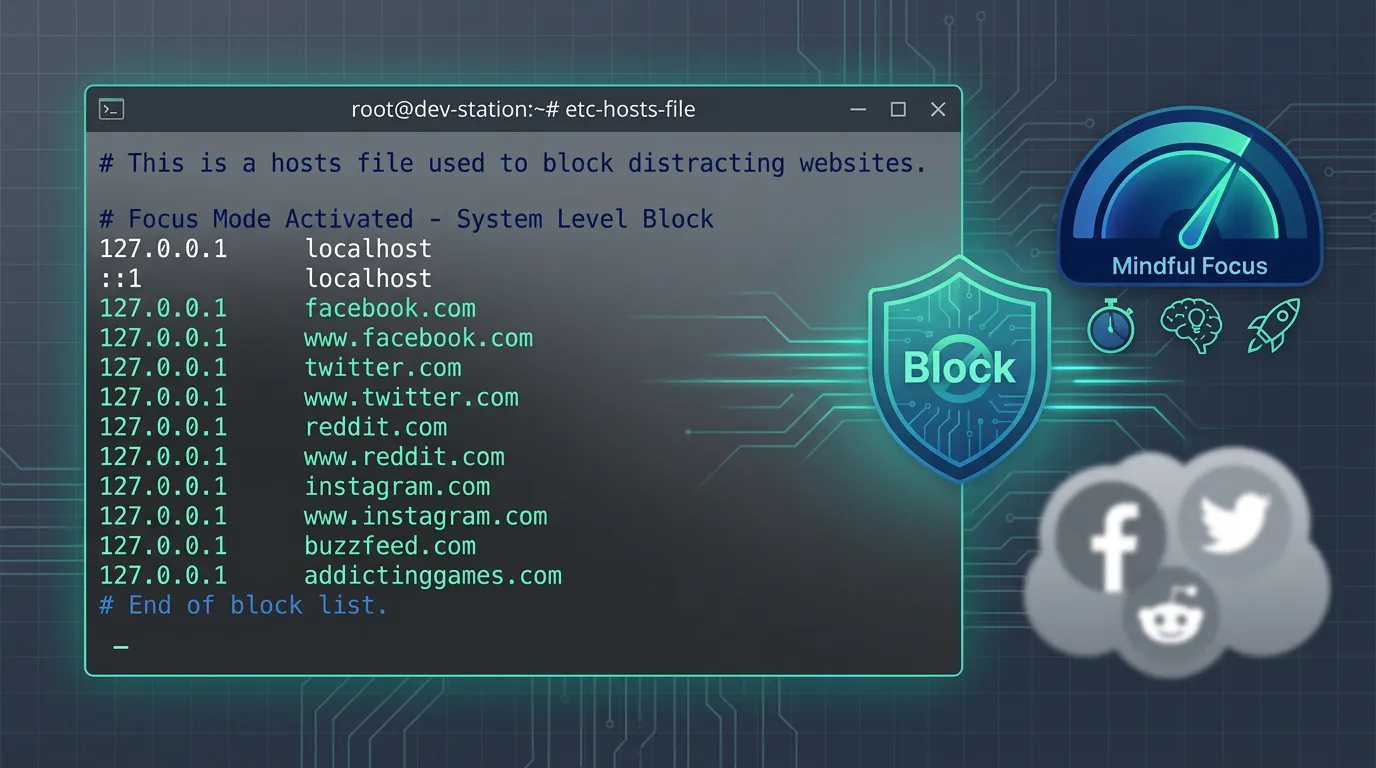
Linux gives you control. That includes the freedom to block distracting websites at the system level, not just in your browser. The best website blocker for Linux depends on how strictly you want enforcement: the /etc/hosts file is native and immediate, browser extensions like LeechBlock are quick to configure, and cross-platform tools like Freedom or LockIn MCP offer scheduled sessions with tougher bypass prevention.
Key takeaways:
- The
/etc/hostsfile blocks websites system-wide on Linux without installing anything, but it's easy to edit back. - Browser extensions like LeechBlock work only in Firefox or Chrome, making them simple to bypass by switching browsers.
- System-level blockers like LockIn MCP combine hosts file enforcement with AI assistant control for accountability.
- Cross-platform tools like Freedom and Cold Turkey offer session scheduling and locked modes, though Cold Turkey has limited Linux support.
- AI-native blockers let you start focus sessions by asking ChatGPT, Claude, or Poke instead of manually editing config files.
Why You Need a Website Blocker on Linux
Linux users pride themselves on efficiency. You already know how to configure your environment, but distraction is a system-level problem that manual discipline alone can't fix.
Research from Cambridge University found that problematic internet use causes measurable deficits in attentional inhibition and working memory. A 2021 Stanford study confirmed that social media platforms use variable reward algorithms that trigger the same dopamine pathways involved in addiction. The study noted that these platforms are designed to maximize user engagement without regard for mental health impacts, particularly affecting how social media affects focus and productivity.
You can't willpower your way out of engineered behavioral loops. You need system-level enforcement.
Website blockers on Linux fall into three categories: native tools that edit system files, browser extensions that filter at the tab level, and dedicated blocking apps that combine both approaches with scheduling and accountability features. The right choice allows you to balance convenience with enforcement strength, depending on whether you need gentle reminders or strict locks that support long-term habit change.
How to Block Websites Using the Linux Hosts File
The /etc/hosts file is the simplest website blocker for Linux. It works on Ubuntu, Debian, Fedora, Arch, and every other distro.
When you map a domain to 127.0.0.1 (localhost) or 0.0.0.0 in /etc/hosts, your system resolves that domain to a non-existent address before the browser even tries to connect. According to Baeldung, this redirect method blocks requests system-wide across all browsers and applications.
How to block a website with hosts file on Linux:
- Open a terminal.
- Edit
/etc/hostswith sudo privileges:sudo nano /etc/hosts - Add a line at the bottom for each site you want to block:
0.0.0.0 facebook.com
0.0.0.0 www.facebook.com
0.0.0.0 reddit.com
0.0.0.0 www.reddit.com- Save and exit. The changes take effect immediately.
This approach blocks the domain in Firefox, Chrome, Brave, and any other browser. It also prevents background apps from connecting to those domains.
Limitations of hosts file blocking
Hosts file blocking is effective but fragile. You can undo the block in under 30 seconds with the same sudo nano /etc/hosts command. There's no timer, no schedule, and no lock to prevent you from removing entries during a moment of weakness.
Some browsers also bypass /etc/hosts entirely. According to discussions on Stack Exchange, Firefox can use DNS over HTTPS (DoH) by default, which ignores your local hosts file and queries external DNS servers instead. Chrome can do the same.
If you need accountability and can't trust yourself to leave the hosts file alone, you'll want a tool that locks the configuration or integrates with your workflow in a way that adds friction to bypassing.
Browser Extensions for Blocking Websites on Linux
Browser extensions are the easiest way to start blocking distracting websites on Linux. They install in seconds and offer timers, schedules, and custom blocklists without touching system files.
LeechBlock NG
LeechBlock NG is the most popular open-source website blocker for Firefox and Chrome on Linux. It allows you to create up to six blocklists, set time-based rules (block Reddit after 6 PM), and enable access delays that force you to wait 60 seconds before visiting a blocked site.
LeechBlock is free, lightweight, and works offline. It's strong enough for casual focus sessions but weak against determined bypassing. Any user can disable the extension, switch to a different browser, or open an incognito window. The extension allows basic time limits but offers limited support for preventing access during weak moments.
Other browser extensions for Linux
- StayFocusd (Chrome only) sets a daily time limit on distracting sites.
- BlockSite (Chrome, Firefox) adds scheduling and whitelisting but requires an account for cross-device sync.
- Impulse Blocker (Chrome, Firefox) delays page loads to interrupt automatic social media checks.
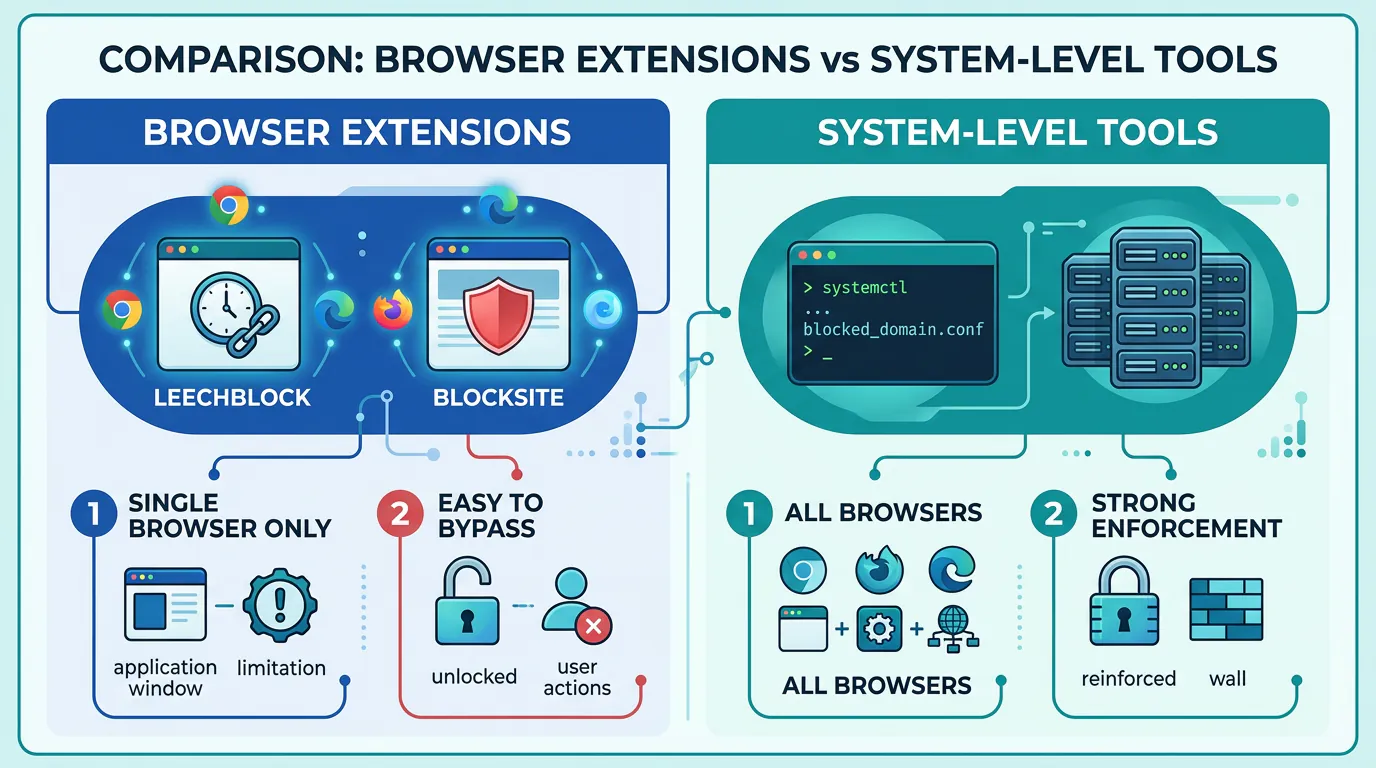
All browser extensions share the same weakness: they only block within one browser. If you use Firefox for work and Chrome for personal browsing, your extension-based blocks won't follow you.
System-Level Website Blockers for Linux
System-level blockers enforce restrictions across all browsers and applications. They're harder to bypass and better suited for users who need real accountability.
LockIn MCP (AI-native, hosts file + MCP server)
LockIn MCP is the only website blocker that integrates with AI assistants like ChatGPT, Claude, Perplexity, and Poke. It blocks websites at the system level by editing your hosts file, and it runs a local MCP server that lets your AI assistant start, stop, and manage focus sessions on your behalf.
Instead of editing /etc/hosts manually, you ask your AI: "Block Reddit and YouTube for 2 hours." The assistant calls LockIn's MCP server, which updates the hosts file, starts a timer, and prevents you from unblocking until the session ends.
Install on Linux in one line:
npx -y lockin-mcp installLockIn MCP works on Ubuntu, Debian, Fedora, Arch, and most other Linux distributions. It supports scheduled sessions, temporary unblocks with accountability (you have to justify the request to your AI), and cross-device sync if you install the Chrome extension alongside the desktop MCP server.
Pricing starts at $2.99/month for the Pro plan, or $59.99 for a lifetime license. There's a free trial available.
Freedom (cross-platform, session-based blocking)
Freedom is one of the most mature distraction blockers. It works on Linux, Windows, macOS, iOS, Android, and Chromebook, syncing blocks across all devices in a single session.
Freedom blocks at the network level using a local VPN on mobile and a background service on desktop. On Linux, it installs as a .deb or .rpm package and runs in the system tray.
The app lets you schedule recurring focus sessions (block social media every weekday from 9 AM to 5 PM), set time limits on specific sites, and enable "locked mode" to prevent stopping a session early. According to a Carnegie Mellon study, users who blocked distractions with Freedom saw a 22% increase in hourly earnings.
Freedom costs $39.99/year or $8.99/month. There's a 7-session free trial.

DigitalZen (Linux app blocker + website blocker)
DigitalZen is a lesser-known Linux-native blocker that targets both websites and desktop applications. It's one of the few tools that can block Steam, Discord, or any other Linux app alongside browser distractions.
DigitalZen uses a combination of firewall rules and process monitoring to enforce blocks. It offers scheduled sessions, adaptive blocking (increases restrictions if you keep trying to bypass), and time limits.
Pricing is $6.99/month or $59/year. There's a free version with limited features.
Pluckeye (gradual delay-based blocking)
Pluckeye is unique. Instead of instant blocking, it uses a delay system: changes to your blocklist take effect only after a delay you set (1 hour, 24 hours, 7 days). This prevents impulsive unblocking.
Pluckeye works on Linux, Windows, and macOS. It's free and open-source, though the learning curve is steep. Configuration happens via command-line or a web-based settings panel, and documentation warns that it's incompatible with some antivirus tools and blockers.
Choosing the Best Linux Website Blocker for Focus and Balance
The best website blocker for Linux depends on your threat model: are you fighting casual distraction or compulsive bypass attempts?
Choose the hosts file method if:
- You want a no-install, native Linux solution.
- You're disciplined enough not to undo your own blocks.
- You don't need timers or schedules.
Choose a browser extension (LeechBlock) if:
- You want quick setup with no system changes.
- You use one browser for everything.
- You're okay with easy bypass options as a reminder rather than enforcement.
Choose LockIn MCP if:
- You already use AI assistants (ChatGPT, Claude, Poke, Perplexity).
- You want system-level blocking with conversational control.
- You value accountability (temporary unblocks require justification to your AI).
- You're a developer or power user comfortable with npx and MCP.
Choose Freedom if:
- You block distractions across multiple devices (phone, tablet, desktop).
- You want session scheduling and locked mode for unbreakable focus.
- You don't care about AI integration.
Choose DigitalZen if:
- You need to block Linux desktop apps (Steam, Discord) in addition to websites.
- You want adaptive blocking that tightens restrictions if you keep bypassing.
Choose Pluckeye if:
- You struggle with impulsive unblocking and want mandatory delays.
- You're willing to trade convenience for airtight enforcement.
- You prefer open-source tools.
Is There a Linux Website Blocker That Can Block Adult or Gambling Sites?
Yes. All the tools listed here can block adult or gambling sites, but the approach differs.
Hosts file blocking works for known domains but can't filter dynamic content or catch new URLs. Browser extensions like LeechBlock support wildcard rules (*.porn, *bet*) that catch variations, and some offer built-in adult site blocklists.
For comprehensive filtering, use a system-level tool:
- LockIn MCP blocks by domain and works with AI assistants to enforce accountability.
- Freedom includes preset blocklists for adult content, gambling, and social media.
- DigitalZen offers category-based blocking (adult, gambling, gaming, shopping) with wildcard matching.
If you need parental controls or network-wide filtering for multiple devices, consider a router-level solution like Pi-hole or OpenDNS Family Shield alongside your desktop blocker.
Can Linux Website Blockers Work Offline?
Hosts file blocking works entirely offline because DNS resolution happens locally. Once you add entries to /etc/hosts, those domains are blocked even if you disconnect from the internet.
Browser extensions like LeechBlock also work offline. They block URLs at the tab level without needing an internet connection.
System-level tools vary:
- LockIn MCP requires an internet connection for MCP relay communication with AI assistants, but hosts file blocks remain active offline.
- Freedom requires connectivity to sync sessions across devices, but once a session starts, blocks persist offline.
- DigitalZen and Pluckeye work fully offline after initial setup.
If you frequently work offline (on a plane, in a remote area), prioritize hosts file blocking or desktop-only tools over cloud-synced services.
Tired of Half-Baked Linux Blocking Solutions?
Most website blockers treat Linux as an afterthought. Windows and macOS get polished apps with locked modes and uninstall prevention. Linux gets a browser extension or a manual hosts file guide.
LockIn MCP was built for Linux users who want system-level enforcement without sacrificing the conversational workflow of AI assistants. Instead of opening a settings panel or editing config files, you tell your AI what to block and for how long. The AI handles the hosts file, starts the timer, and holds you accountable if you try to bypass early.
It's the only blocker that combines:
- Native hosts file blocking (system-wide, all browsers)
- AI assistant integration (ChatGPT, Claude, Poke, Perplexity, Gemini)
- One-command install (
npx -y lockin-mcp install) - Affordable pricing ($2.99/month or $59.99 lifetime)
If you're tired of manually editing /etc/hosts or trusting yourself not to disable a browser extension, try LockIn MCP.
Conclusion
Linux offers more control over distraction blocking than any other OS, but that control is only useful if you can enforce it. Hosts file blocking is immediate and native but trivial to undo. Browser extensions add timers and schedules but work in only one browser. System-level tools like LockIn MCP, Freedom, and DigitalZen enforce blocks across your entire desktop with scheduling, locked modes, and (in LockIn's case) AI-driven accountability.
The best website blocker for Linux is the one you can't easily bypass when the urge hits. Choose the tool that matches your level of discipline, your workflow, and whether you want AI assistants managing your focus sessions or manual control over config files.
If you want to block distractions by talking to your AI instead of editing system files, start with LockIn MCP. If you need cross-device sync and don't care about AI, go with Freedom. If you're disciplined and want zero software installs, stick with /etc/hosts.
Whatever you choose, the Linux desktop is yours to configure. Make it work for you, not against you.
FAQ
What is the easiest way to block websites on Linux?
The easiest way is editing the /etc/hosts file. Open it with sudo nano /etc/hosts, add 0.0.0.0 sitename.com for each site you want to block, and save. Changes take effect immediately and work across all browsers. This method is simple but easy to reverse.
How do I block websites on Linux without root access?
Without root access, you can't edit /etc/hosts or install system-level blockers. Use a browser extension like LeechBlock NG in Firefox or Chrome. These extensions work within the browser and don't require administrator privileges. Keep in mind they're easy to bypass by switching browsers or using incognito mode.
Does Cold Turkey work on Linux?
No. Cold Turkey Blocker officially supports Windows and macOS only. There is no native Linux version. Linux users looking for similar strict enforcement should consider LockIn MCP, Freedom, DigitalZen, or Pluckeye instead.
Can I schedule website blocking on Linux?
Yes. LockIn MCP, Freedom, and DigitalZen all support scheduled blocking sessions. You can set recurring blocks (9 AM to 5 PM weekdays) or one-time sessions. LeechBlock browser extension also offers time-based rules. The hosts file method requires manual editing or a cron job to schedule changes.
How do I prevent myself from unblocking websites on Linux?
Use a tool with locked mode or delay features. Freedom's locked mode prevents stopping a session early. Pluckeye adds a mandatory delay (hours or days) before changes take effect. LockIn MCP requires you to justify temporary unblocks to your AI assistant, adding accountability. Hosts file blocking offers no self-enforcement.
What's the difference between browser extensions and system-level blockers on Linux?
Browser extensions (LeechBlock, BlockSite) only block within one browser and are easy to bypass by switching to another browser or using incognito mode. System-level blockers (LockIn MCP, Freedom, DigitalZen) block at the OS or network level, affecting all browsers and sometimes all applications. System-level tools are harder to bypass.
Can I use LockIn MCP with any AI assistant on Linux?
Yes. LockIn MCP works with ChatGPT, Claude, Perplexity, Poke, Gemini, and any other AI assistant that supports the Model Context Protocol (MCP). You install the MCP server on Linux with npx -y lockin-mcp install, then connect your AI assistant to control blocking sessions through conversation.
