Blog
Best Website Blockers for Mac in 2026
Compare the best Mac website blockers in 2026 — LockIn MCP, Freedom, Cold Turkey, SelfControl, and Screen Time — with system-level vs browser tradeoffs.
 Mil Hoornaert · 9 min read
Some links are affiliate links. We may earn a commission if you buy through them, at no extra cost to you.

The best website blocker for Mac in 2026 works at the system level, not just in your browser. Tools like LockIn MCP, Freedom, and Cold Turkey modify your Mac's hosts file or use kernel-level blocking to stop distractions before they load, making them nearly impossible to bypass. If you're looking for a free option, SelfControl offers unbreakable blocking with zero cost.
Key takeaways:
- System-level blockers (hosts file or kernel-based) beat browser extensions because they work across all browsers and can't be disabled with incognito mode
- AI-native tools like LockIn MCP let ChatGPT, Claude, or Poke enforce focus sessions and manage your blocklist through natural conversation
- Bypass resistance matters, if you're prone to cheating, choose tools with locked sessions (Cold Turkey, SelfControl) or password protection
- Screen Time (Apple's built-in tool) works for basic limits but is easy to disable and inconsistent across non-Safari browsers
- Cross-device sync is essential if you reach for your phone when your Mac blocks a site; Freedom and Opal handle this well
Why System-Level Blocking Beats Browser Extensions
Most browser extensions fail because they're trivial to bypass. Incognito mode, switching browsers, or simply disabling the extension takes seconds. That's why serious users who need to block distracting sites choose system-level enforcement.
System-level website blockers for Mac work differently. They modify your /etc/hosts file (a DNS lookup table on your Mac) or use low-level network filtering to redirect blocked domains to 127.0.0.1 (localhost), effectively making those sites unreachable across all browsers and apps. According to Apple's developer documentation, the hosts file is read before any DNS request, meaning blocked sites fail to resolve no matter which browser you open.
This approach has three advantages:
- Universal coverage, Safari, Chrome, Firefox, Arc, and Brave all respect hosts file blocks
- App blocking, many tools also block desktop apps (Slack, Discord, Twitter apps) at the process level
- Hard to circumvent, editing the hosts file manually requires admin privileges and technical know-how
Browser extensions are fine for gentle nudges. System-level enforcement is for when you're serious about removing access to distracting sites and apps.
AI-Native Website Blockers for Mac
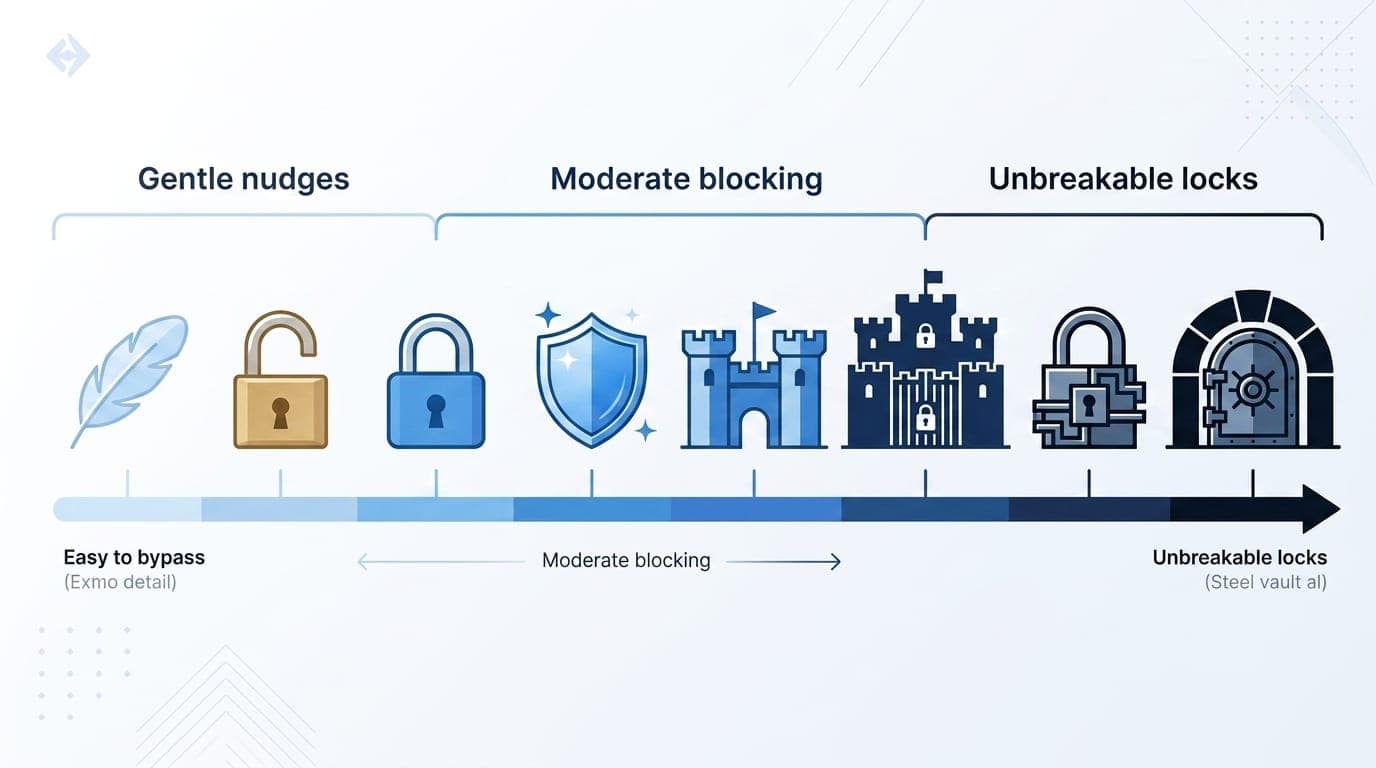
The newest category of website blockers integrates directly with AI assistants, letting you control distractions through conversation rather than clicking through settings panels. These tools give users who already work inside ChatGPT, Claude, or other AI interfaces a frictionless way to set focus sessions and manage blocklists.
LockIn MCP
LockIn MCP connects your AI assistant (ChatGPT, Claude, Perplexity, Poke, or Gemini) to your Mac's blocking system via an MCP server. You start focus sessions, add sites to your blocklist, or request temporary unblocks by asking your AI in natural language.
How it works:Install with one command (npx -y lockin-mcp install), connect your AI client through the dashboard or CLI, then tell your assistant "block Reddit and YouTube for two hours" or "start a focus session until 5pm." The MCP server modifies your hosts file in real time and logs every session.
Best for:Developers and knowledge workers who already live in AI chat interfaces and want blocking that fits their workflow instead of interrupting it.
Pricing:Free trial, then Pro plans start at $2.99/month. Cross-platform (macOS, Linux, Windows).
Pros:
- Frictionless AI control, no app switching or menu bar clicks
- System-level hosts blocking across all browsers
- One-line install and straightforward setup
Cons:
- Requires familiarity with terminal for initial install
- MCP client setup (Claude Desktop, ChatGPT, etc.) adds a configuration step
Other AI-Integrated Tools
Raycast Focus:If you already use Raycast as your productivity launcher, its built-in Focus feature lets you start timed focus sessions that block apps and websites. It's command-driven and works without browser extensions, but the snooze/edit options make it easier to cheat than locked-down alternatives.
AI Productivity Coaches (Motion, Reclaim):Tools like Motion and Reclaim.ai focus on calendar blocking and task prioritization but don't enforce distraction blocking at the system level. They're better for planning than enforcement.
Traditional Website Blockers for Mac
If you don't need AI integration, these proven tools offer rock-solid blocking with varying levels of strictness. Each tool targets different user needs, from cross-device sync to nuclear-level enforcement.
Freedom

Freedom is the gold standard for cross-device blocking. Start a session on your Mac and it syncs instantly to your iPhone, iPad, and Windows PC. Locked Mode prevents you from ending sessions early, and recurring schedules let you automate blocking during work hours. Over 2.5 million users rely on Freedom to stay focused across all their devices, according to the company's official site.
Blocks:Websites and apps Best for: Freelancers and remote workers who need accountability across devices Pricing: Free plan available; Premium is $3.33/month (annual billing) or $199 lifetime
Pros:
- Syncs across unlimited devices
- System-level blocking works in all browsers
- Scheduling and recurring sessions
Cons:
- Locked Mode might feel too restrictive for users who need occasional flexibility
Cold Turkey Blocker
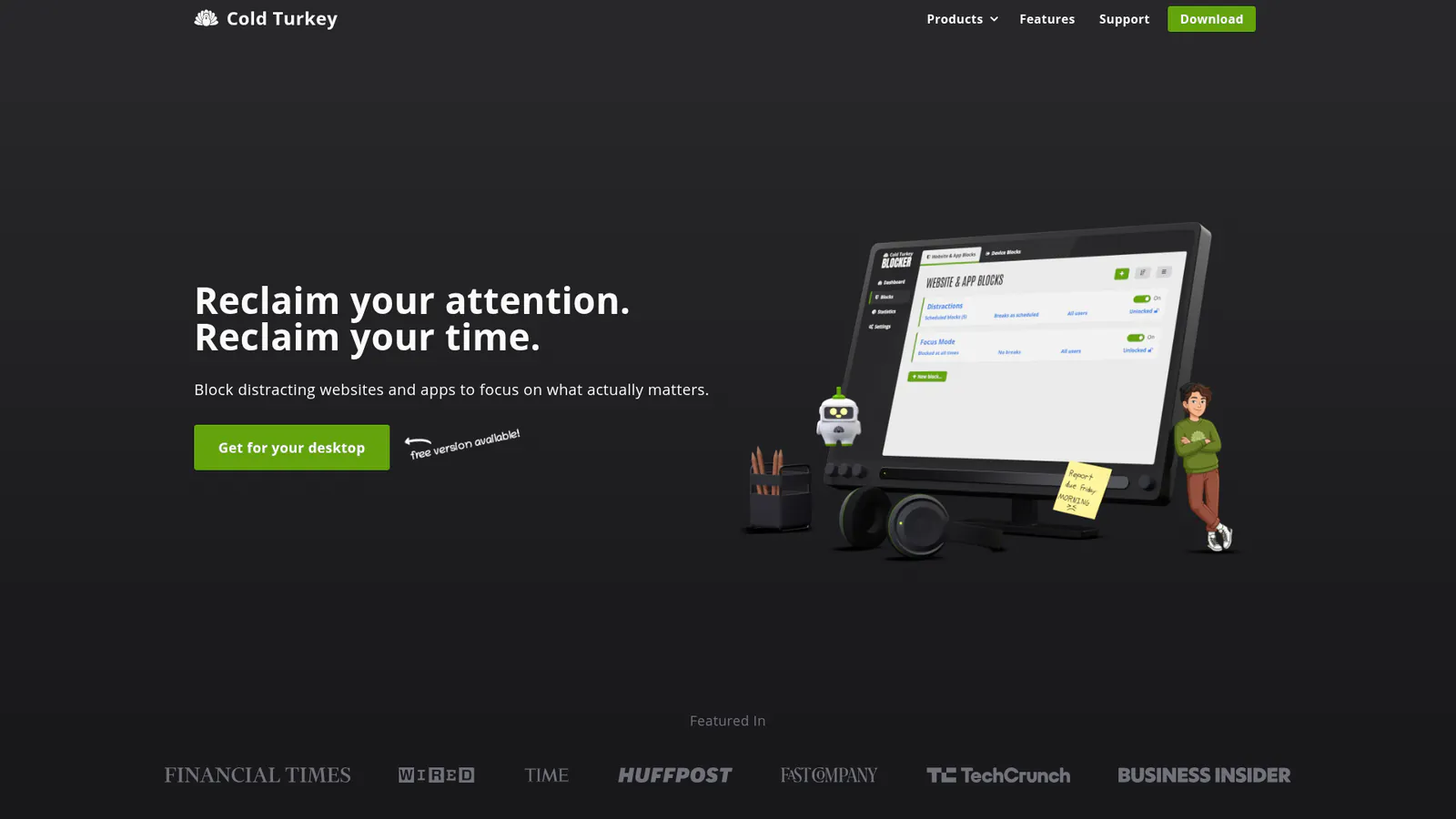
Cold Turkey is uncompromising. Once you lock a session, there's no escape, restarting, uninstalling, or editing system files won't help. You can block the entire internet except a whitelist of work sites, block specific apps, or set a daily schedule. Cold Turkey has earned its reputation as "the toughest website and app blocker on the internet" by making bypass virtually impossible.
Blocks:Websites and apps Best for: Users who know they'll try to cheat and need genuine accountability Pricing: Free version available; Pro is $45 (lifetime, all devices)
Pros:
- Genuinely unbreakable locking
- Privacy-focused (all data stays local)
- Can block everything except a whitelist
Cons:
- No mobile support
- Extreme strictness isn't for everyone
SelfControl
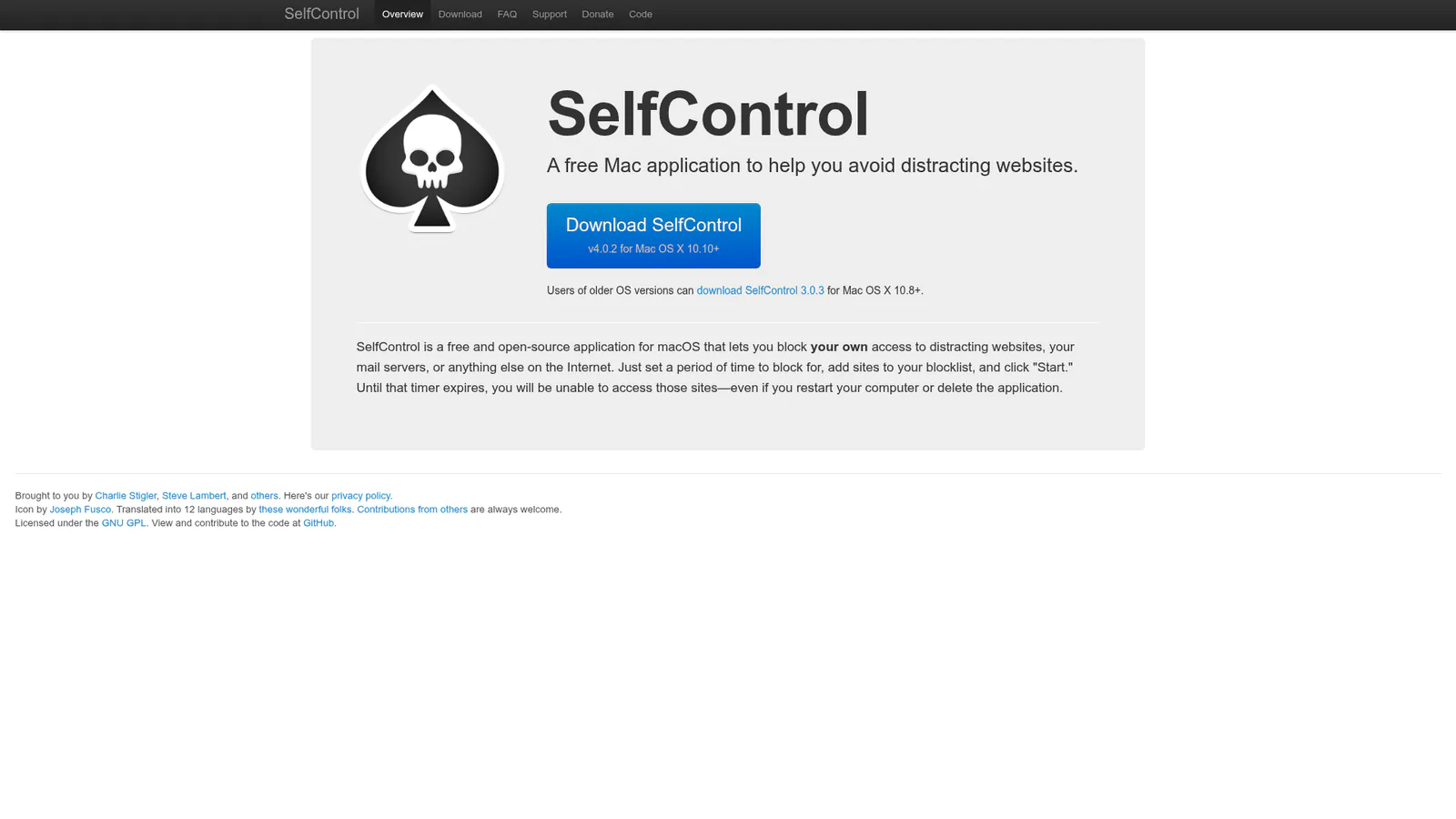
SelfControl is a free, open-source Mac app that blocks websites for a set period. Start a timer and the block persists even if you restart your Mac or delete the app. It's minimalist and effective but lacks scheduling. The app has been downloaded over 1 million times and remains one of the most popular free blocking tools for Mac users and students.
Blocks:Websites only Best for: Students and budget-conscious users who need nuclear blocking at no cost Pricing: Free (donation-supported)
Pros:
- Completely free
- Unbreakable once started
- Simple interface
Cons:
- No recurring schedules (manual start each time)
- Doesn't work with VPNs
Focus
Focus (formerly HeyFocus) offers Mac-native blocking with Pomodoro timers, multiple profiles, and scripting support for advanced workflows. You can create separate profiles for "writing" vs. "research" with different blocklists. Power users appreciate the ability to automate blocking through scripts that trigger based on time, location, or other conditions.
Blocks:Websites and apps Best for: Mac power users who want customizable routines Pricing: $49 (one-time) or $129 (lifetime updates)
Pros:
- Multiple profiles for different contexts
- Scripting capabilities for custom workflows
- Integrated Pomodoro timer
Cons:
- Scripting features have a learning curve
- Single-platform (Mac only)
Other Notable Options
HazeOver: Rather than blocking access, HazeOver dims background windows to reduce visual distraction. It's excellent for multi-window workflows but provides zero enforcement.
Jomo: A mobile-first blocker with creative unlocking mechanisms (complete 10,000 steps to unblock social media). Works on Mac but primarily designed for iPhone users.
Built-in Mac Blocking with Screen Time
Apple's Screen Time is pre-installed on every Mac and offers basic website and app limits. Set a one-minute daily limit on distracting sites to effectively block them, or use Content & Privacy settings to block specific domains entirely.
How to set it up:
- Open System Settings → Screen Time
- Click App Limits → Add Limit
- Select sites/apps and set a 1-minute limit (acts as a block)
- Or go to Content & Privacy → Limit Adult Websites and add sites to "Never Allow"
Screen Time is free and easy, but inconsistent across browsers (Safari only for some features) and trivial to disable. It's better for gentle nudges than serious accountability. For users seeking stricter enforcement, dedicated third-party tools offer better results.
How to Choose the Right Website Blocker for Mac
Match your tool to your bypass tendencies and workflow:
| Your need | Best option |
|---|---|
| AI-native blocking with conversational control | LockIn MCP |
| Cross-device sync (Mac + iPhone/iPad) | Freedom, Opal |
| Maximum strictness, impossible to bypass | Cold Turkey, SelfControl |
| Free and open-source | SelfControl |
| Built-in, no install required | Screen Time |
| Customizable profiles and scripting | Focus |
Consider these factors:
- Bypass resistance: If you're likely to cheat, choose locked sessions (Cold Turkey, SelfControl) or password-protect your settings and give the password to a friend
- Browser coverage: System-level tools work everywhere; extensions only cover one browser
- Cross-device needs: If you grab your phone when your Mac blocks a site, choose Freedom or Opal for full sync
- Setup complexity: Screen Time requires zero setup; LockIn MCP and Focus need initial configuration
- Internet access control: Some tools let you block the entire internet with exceptions, perfect for deep work sessions
How to Block Websites on Mac: Step-by-Step Guide
Method 1: Using LockIn MCP (AI-Native)
- Download and install with one command:
npx -y lockin-mcp install - Connect your AI assistant (Poke, Claude, ChatGPT, etc.)
- Tell your AI: "Block Reddit and YouTube for 3 hours"
- Your assistant confirms and starts the session
Method 2: Using a Traditional Blocker (Freedom, Cold Turkey)
- Download and install your chosen tool from the official website
- Add websites to your blocklist (or create an allowlist to block everything except work sites)
- Start a session and set duration
- Test by trying to access a blocked site
Method 3: Using Screen Time
- System Settings → Screen Time → App Limits
- Click Add Limit → select sites/apps → set 1-minute limit
- Or go to Content & Privacy → Limit Adult Websites → add sites to "Never Allow"
For scheduled blocking, set up recurring sessions in Freedom or Focus, or use macOS Focus Modes with Screen Time integration to automatically enforce blocks during work hours.
Conclusion
The best website blocker for Mac depends on how you work and how likely you are to bypass your own rules. If you already use AI assistants, LockIn MCP offers the most frictionless blocking with conversational control. If you need cross-device sync, go with Freedom. Need maximum strictness? Cold Turkey or SelfControl won't let you cheat.
All of these beat browser extensions because they work at the system level, blocking access across all browsers and apps. Pick one, block your biggest distractions, and protect your focus.
Get started with LockIn MCP or compare blocking tools to find your fit.
FAQ
How do I block websites on Mac for free?
Apple's Screen Time is free and built-in. For stricter free blocking, SelfControl is open-source and offers genuinely unbreakable website blocking with no cost. Both work at the system level across browsers.
What's the best distraction blocker app for Mac?
Freedom offers the best balance for most people, cross-device sync, Locked Mode for accountability, and flexible scheduling. For AI-native control, LockIn MCP lets you manage blocking through ChatGPT or Claude. For maximum strictness, Cold Turkey is unbeatable.
How can I block websites on Mac in a way that's hard to bypass?
Choose tools with locked sessions: Cold Turkey and SelfControl can't be stopped once started, even by restarting or uninstalling. Alternatively, use password protection and give the password to someone else for external accountability.
Will a website blocker slow down my Mac or affect privacy?
No. System-level blockers like LockIn MCP, Freedom, and Cold Turkey are lightweight and don't noticeably impact performance. Most store data locally and don't track or upload your browsing. Always check the privacy policy of your chosen tool.
Can I block websites during specific hours on Mac?
Yes. Tools like Freedom, Focus, and LockIn MCP support recurring schedules, set daily blocks for work hours (e.g., Monday-Friday, 9am-5pm) and they activate automatically. You can also integrate with macOS Focus Modes for context-based blocking.
Does Screen Time work across all browsers on Mac?
No. Screen Time works best in Safari but is inconsistent in Chrome, Firefox, and other browsers. For universal blocking across all browsers, use a system-level tool like LockIn MCP, Freedom, or Cold Turkey that modifies the hosts file.
Can I block social media apps on Mac, not just websites?
Yes. Tools like Freedom, Cold Turkey, Focus, and LockIn MCP block both websites and desktop applications. This stops you from opening the Twitter, Discord, or Slack apps when the websites are blocked, giving you complete control over social media access.
