Blog
Claude Desktop MCP Setup: Complete Guide (2026)
Set up MCP in Claude Desktop with directory extensions or manual JSON config — plus verification, troubleshooting, and connecting servers like LockIn MCP.
 Mil Hoornaert · 12 min read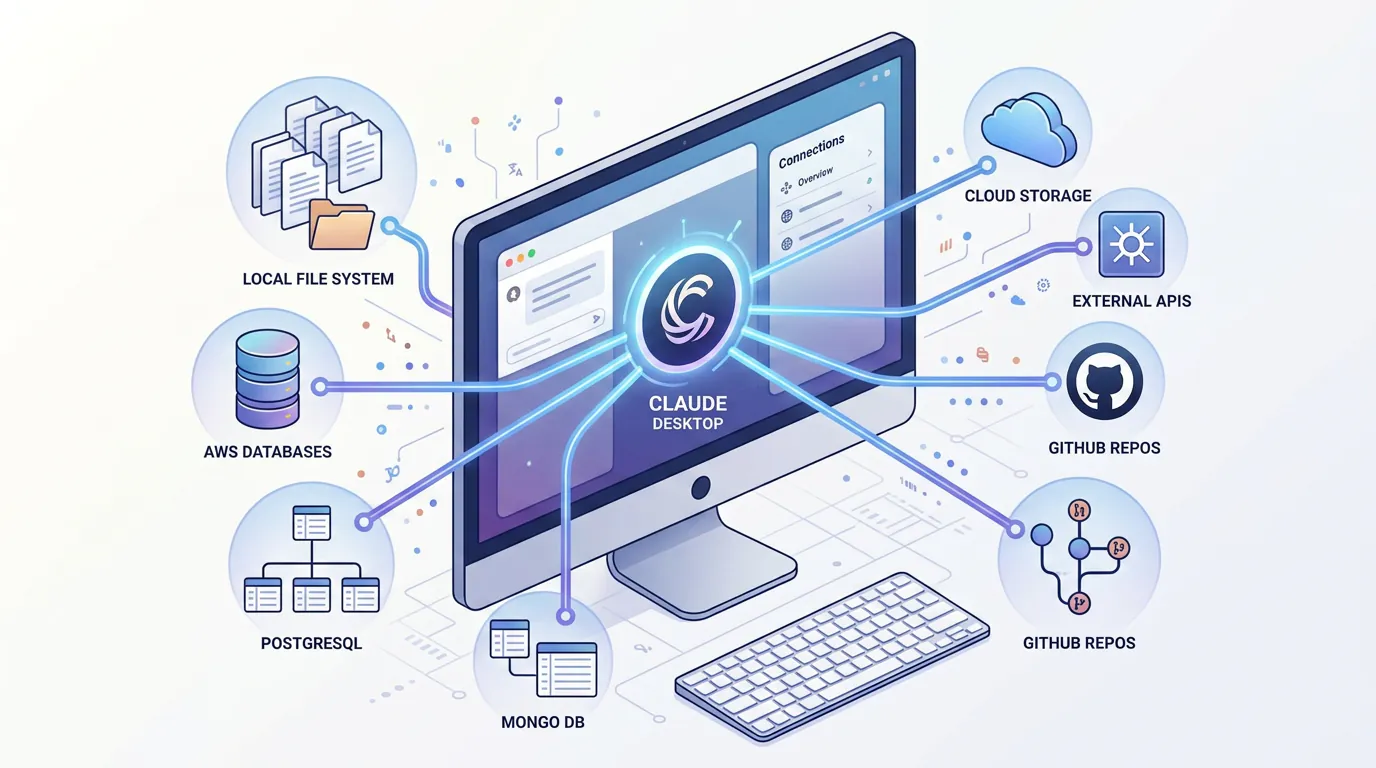
Claude Desktop MCP setup connects your AI assistant to external data sources and tools through the Model Context Protocol. You can install MCP servers in two ways: one-click desktop extensions from Claude's directory (easiest), or manual JSON configuration for custom servers.
Key takeaways:
- Desktop extensions provide one-click installation of reviewed MCP servers from Claude's official directory
- Manual JSON config still works for custom or advanced MCP server setups
- Claude Desktop includes built-in Node.js, so Node.js installation isn't required
- Verify connections via Settings > Extensions > Connectors or check developer logs
- Common issues stem from missing API keys, incorrect file paths, or permission errors
What Is MCP and Why Set It Up?
The Model Context Protocol is an open standard introduced by Anthropic in November 2024 that enables AI assistants to connect securely to external systems. Instead of Claude being limited to its training data, MCP lets it access your local files, databases, GitHub repositories, Slack channels, Google Drive, and more.
According to the MCP specification, the protocol has been adopted by over 40 AI applications and development tools including Visual Studio Code, Cursor, Zed, Replit, and Codeium.
Think of MCP as a USB-C port for AI. Just as USB-C provides a standardized connection for devices, MCP provides a standardized way for AI applications to integrate with data sources and tools.
Setting up MCP servers in Claude Desktop transforms it from a standalone chatbot into a context-aware productivity assistant that can read your project files, query your databases, search documentation, and execute commands on your behalf.
Prerequisites for Claude Desktop MCP Setup
Before you start, make sure you have:
- Claude Desktop installed (download from claude.ai)
- A Claude.ai account (free or paid; all plans support MCP)
- Admin permissions on your machine (required for some MCP servers)
- API keys for external services (if connecting to GitHub, Google Drive, etc.)
Claude Desktop runs on macOS, Windows, and Linux. The built-in Node.js environment means you don't need to install Node.js separately for Node-based MCP servers.
Method 1: Install MCP Extensions from the Directory
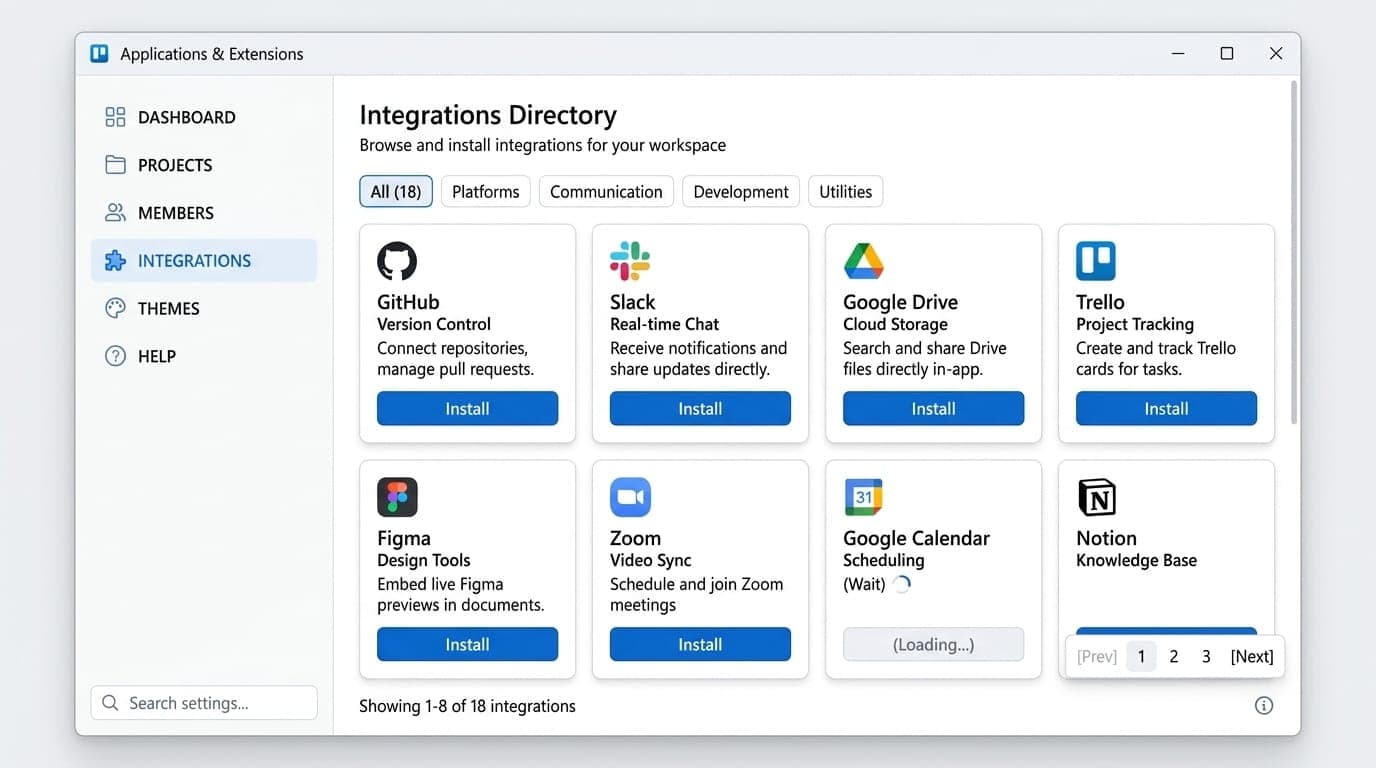
This is the recommended approach for most users. Anthropic has built a directory of reviewed MCP servers you can install with one-click installation.
Step 1: Open Claude Desktop Settings
Launch Claude Desktop and navigate to Settings > Extensions.
Step 2: Browse and Install Extensions
- Click "Browse extensions" to view the directory
- Browse available MCP servers (GitHub, Slack, Google Drive, Postgres, Puppeteer, and more)
- Click "Install" on any extension you want to use
- Configure required settings like API keys through the user-friendly interface
The extension installs automatically and becomes available in your conversations immediately. No JSON editing, no file paths, no manual dependency management.
Step 3: Configure Extension Settings
After installing an extension:
- Navigate to Settings > Extensions
- Click on the installed extension
- Fill in required fields (API keys, authentication tokens, file paths)
- Mark sensitive values as secure; Claude encrypts them using your OS keychain (Keychain on macOS, Credential Manager on Windows, your distro's keychain manager on Linux)
Extensions from the official directory update automatically. You don't need to manually download and reinstall new versions.
Method 2: Manual JSON Configuration for Custom MCP Servers
If you're building your own MCP server or using one not yet in the directory, you'll need manual configuration.
Step 1: Enable Developer Mode
- Open Settings > Extensions in Claude Desktop
- Click "Advanced settings"
- Find the Extension Developer section
Step 2: Locate Your Configuration File
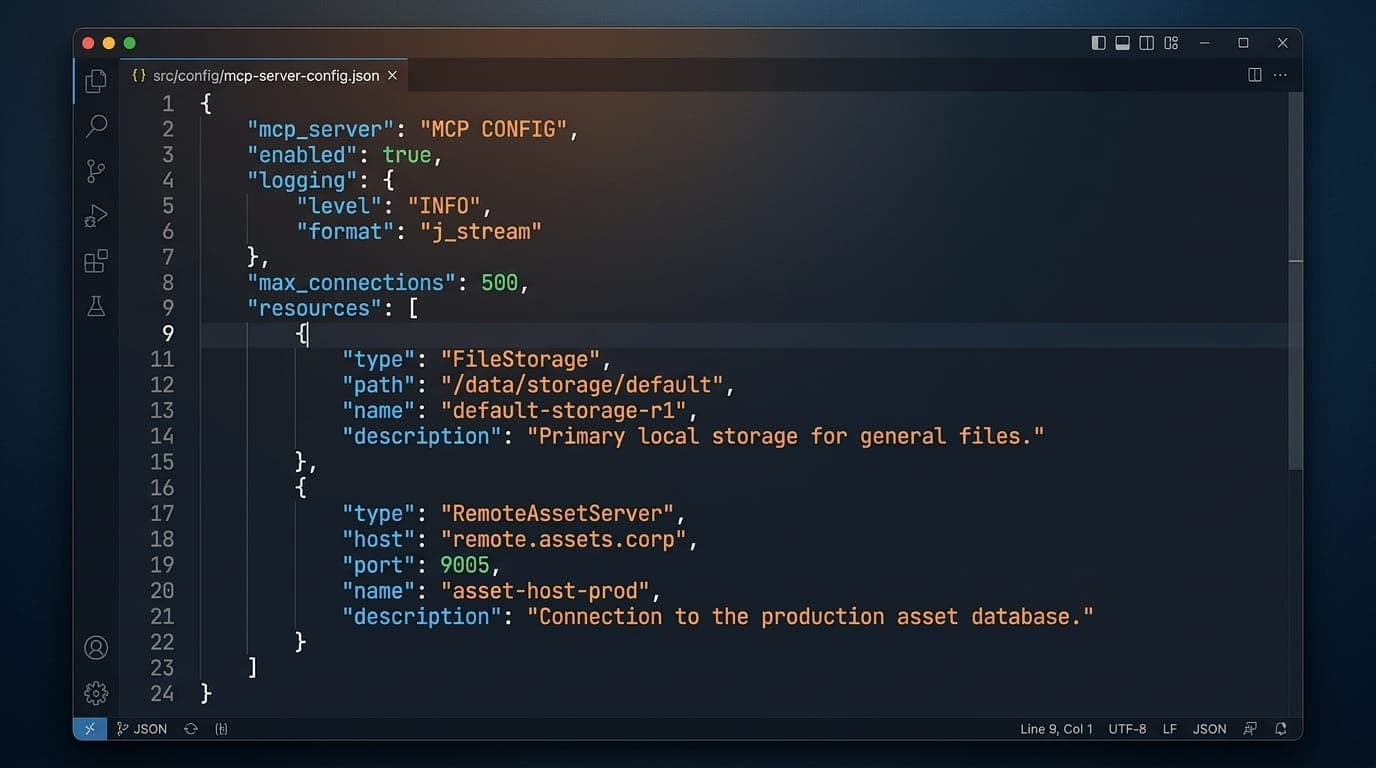
Claude Desktop stores MCP server configuration in a JSON file. The location depends on your operating system:
- macOS:
~/Library/Application Support/Claude/claude_desktop_config.json - Windows:
%APPDATA%\Claude\claude_desktop_config.json - Linux:
~/.config/Claude/claude_desktop_config.json
If the file doesn't exist, enable developer options in Claude Desktop settings and it will create the file automatically.
Step 3: Add MCP Server Configuration
Open the JSON file in a text editor and add your MCP servers under the mcpServers key. Here's an example configuration for a local filesystem server:
{
 "mcpServers": {
 "filesystem": {
 "command": "npx",
 "args": [
 "-y",
 "@modelcontextprotocol/server-filesystem",
 "/Users/yourname/Documents"
 ]
 },
 "github": {
 "command": "npx",
 "args": [
 "-y",
 "@modelcontextprotocol/server-github"
 ],
 "env": {
 "GITHUB_PERSONAL_ACCESS_TOKEN": "your_token_here"
 }
 }
 }
}
Each server entry needs:
- A unique key (the server name)
- A command to run (e.g.,
npxfor Node.js servers,pythonfor Python servers, or a binary path) - args array with command-line arguments
- Optional env object for environment variables like API keys
Step 4: Restart Claude Desktop
Save the configuration file and restart Claude Desktop. The MCP servers will initialize on launch.
Supported MCP Server Types
Claude Desktop supports three types of MCP servers:
- Node.js servers, use
npxcommand (no Node.js installation needed) - Python servers, use
pythonorpython3command (Python must be installed) - Binary servers, provide the full path to the executable
Anthropic maintains a repository of pre-built MCP servers including connectors for Google Drive, Slack, GitHub, Git, Postgres, and Puppeteer. As of July 2026, the repository includes over 30 community-contributed servers.
How to Verify Your MCP Connection
After installation (via extension or JSON), verify your MCP servers are connected:
Check via Connectors Menu
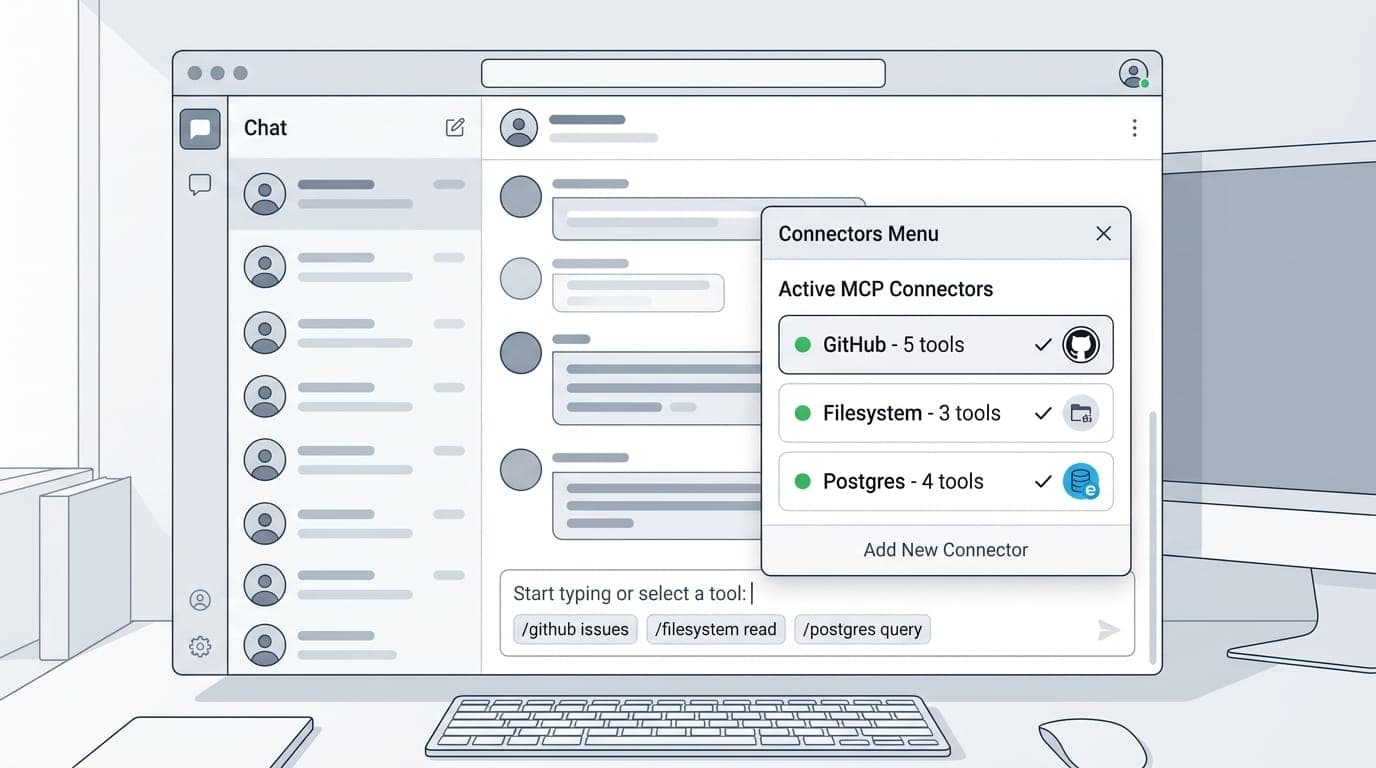
- Click the "+" button at the bottom of the chat box in Claude Desktop
- Select "Connectors"
- You'll see a list of connected MCP servers and their available tools
If a server appears here, it's connected and Claude can use its tools.
Check Developer Settings
Navigate to Settings > Extensions > Developer settings (under Desktop app). This shows:
- Connection status for each MCP server
- Real-time logs for debugging
- Error messages if a server fails to initialize
If logs show connection errors, the most common culprits are incorrect file paths, missing API keys, or permission issues.
Troubleshooting Common Claude Desktop MCP Setup Issues
Extension Won't Install
- Update Claude Desktop to the latest version
- Check available disk space (some extensions require storage)
- Re-download the extension file if it appears corrupted
- On macOS, check System Preferences > Security & Privacy if you get security warnings
Extension Installed But Tools Don't Appear
- Restart Claude Desktop to refresh the extension registry
- Open Settings > Extensions, click the extension, and verify all required configuration fields are filled
- Double-check API keys and authentication credentials
- Check developer logs for initialization errors
JSON Configuration Not Working
- Verify JSON syntax (use a validator like jsonlint.com or JSONLint)
- Check file paths are absolute and point to directories you have access to
- On Windows, escape backslashes in paths:
"C:\\Users\\yourname\\Documents" - Ensure environment variables like API keys are properly quoted strings
Permission or Security Errors
- On macOS, grant Claude Desktop full disk access in System Preferences > Security & Privacy if it needs to read protected directories
- On Windows and Linux, run Claude Desktop with appropriate permissions
- For enterprise environments, verify desktop extensions are enabled through your organization's policies (Team/Enterprise plans have admin controls)
MCP Server Keeps Disconnecting
- Check the server's dependencies are installed (Python for Python servers, etc.)
- Review logs in developer settings for crash messages
- Increase log verbosity in the MCP server's configuration
- Verify the server binary or script is executable (
chmod +xon Unix systems)
API Rate Limits or Authentication Failures
Many MCP servers connect to external APIs (GitHub, Google Drive, Slack). If you're seeing authentication errors:
- Regenerate API keys or tokens
- Check token permissions/scopes match what the MCP server needs
- Review rate limits in the service's developer console (GitHub rate limits, Google API quotas)
- Use separate API keys for each environment (dev vs. production)
Installing Custom Desktop Extensions (.mcpb Files)
If you've built your own MCP server or received a custom .mcpb file:
- Navigate to Settings > Extensions > Advanced settings
- Click "Install Extension…" in the Extension Developer section
- Select the
.mcpbfile - Follow prompts to configure and install
Team and Enterprise plan owners can upload custom extensions and make them available to their entire organization through a managed extension registry.
Connecting Popular MCP Servers
Here are quick-start configurations for commonly used MCP servers:
GitHub MCP Server
{
 "mcpServers": {
 "github": {
 "command": "npx",
 "args": ["-y", "@modelcontextprotocol/server-github"],
 "env": {
 "GITHUB_PERSONAL_ACCESS_TOKEN": "ghp_yourTokenHere"
 }
 }
 }
}
Get a personal access token from GitHub settings with repo and user scopes.
Filesystem MCP Server
{
 "mcpServers": {
 "filesystem": {
 "command": "npx",
 "args": [
 "-y",
 "@modelcontextprotocol/server-filesystem",
 "/path/to/your/documents"
 ]
 }
 }
}
Replace /path/to/your/documents with the directory you want Claude to access.
Postgres MCP Server
{
 "mcpServers": {
 "postgres": {
 "command": "npx",
 "args": ["-y", "@modelcontextprotocol/server-postgres"],
 "env": {
 "DATABASE_URL": "postgresql://user:password@localhost:5432/dbname"
 }
 }
 }
}
Use your actual database connection string in DATABASE_URL.
Slack MCP Server
For users who want to integrate Slack, the Slack MCP server allows Claude to read channels, send messages, and search conversations:
{
 "mcpServers": {
 "slack": {
 "command": "npx",
 "args": ["-y", "@modelcontextprotocol/server-slack"],
 "env": {
 "SLACK_BOT_TOKEN": "xoxb-your-token",
 "SLACK_TEAM_ID": "T01234567"
 }
 }
 }
}
Get your bot token and team ID from the Slack API dashboard.
Advanced MCP Configuration Tips
Handling Sensitive Configuration
For API keys and credentials in manual JSON configuration:
- Use environment variables on your system instead of hardcoding in JSON
- Reference them like
"GITHUB_TOKEN": "$GITHUB_TOKEN" - Store actual secrets in your shell profile (
.bashrc,.zshrc, etc.)
Desktop extensions automatically encrypt sensitive fields using OS-level secure storage, which is more secure than plain JSON files.
Running Multiple MCP Servers
You can connect as many MCP servers as you need. Each one appears as a separate tool set in Claude. Power users often run 5-10 MCP servers simultaneously for different data sources:
{
 "mcpServers": {
 "filesystem": { ... },
 "github": { ... },
 "postgres": { ... },
 "slack": { ... }
 }
}
Claude will automatically choose which server to use based on your prompt. For example, "check my GitHub issues" triggers the GitHub server, while "read the README in my Documents folder" uses the filesystem server.
Converting Existing MCP Servers to Extensions
If you've built an MCP server and want to package it as a desktop extension:
- Add a
manifest.jsonfile to your server directory with required metadata - Package it using the
mcpb packcommand - Distribute the
.mcpbfile or submit it to Anthropic's directory
See the MCPB documentation on GitHub for detailed packaging instructions.
Using MCP Servers in Claude Desktop
Once your MCP servers are connected, Claude can use them automatically. You don't need special syntax or commands.
For example, if you've connected a filesystem server to your /Documents folder:
"Read the README.md file in my Documents and summarize it."
Claude will invoke the filesystem MCP server, read the file, and provide a summary. The MCP connection is transparent.
To see which tools are available from your connected servers:
- Start a new conversation
- Click the "+" button
- Select "Connectors"
- Browse available tools by server
This helps you understand what actions Claude can take through each MCP connection. Users report that having a filesystem and code repository server connected dramatically improves Claude's ability to provide context-aware programming assistance.
Enterprise MCP Server Deployment
For Team and Enterprise Claude for Work customers:
- Owners and Primary Owners can enable/disable public extensions for the entire organization
- Upload custom extensions and make them available organization-wide
- Control extension allowlists to enforce security policies
- Enterprise policy controls at the machine level override in-app settings
See Claude's enterprise configuration documentation for deployment guidelines.
Remote production MCP servers (not just local) are coming soon for Claude for Work organizations. This will let you deploy MCP servers on your infrastructure and connect them to Claude Desktop across your team.
Early adopters like Block and Apollo have integrated MCP into their systems for internal tools and data access.
Setting Up MCP on Claude's Paid Tiers
Claude's paid plans (Pro, Team, and Enterprise) all support MCP servers. The setup process is identical to the free tier for individual users.
For Team and Enterprise plans:
- Admins can pre-approve specific extensions for all users
- Custom extensions can be deployed organization-wide
- Remote MCP server support (coming soon) will enable shared infrastructure connections
The one-click extension approach works across all plans. JSON configuration is available to all users regardless of subscription tier. Paid plans get additional admin controls but no functional difference in core MCP capabilities.
LockIn MCP: Turn Claude Into Your Focus Enforcer
If you're looking to extend Claude with productivity enforcement, LockIn MCP is an MCP server that blocks distracting websites at the system level when you tell Claude to start a focus session.
Instead of just asking Claude for productivity advice, you can say "lock in for 2 hours" and LockIn MCP will:
- Block social media, streaming, and gaming sites via your hosts file
- Track focus session duration
- Let you request temporary unblocks with accountability
It's one-line install (npx -y lockin-mcp install) and works with Claude Desktop, ChatGPT, Poke, and other MCP clients. Unlike browser extensions, LockIn MCP enforces blocking at the OS level across all browsers and apps.
Check out the LockIn MCP connector guide for setup instructions or compare it to other distraction blockers.
Learning More About MCP
For developers and users who want to dive deeper:
- MCP Quickstart Guide, step-by-step tutorial for building your first MCP server
- MCP GitHub Organization, complete technical documentation, code examples, and implementation guides
- MCP Debugging Guide, troubleshooting tips and solutions for common integration challenges
- MCP Specification, full protocol specification for developers building MCP clients or servers
- Anthropic's MCP Course, free course on building MCP integrations
The MCP community on GitHub is active with over 500 developers sharing servers, troubleshooting issues, and proposing new features.
FAQ
How do I check if my MCP servers are properly connected in Claude Desktop?
Click the "+" button in the chat box, then select "Connectors." You'll see all connected MCP servers and their tools. Alternatively, check Settings > Extensions > Developer settings for connection status and logs.
What programming languages are supported for MCP servers?
Claude Desktop supports Node.js, Python, and binary MCP servers. Node.js servers work out of the box since Claude includes a built-in Node.js runtime. Python servers require Python installed on your system. Binary servers need an executable file.
How do I handle sensitive configuration like API keys?
For desktop extensions, mark configuration fields as "sensitive": true in your manifest and Claude will encrypt them using your OS keychain. For manual JSON configuration, use environment variables instead of hardcoding secrets in the JSON file.
Can I distribute my custom desktop extension privately?
Yes. Share .mcpb files directly with specific users or teams. Team and Enterprise plan owners can upload custom extensions to their organization's registry for one-click install across the team.
Will Claude automatically recognize my MCP server after integration?
Yes. Once an MCP server is installed (via extension or JSON config), Claude automatically detects available tools and uses them based on your prompts. You don't need special commands or syntax.
How do I convert my existing MCP server to a desktop extension?
Add a manifest.json file to your server directory with required metadata, then package it using the mcpb pack command. See the MCPB documentation for full instructions on creating .mcpb packages.
What happens when my extension needs updates?
Extensions installed from the official directory update automatically. For privately distributed extensions (custom .mcpb files), users need to manually install updated versions.
How do I debug issues with my desktop extension?
Enable debug logging in Claude Desktop settings under Developer options. Check the extension logs in the Extensions settings panel. For protocol-specific troubleshooting, refer to the MCP debugging guide.
Conclusion
Setting up MCP servers in Claude Desktop is now easier than ever with one-click desktop extensions. For most users, browsing the extension directory and clicking Install is the fastest path to connecting Claude to GitHub, Google Drive, local files, databases, and more.
If you need custom integrations or you're building your own MCP server, manual JSON configuration gives you full control. The JSON method still works and coexists with desktop extensions.
Once configured, Claude transforms from a standalone assistant into a context-aware productivity tool that can read your data, execute commands, and take action across the systems you work with daily.
Start by installing a filesystem or GitHub extension from the directory. Then explore Anthropic's open-source MCP server repository or build your own using the MCP quickstart guide.
