Blog
How to Block Websites Across All Your Devices
 Mil Hoornaert · 11 min read
You can block sites across devices using three primary approaches: configure DNS blocking at your router to instantly cover every device on your network, install a cross-platform app like Freedom that syncs sessions across phones and computers, or deploy system-level blockers on individual devices for strictest enforcement. Most people combine multiple methods for bypass-resistant protection.
Key takeaways:
- Router/DNS blocking filters every device on your WiFi network in one step but gets bypassed by VPN or mobile data
- Cross-platform apps (Freedom, Cold Turkey) sync sessions across Mac, Windows, iOS, Android with scheduling and locked mode
- System-level blocking (hosts file, Screen Time, parental controls) runs deeper than browser extensions and harder to bypass
- Layering methods is the most effective approach, pair router DNS with a dedicated blocker on critical devices
- Bypass prevention requires locked mode, protected device settings, and explicit accountability
Router-Level DNS Blocking (Instant Network-Wide Coverage)
Blocking at your router or via DNS covers every device that connects to your home Wi-Fi network, laptops, phones, tablets, smart TVs, and IoT gadgets. You set the rule once and it applies everywhere, controlling access to websites without installing software on each device.
How DNS Blocking Works
When any device tries to load a web page, it first asks a DNS server for the IP address. By using a filtering DNS service (OpenDNS, CleanBrowsing, Cloudflare for Families, or Quad9), those servers refuse to resolve blocked domains. The website page never loads on any device trying to access it.
Setting Up DNS Blocking on Your Router
- Log into your router admin panel (usually 192.168.1.1 or 192.168.0.1; check the sticker on your router)
- Find the DNS settings section (often under Internet, WAN, or Network Settings)
- Replace your ISP's DNS with a filtering service:
- OpenDNS Family Shield: 208.67.222.123 / 208.67.220.123
- CleanBrowsing Family: 185.228.168.168 / 185.228.169.168
- Cloudflare for Families (block malware + adult): 1.1.1.3 / 1.0.0.3
- Save and reboot the router (most changes apply after restart)
- Test by trying to access a blocked category (e.g., adult sites on Family Shield)
You can also configure custom block lists with OpenDNS Home (free account) to block websites in categories like social media, gaming, or shopping. This gives you more control over what content and web pages your network can access.
Router-Level Pros and Cons
Pros:
- Covers every device instantly without per-device setup
- Works on any WiFi-connected device (laptops, phones, tablets, gaming consoles)
- Blocks at the DNS level before content loads
- Free with OpenDNS, CleanBrowsing, or Cloudflare
Cons:
- Easily bypassed by mobile data (LTE/5G) or a VPN
- Can't schedule blocks (on 24/7 unless you manually change DNS)
- Limited granularity, you block categories, not individual sites
- Only applies to devices on your home network
Use it for:Families who want baseline filtering on all home devices, or as a first layer before adding more targeted tools.

Cross-Platform Apps That Sync Across Devices
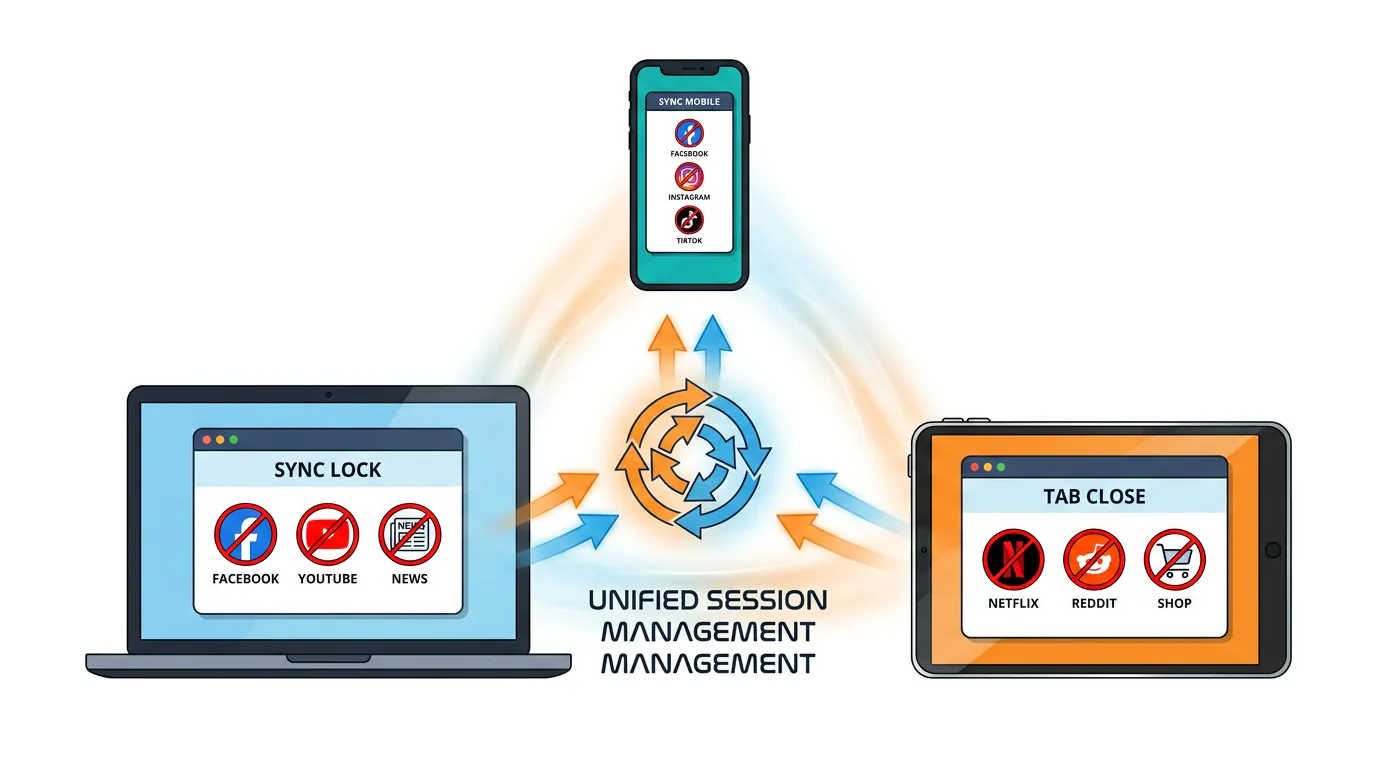
Dedicated website and app blockers synchronize sessions across your Mac, Windows PC, iPhone, iPad, Android phone, and Chromebook. You start a session on one device and distractions vanish everywhere.
Best Cross-Device Blocking Apps
FreedomSyncs blocking across Mac, Windows, iOS, Android, Chrome. Schedule recurring sessions, block entire internet, use locked mode to prevent early quit. $39.99/year (7-day free trial). Studies show Freedom users gain 2.5 hours per day and a Carnegie Mellon study found 22% higher earnings with the app enabled.
Cold TurkeyDesktop-only (Mac, Windows) but the strictest enforcement available. Frozen Turkey mode can't be bypassed even by uninstalling or rebooting. $25 one-time. No mobile sync, but desktop blocks are unbreakable.
LockIn MCPSystem-level blocker that integrates with AI assistants (ChatGPT, Claude, Poke) to manage focus sessions via chat. Blocks at the OS level (hosts file) and runs a background MCP server. One-line install (macOS, Linux, Windows). From $2.99/month. Cross-device sync via AI relay, start sessions from any connected assistant.
How to Set Up Freedom for Multi-Device Blocking
- Sign up at Freedom.to (7-day trial, then $39.99/year)
- Install Freedom on each device:
- Mac: download desktop app
- Windows: download desktop app
- iOS: install from App Store
- Android: install from Google Play
- Create a blocklist (websites + apps you want restricted)
- Start a session and select "All Devices"
- Enable Locked Mode if you want to prevent early quit
Sessions sync automatically. You can schedule recurring blocks (e.g., 9am–5pm weekdays for work focus) or start on-demand.
Cross-Platform App Comparison
| Feature | Freedom | Cold Turkey | LockIn MCP |
|---|---|---|---|
| Platforms | Mac, Windows, iOS, Android, Chrome | Mac, Windows | Mac, Linux, Windows |
| Syncs across devices | Yes | No | Yes (via AI relay) |
| Scheduling | Recurring + advance | Yes | AI-triggered or manual |
| Locked Mode | Yes | Yes (Frozen Turkey) | Yes |
| Price | $39.99/year | $25 one-time | From $2.99/month |
| Bypass resistance | High | Highest (desktop) | High (system-level) |
Use cross-platform apps when:You switch between laptop and phone regularly and need synchronized, scheduled, or locked sessions.
Device-Specific Blocking Methods
Every major OS includes built-in parental controls or Screen Time features. These work on a single device but are free and integrate with the OS.
iPhone and iPad (Screen Time)
- Open Settings → Screen Time
- Tap Content & Privacy Restrictions → Content Restrictions
- Tap Web Content → Limit Adult Websites (blocks mature content automatically) or Allowed Websites Only (whitelist-only mode)
- Add specific sites to block under "Never Allow"
- Set a Screen Time passcode so changes require authentication
You can also schedule Downtime to block apps and sites during sleep hours or work time. Apple's Screen Time applies per-device; family sharing lets parents manage kids' devices remotely.
Android (Digital Wellbeing + Third-Party Apps)
Android's Digital Wellbeing can pause apps but doesn't block websites directly. For site blocking:
- Use a mobile device management (MDM) app like Miradore (requires business account)
- Configure a private DNS (Settings → Network → Private DNS) pointing to a filtering service
- Install BlockSite or similar (browser-level blocking)
For stronger enforcement, enroll the device in Google Family Link parental controls.
Windows (Microsoft Family Safety + Hosts File)
Microsoft Family Safety(free for families):
- Sign in at account.microsoft.com/family
- Add a family member and enable web filtering
- Choose "Block inappropriate websites" or customize the allow/block list
- Sync applies to Edge and Chrome if signed in with the same Microsoft account
Hosts file method(system-level, all browsers):
- Open Notepad as Administrator
- Edit
C:\Windows\System32\drivers\etc\hosts - Add one line per blocked site:
127.0.0.1 facebook.com - Save and flush DNS:
ipconfig /flushdnsin Command Prompt
The hosts file method is free and effective but easy to edit, pair it with protected admin settings or use LockIn MCP for automated hosts enforcement via AI.
Mac (Screen Time + Hosts File)
Screen Time:
- System Settings → Screen Time → Content & Privacy
- Enable restrictions and click Web Content
- Choose "Limit Adult Websites" or "Allowed Websites Only"
- Add sites to the Never Allow list
Hosts file:
- Open Terminal
- Edit with
sudo nano /etc/hosts - Add
127.0.0.1 twitter.com(one per line) - Flush DNS:
sudo dscacheutil -flushcache; sudo killall -HUP mDNSResponder
Mac Screen Time can be locked with a passcode; the hosts method requires admin privileges to edit.
System-Level Website Blockers (Strictest Enforcement)
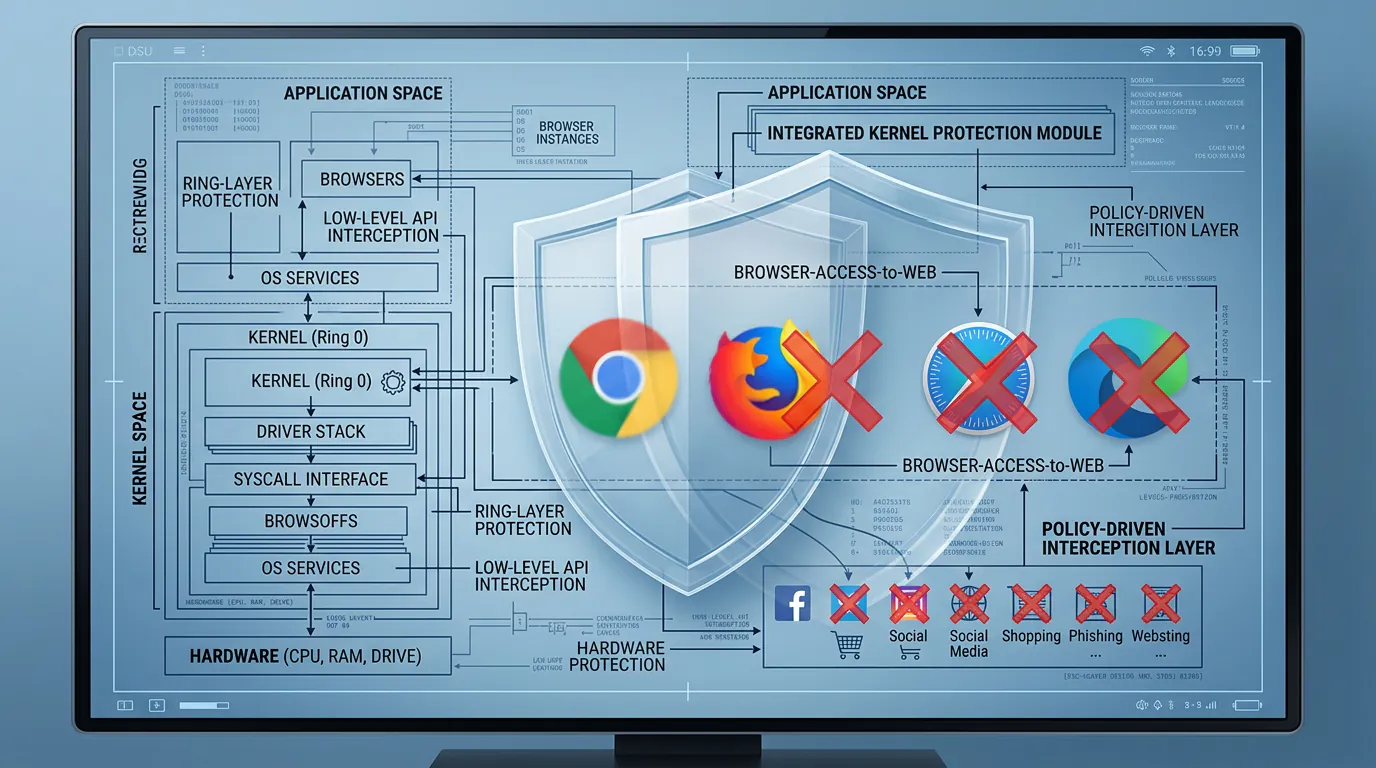
System-level tools block at the OS or kernel layer, deeper than browser extensions, harder to bypass than app-level blockers.
Why System-Level Blocking Matters
Browser extensions (StayFocusd, LeechBlock) are trivial to bypass: open incognito mode, use a different browser, or uninstall the extension. System-level blockers operate below the browser and enforce blocks across Chrome, Firefox, Safari, Edge, and any other app that accesses the web.
Best System-Level Blockers
Cold Turkey Blocker (Windows, Mac) Blocks at the system firewall level. Frozen Turkey mode locks you out of settings until the timer expires, can't bypass by rebooting or uninstalling. $25 one-time. Considered the toughest desktop blocker.
LockIn MCP (Mac, Linux, Windows) Modifies the hosts file automatically and runs a background MCP server so AI assistants can trigger blocks. System-level enforcement means blocks apply in every browser. Install with one command: npx -y lockin-mcp install. From $2.99/month.
Tech Lockdown DNS Content Policy (all devices) Advanced DNS filtering with category blocking, keyword blocking, whitelisting, and scheduling. Works on any device that can set custom DNS. Combines router-level reach with granular control.
Setting Up LockIn MCP for AI-Enforced Blocking
- Run the installer:
npx -y lockin-mcp installin Terminal or PowerShell - Connect an AI assistant (Poke, Claude Desktop, ChatGPT via extension)
- Start a session by asking the AI: "Block Twitter and Reddit for 2 hours"
- The MCP server updates your hosts file and enforces the block system-wide
- Request temporary unblocks with accountability ("Unblock Twitter for 10 minutes because...")
LockIn MCP is the only blocker that lets you manage focus sessions entirely through chat with your existing AI tools. It combines system-level enforcement with AI-native workflow.
Preventing Bypass of Website Blocks
Blocking is only effective if users can't easily work around it. Here's how to close common bypass methods.
Common Bypass Techniques and Fixes
| Bypass Method | How to Prevent It |
|---|---|
| Switch to mobile data | Use an app that blocks on the device itself (Freedom, Cold Turkey, LockIn MCP) not just WiFi |
| Use a VPN | Block VPN apps in parental controls or use VPN-resistant DNS |
| Incognito/private mode | System-level blockers (hosts file, Cold Turkey, LockIn MCP) work in all browser modes |
| Different browser | Use OS-level Screen Time or system blockers that apply to all apps |
| Uninstall the blocker | Enable locked mode (Freedom, Cold Turkey) or protect app uninstall with Screen Time passcode |
| Edit hosts file | Use a dedicated tool (LockIn MCP, Cold Turkey) that protects its own configuration |
| Change router DNS | Set a router admin password and lock device settings with parental controls |
Best Practices for Bypass-Resistant Blocking
- Layer multiple methods: Router DNS + cross-platform app + system-level blocker on critical devices
- Use locked mode on Freedom or Frozen Turkey on Cold Turkey so you can't quit early
- Protect device settings with Screen Time passcodes (iOS/Mac) or admin passwords (Windows)
- Schedule blocks in advance so you commit before temptation strikes
- Add accountability: Share your goals with someone or use an app that logs unblock requests
A Microsoft Research study found that participants were 20% more productive when distractions were blocked, and a University of Waterloo study showed 27% more tasks completed per hour with blocking enabled.
Which Method Should You Use?
The best approach depends on how many devices you need to cover, who's using them, and how strict you need enforcement to be.
Decision Framework
Choose router/DNS blocking if:
- You want instant coverage for every device at home
- You're setting up parental controls for kids
- You don't need scheduling or granular per-device control
Choose a cross-platform app (Freedom, LockIn MCP) if:
- You switch between laptop, phone, and tablet regularly
- You want scheduled or recurring sessions
- You need locked mode to prevent bypassing your own blocks
Choose system-level blocking (Cold Turkey, hosts file) if:
- You need the strictest enforcement on one device
- Browser extensions keep getting bypassed
- You want blocks that survive incognito mode and different browsers
Combine methods for best results:
- Router DNS (baseline filter for all devices) + Freedom (scheduled sessions on phone/laptop) + Cold Turkey Frozen Turkey mode (strictest desktop enforcement during deep work)
- Or: Router DNS + LockIn MCP for AI-managed system-level blocking across Mac, Linux, and Windows
FAQ
How do I block websites on Chrome across devices?
Sign into Google Chrome with the same Google account on all devices, then use Managed Bookmarks and Policies (requires Chrome Enterprise) or install a cross-platform app like Freedom that syncs to block websites across browsers and devices. Chrome's built-in settings let you set limits on what pages can load.
How do I block websites on Safari across iPhone and Mac?
Use Screen Time on both devices with the same Apple ID and enable iCloud syncing for Screen Time. Add sites to the "Never Allow" list under Content Restrictions → Web Content. The block list syncs automatically.
How do I block websites on Firefox?
Install an extension like LeechBlock NG or use system-level blocking (hosts file, Cold Turkey, LockIn MCP) that applies to all browsers including Firefox.
How do I block websites on Microsoft Edge?
Enable Microsoft Family Safety and sign in with the same account on all devices, or use Windows hosts file method, or install a system-level blocker like Cold Turkey.
Can I block websites on all browsers simultaneously?
Yes. Use system-level blocking (hosts file, Cold Turkey, LockIn MCP) or router-level DNS filtering. These methods apply to Chrome, Safari, Firefox, Edge, and any other browser.
How do I stop someone from bypassing website blocks?
Enable locked mode in your blocking app, protect device settings with Screen Time passcodes, use system-level or router-level blocking (harder to bypass than browser extensions), and combine multiple blocking layers. See the bypass prevention section above for detailed tactics.
How do I block websites on Android across all apps?
Set a private DNS to a filtering service (Settings → Network → Private DNS), install an app like BlockSite, or use Google Family Link parental controls. For strictest enforcement, deploy an MDM solution like Miradore.
What's the difference between parental controls and blocking apps?
Parental controls (Screen Time, Microsoft Family Safety, Google Family Link) are built into the OS, free, designed for managing kids' devices, and easier to configure remotely. Blocking apps (Freedom, Cold Turkey, LockIn MCP) offer stricter enforcement, locked mode, scheduling, and are better for adults managing their own focus.
How effective is DNS blocking?
DNS blocking covers all devices on a network instantly and blocks content before it loads, but it's easily bypassed with a VPN or mobile data. According to Tech Lockdown, DNS category blocking is the first layer you should configure when trying to block websites network-wide, but combining it with device-level blockers prevents bypass and gives you stronger limits on access.
Need AI-enforced cross-device blocking? Install LockIn MCP and let ChatGPT, Claude, or Poke manage your focus sessions with system-level enforcement.
