Blog
Windows Focus Apps: 7 Best Tools to Block Distractions (2026)
The best Windows focus apps range from built-in Focus sessions to system-level blockers like Cold Turkey and AI-integrated LockIn MCP. Compare enforcement strength, pricing, and cross-device sync.
 Mil Hoornaert · 12 min read
Some links are affiliate links. We may earn a commission if you buy through them, at no extra cost to you.
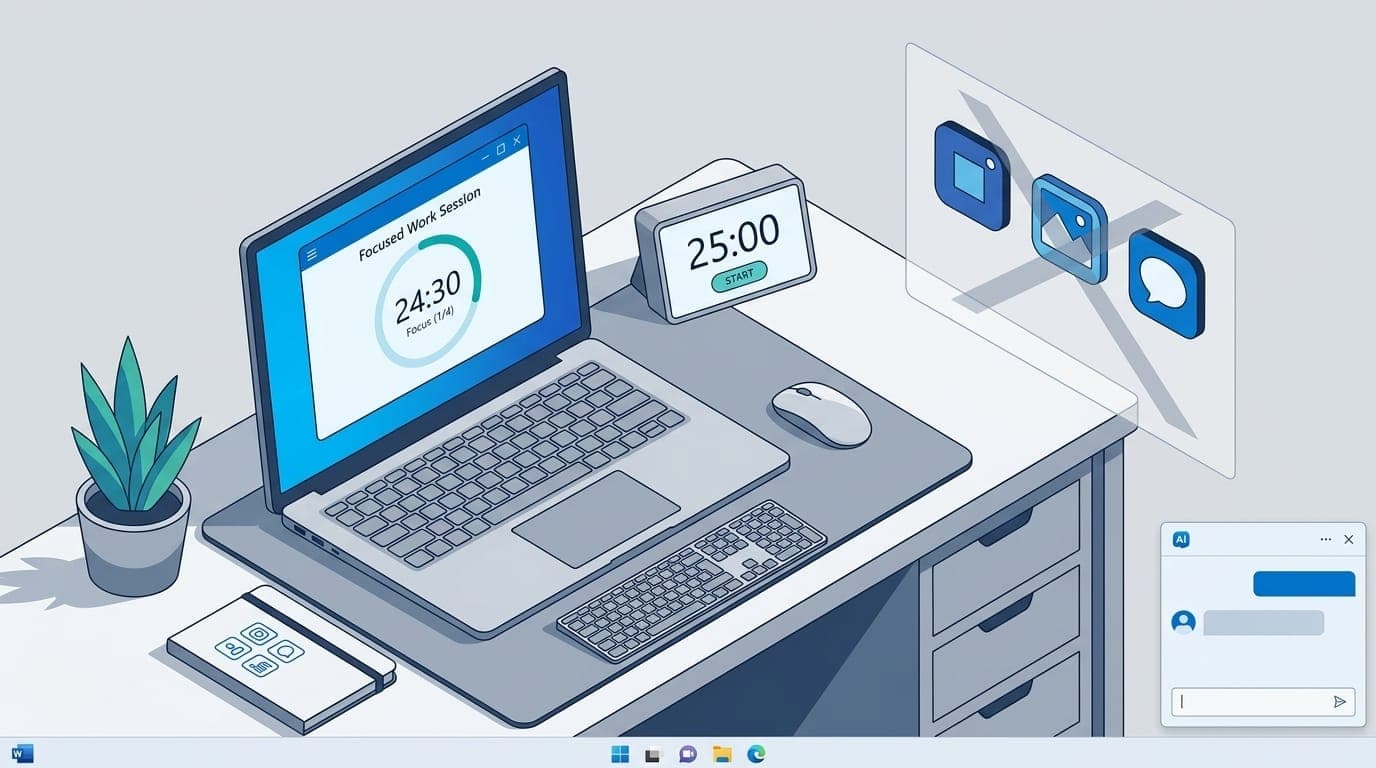
The best Windows focus apps range from the built-in Focus feature in Windows 11 (convenient but easy to bypass) to system-level blockers like Cold Turkey and AI-integrated tools like LockIn MCP that turn your assistant into an accountability coach. Your choice depends on whether you need gentle nudges or unbypassable enforcement.
Key takeaways:
- Windows 11's native Focus feature mutes notifications but doesn't block websites or apps, it relies on self-discipline
- System-level blockers (hosts file editing, desktop apps) offer stronger enforcement than browser extensions
- AI-integrated focus apps like LockIn MCP connect to ChatGPT, Claude, and Poke, letting your assistant manage blocking and focus sessions
- Cold Turkey and FocusMe lead on enforcement strength, while Freedom wins on cross-platform sync
- Knowledge workers average only 2.9 deep work sessions per week but need 4.2 to feel productive, the right tool closes that 31% deficit
What Makes a Windows Focus App Effective?
A good focus app for Windows needs four things: strong blocking (not just timers), minimal setup friction, native OS integration, and a pricing model that matches how you work.
Blocking strength matters most. Browser extensions are trivial to disable in incognito mode. System-level tools that edit the hosts file or intercept network traffic survive restarts and require deliberate uninstallation to bypass.
Ease of use determines whether you'll actually use it. One-command installers, taskbar shortcuts, and preset block lists beat complex configuration screens.
Windows integration means the app respects your existing workflow. Does it sync with Microsoft To Do? Work with Do Not Disturb? Support multiple displays? Native integration feels invisible.
Pricing varies wildly. Free options like Cold Turkey and the Windows Clock app suffice for students. Professionals working across devices often justify paid tools like Freedom ($9/month) or lifetime licenses like LockIn MCP ($59.99).
Windows 11's Built-In Focus Feature
Windows 11's Focus lives inside the Clock app and notification center. It's a native Pomodoro timer that activates Do Not Disturb, hides taskbar badges, and stops app flashing.
Starting a focus session takes three clicks: open the notification center (Windows + N), pick a duration (15, 25, or 45 minutes), and hit the Focus button. The focus timer appears on-screen. Optional integrations let you link Spotify for background music and Microsoft To Do to see your task list during each focus session.
What it does well: Focus is already installed, syncs with your Microsoft account, and works without admin rights. If you're in the Microsoft ecosystem (Outlook calendar, Teams, OneDrive), it's the path of least resistance. The pomodoro timer structure encourages regular breaks.
What it doesn't do: block anything. YouTube, Slack, Reddit, and Notion stay fully accessible. Focus relies on you ignoring notifications, not on enforcement. For anyone who needs real blocking, it's a starting point, not a solution.
Best for: students and remote workers who need structured focus sessions with background music and a pomodoro timer, but have enough self-control to avoid opening distractions manually.
Best Third-Party Windows Focus Apps
| App | Blocking Type | Price | Best For |
|---|---|---|---|
| LockIn MCP | System-level (hosts file) + AI integration | From $2.99/month, $59.99 lifetime | AI assistant users who want ChatGPT/Claude/Poke to enforce focus |
| Cold Turkey | Desktop-level (apps + sites) | Free (Pro $39 one-time) | Hardcore blocking with schedules; unbypassable enforcement |
| Freedom | Multi-platform sync (Mac, Windows, iOS, Android, Chrome) | $8.99/month or $79/year | Cross-device workers needing scheduled blocks on every device |
| FocusMe | Desktop + mobile (Windows, Mac, Android) | $7.95/month or $79 lifetime | Custom schedules, app blocking, habit tracking |
| Forest | Chrome extension + mobile gamification | Free (Chrome), $3.99 (mobile) | Visual motivation via growing virtual trees during sessions |
LockIn MCP, AI-Native Focus Enforcer
LockIn MCP turns AI assistants (ChatGPT, Claude, Perplexity, Gemini, Poke) into a system-level productivity coach. Install with one command (npx -y lockin-mcp install), connect your AI tool via MCP, and tell your assistant "block YouTube for 2 hours" or "start a focus session."
It edits your hosts file to block distracting domains at the OS level, no browser can bypass it. The background MCP server lets AI assistants manage blocking and focus sessions without you touching a GUI. You can request temporary unblocks ("unblock Stack Overflow for 10 minutes"), and the AI logs the accountability.
Why it wins: If you already talk to ChatGPT or Claude daily, LockIn MCP is the only focus app that integrates natively with your workflow. No separate interface to learn. Just ask your assistant to start a focus session or enforce blocking.
Pricing: Monthly trial available, then $2.99/month (Pro) or $59.99 lifetime. macOS, Linux, and Windows supported. Get started here.
Best for: Developers and knowledge workers who live in AI chat interfaces and want frictionless, voice-driven focus sessions.
Cold Turkey, The Gold Standard for Unbypassable Blocking
Cold Turkey is the toughest desktop blocker. It blocks websites, apps, and even the entire internet on a schedule. The free version covers basic website blocking; Cold Turkey Blocker Pro ($39 one-time) adds scheduled blocks, app blocking, and "Frozen Turkey" mode, which prevents you from disabling blocks even if you reboot or uninstall.
Setup is straightforward: add sites or apps to a block list, set a schedule (e.g., block Reddit weekdays 9 AM–5 PM), and lock it. Cold Turkey intercepts network requests at the driver level on Windows, making it harder to bypass than hosts file edits. You can schedule recurring focus sessions that enforce your block list automatically.
Why it wins: If you need enforcement you can't weasel out of, Cold Turkey is the answer. Frozen Turkey mode is overkill for most people but essential for anyone who's ever rage-uninstalled a blocker mid-session. For a detailed comparison, see LockIn MCP vs Cold Turkey.
Best for: Students, writers, and anyone with a history of disabling their own blockers.
Freedom, Cross-Platform Sync Champion
Freedom syncs blocks across Mac, Windows, iOS, Android, and Chrome. Start a focus session on your laptop, and your phone blocks the same apps. Schedule recurring focus sessions (e.g., "block social media every weekday 8-11 AM"), and Freedom enforces them automatically across every device.
The Windows app is polished. Add sites to block, pick a duration or schedule, and start the focus session. Freedom also offers "Locked Mode," which prevents you from ending a session early. The built-in pomodoro timer helps you structure work blocks.
Why it wins: If you work across multiple devices, Freedom is the only tool that keeps you honest everywhere. The price ($8.99/month or $79/year) reflects the convenience of centralized sync. Compare it directly in LockIn MCP vs Freedom.
Best for: Remote professionals who switch between desktop, tablet, and phone throughout the day.

FocusMe, Desktop + Mobile Habit Tracker
FocusMe is a Windows, Mac, and Android blocker with advanced scheduling. Block sites, apps, or entire categories (social media, gaming, news) on a recurring schedule. FocusMe also tracks time spent in blocked apps and generates reports on your focus sessions.
The interface is more complex than Cold Turkey or Freedom, but the payoff is granular control: block YouTube only during work hours, allow it during lunch, and auto-block again at 1 PM. You can configure multiple focus session types for different contexts.
Why it wins: If you need custom schedules for different days and contexts (work mode, study mode, evening mode), FocusMe handles it. The habit-tracking dashboard shows where your time goes across all your focus sessions.
Pricing: $7.95/month or $79 lifetime.
Best for: Professionals juggling multiple contexts (work, side projects, personal) who want detailed usage reports.
Forest, Gamified Focus for Visual Motivation
Forest is a Chrome extension and mobile app that grows a virtual tree during each focus session. Stay focused, and your tree grows. Open a blocked site, and the tree dies. Over time, you grow a forest. Each focus session becomes a visual achievement.
The Windows version is a Chrome extension, so it only blocks websites in Chrome. Other browsers and desktop apps remain unblocked. Forest works best as a gentle nudge for people who respond to visual feedback and gamification. The pomodoro timer integrates with the tree-growing mechanic.
Why it wins: If timers and block lists feel too rigid, Forest's visual approach might stick. The mobile app is more robust than the Chrome extension.
Pricing: Free on Chrome, $3.99 on iOS/Android.
Best for: Students and casual users who want motivation, not hardcore enforcement.
Browser Extensions vs. System-Level Blockers
Browser extensions are easy to install and convenient, until you realize you can bypass them by opening an incognito window, switching browsers, or using a desktop app (Slack, Notion, Discord).
System-level blockers work at the OS or network layer. Tools like LockIn MCP edit the Windows hosts file, which routes domain requests before they reach any browser. Cold Turkey and FocusMe intercept network traffic at the driver or system level. These methods survive browser restarts, incognito mode, and app-based distractions.
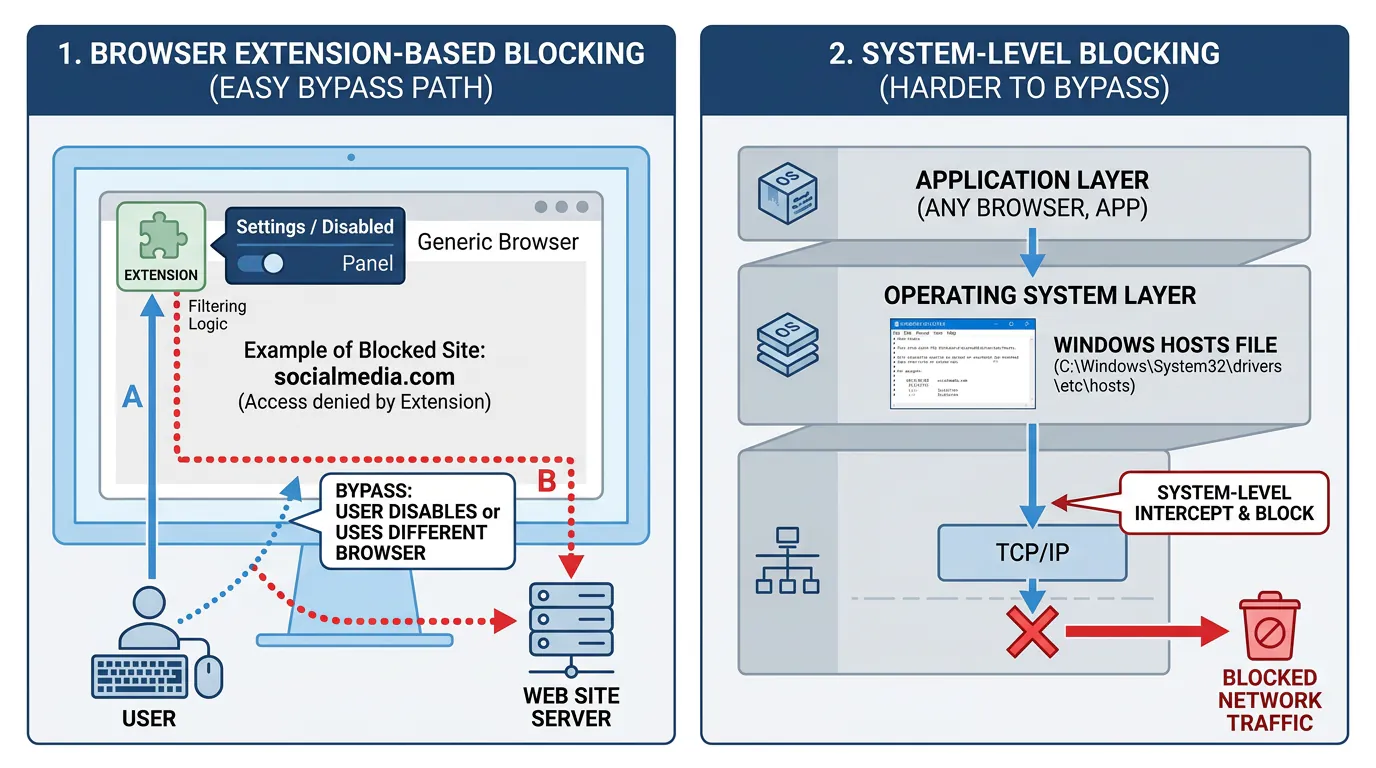
For deeper context on enforcement strength, see Best System-Level Website Blockers for Mac and Windows.
Practical advice: Use browser extensions for awareness (seeing a block notice reminds you to stay on task). Use system-level blockers when you need real accountability during focus sessions.
AI-Integrated Focus Apps and Why They Matter
Traditional focus apps make you open a separate interface, configure a timer, and manually add sites to a block list. AI-integrated tools like LockIn MCP let you say "block Twitter for 3 hours" to your AI assistant, and it happens instantly.
The integration works via MCP (Model Context Protocol), which connects ChatGPT, Claude, Poke, and other AI assistants to a local server on your Windows machine. The server manages the hosts file and blocking logic. Your AI assistant becomes the interface. You can start focus sessions, request blocks, and check your progress without leaving your AI conversation.
Why this matters in the AI era: If you already use AI tools to plan your day, draft emails, or brainstorm ideas, integrating focus enforcement into that same conversation removes friction. You don't context-switch to a separate app. You don't manually configure schedules. You just ask your AI assistant to start a focus session, and it enforces blocking automatically.
For a deeper dive into why AI-driven enforcement works, read Why You Should Turn Your AI Assistant Into a System-Level Productivity Enforcer.
How to Choose the Right Windows Focus App
If you're new to focus apps, start with Windows 11's built-in Focus feature. It's free, already installed, and teaches you the habit of scheduled focus sessions without requiring setup. The pomodoro timer structure helps you build consistency.
If you need real blocking but work on one device, install Cold Turkey or FocusMe. Cold Turkey's free version covers most use cases; upgrade to Pro if you need app blocking or unbypassable schedules for your focus sessions.
If you work across Windows, Mac, phone, and tablet, pay for Freedom. The $79/year subscription syncs blocks everywhere and saves you from juggling separate tools per device. Schedule focus sessions once, and they run automatically across all your devices.
If you already use ChatGPT, Claude, or Poke daily, try LockIn MCP. The one-command install and voice-driven interface fit naturally into an AI-first workflow. For less than a coffee per month, you get system-level blocking without leaving your assistant. Start a focus session by just asking.
If you respond to visual feedback and gamification, use Forest. The growing-tree metaphor works well for short focus sessions and gentle accountability.
For a broader comparison of distraction blockers (not just Windows-specific), see 10 Best Distraction Blockers of 2026.
Conclusion
Windows focus apps range from convenient timers to hardcore system-level enforcers. The built-in Focus feature is a good starting point, but anyone serious about deep work eventually needs stronger blocking during focus sessions. Cold Turkey and FocusMe dominate on enforcement, Freedom wins on cross-platform sync, and LockIn MCP brings AI assistants into the loop for frictionless, voice-driven focus sessions.
Pick the tool that matches your threat model: gentle nudges (Forest, Windows Focus), scheduled enforcement (Cold Turkey, FocusMe), multi-device sync (Freedom), or AI-integrated blocking (LockIn MCP). Install one today, block distractions, and reclaim your focus.
FAQ
What is the best free focus app for Windows?
Cold Turkey's free version is the strongest free option. It blocks websites at the system level and works across all browsers. For a native Microsoft solution, Windows 11's built-in Focus feature (in the Clock app) offers pomodoro timer sessions and Do Not Disturb but doesn't block sites.
Does Windows 11 have a built-in focus mode?
Yes. Windows 11 includes Focus sessions in the Clock app, accessible via the notification center (Windows + N). Focus activates Do Not Disturb, hides taskbar badges, and optionally integrates with Spotify and Microsoft To Do. It doesn't block websites or apps, but the pomodoro timer helps structure work sessions.
Can focus apps block apps, not just websites?
Yes. Cold Turkey Blocker Pro, FocusMe, and Freedom can all block desktop applications (e.g., Slack, Discord, Steam) in addition to websites during focus sessions. LockIn MCP focuses on website blocking via the hosts file but can be extended to block apps through custom scripts.
What's the difference between browser extensions and system-level blockers?
Browser extensions (like Forest) only block sites in that specific browser and can be bypassed with incognito mode or a different browser. System-level blockers (Cold Turkey, LockIn MCP, FocusMe) edit the hosts file or intercept network traffic at the OS level, making them much harder to bypass during focus sessions.
How does LockIn MCP integrate with AI assistants?
LockIn MCP runs a local MCP server on your Windows machine. You connect it to ChatGPT, Claude, Poke, or other MCP-compatible assistants. Then you can say "block YouTube for 2 hours" or "start a focus session" in chat, and your assistant uses the MCP server to edit the hosts file and enforce the block. Install with npx -y lockin-mcp install.
Can I schedule focus sessions in advance on Windows?
Yes. Cold Turkey, FocusMe, and Freedom all support scheduled blocks (e.g., "block Reddit weekdays 9 AM–5 PM"). Windows 11's built-in Focus doesn't support scheduling; you start focus sessions manually each time.
Which Windows focus app works best with Pomodoro?
Windows 11's Clock app has native pomodoro timer support with customizable session lengths and breaks. For third-party options, Forest and FocusMe both offer pomodoro timer features with site blocking during each focus session.
